 Titan AI
 Setup
Slack
Connect your Slack workspace so your team can tag Titan AI in channels and DMs, and approve its actions without leaving Slack.
Connecting Slack puts Titan AI in the place your team already talks. Someone tags @TitanAI in a channel, asks a question about your account, and the answer comes back in the thread. Actions that change something raise approval buttons in Slack itself, so nobody has to open the web app to say yes.
Every turn runs as the Titan AI account that connected the workspace, whoever asked the question. Which store it reads can vary, because a person listed under Allowed Slack users can be given their own default store.
Before you start
You need a Slack workspace you are allowed to install apps into. Slack asks you to approve the install, and on many workspaces that step needs an admin.
One workspace connects to one Titan AI account. The first install wins, so if a colleague has already connected your workspace, your attempt is refused rather than quietly taking theirs over.
Connect Slack
- 1
Open the catalogue
Open Connectors & Skills from the sidebar, press Add Connector, and choose Browse Connectors. Find Slack in the list. It only appears under My Connectors once it is installed.
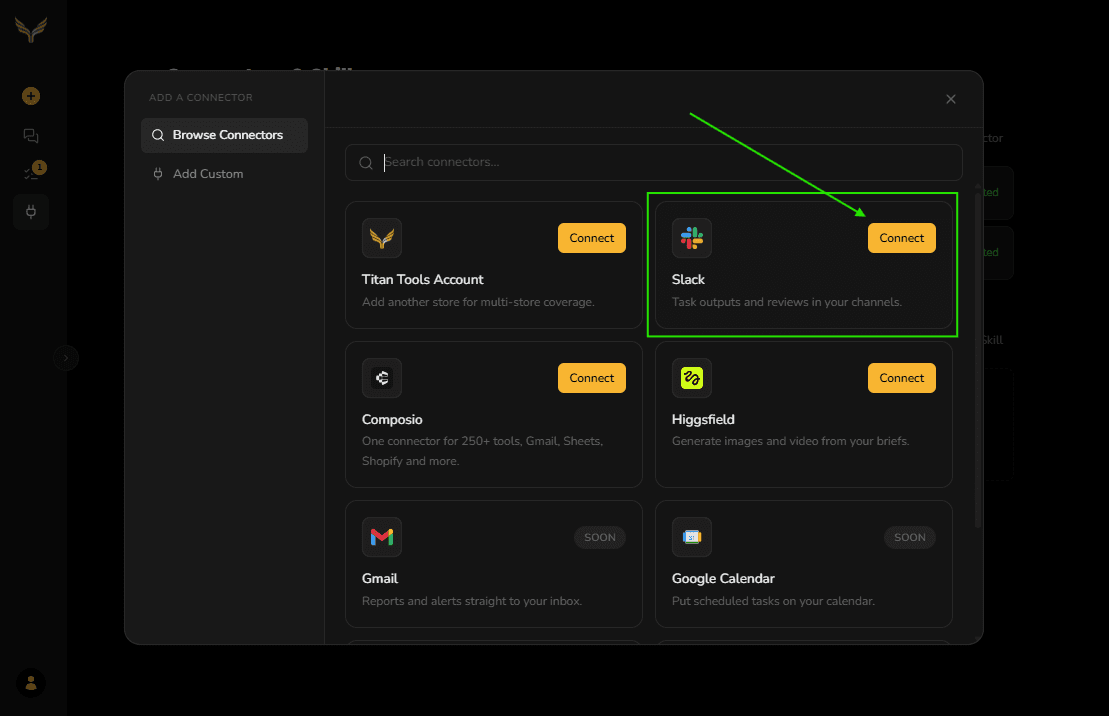
Slack sits in the catalogue next to Titan Tools Account. - 2
Read the consent line and tick it
The box reads "I understand that allowed Slack users in my workspace will be able to see this account's Amazon data through Titan AI." That is the whole point of the connector and it is worth reading rather than clicking past: people you allow can ask about your store from Slack. Connect Slack stays disabled until you tick it.
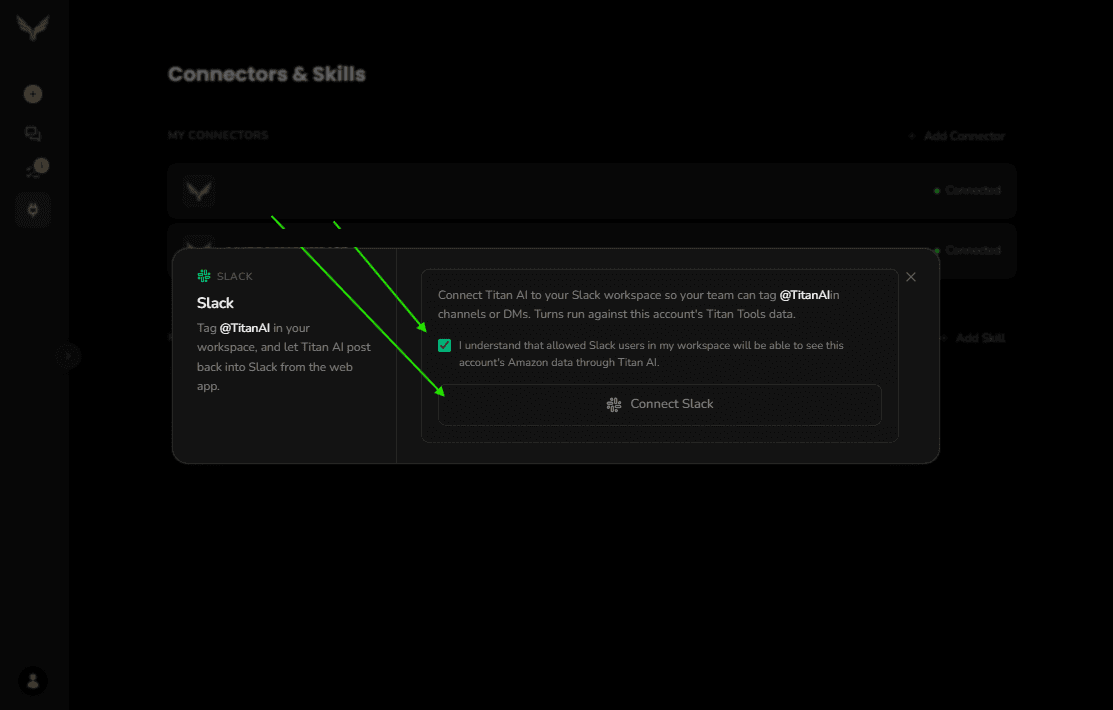
Connect Slack stays disabled until the consent box is ticked. - 3
Approve it in Slack
Press Connect Slack. A Slack window opens asking you to pick the workspace and approve Titan AI. Approve it and the window closes by itself.
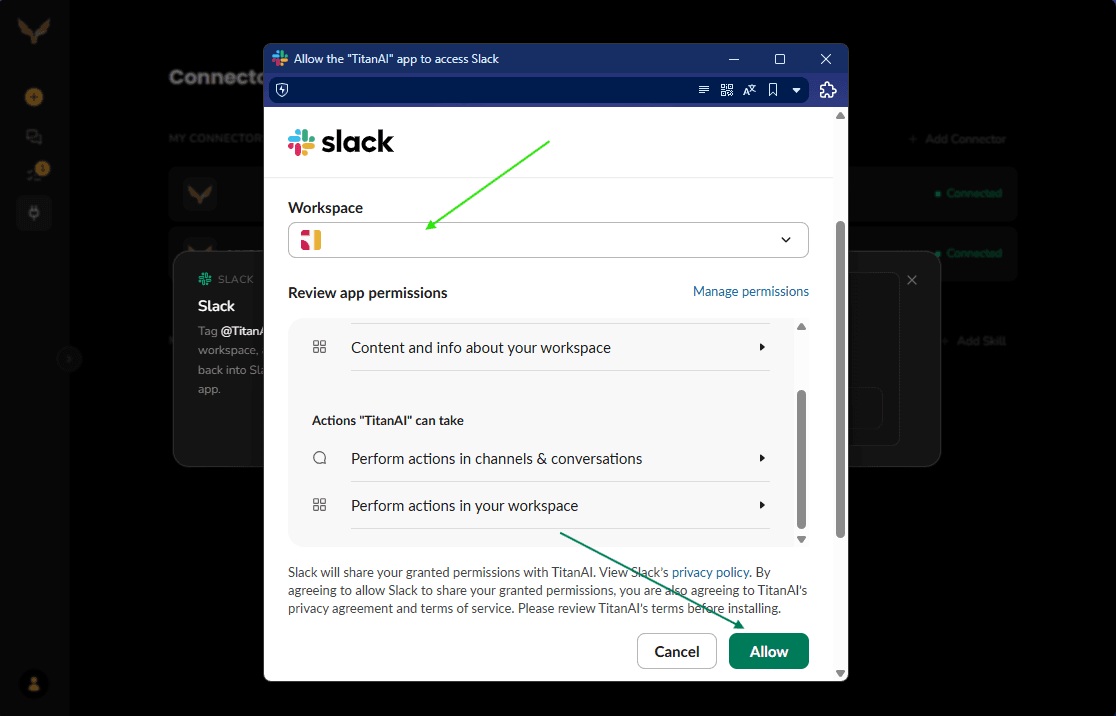
This screen is Slack's, not Titan AI's. Check the workspace before you press Allow. - 4
Confirm it connected
The connector now shows your workspace name and the address that connected it.
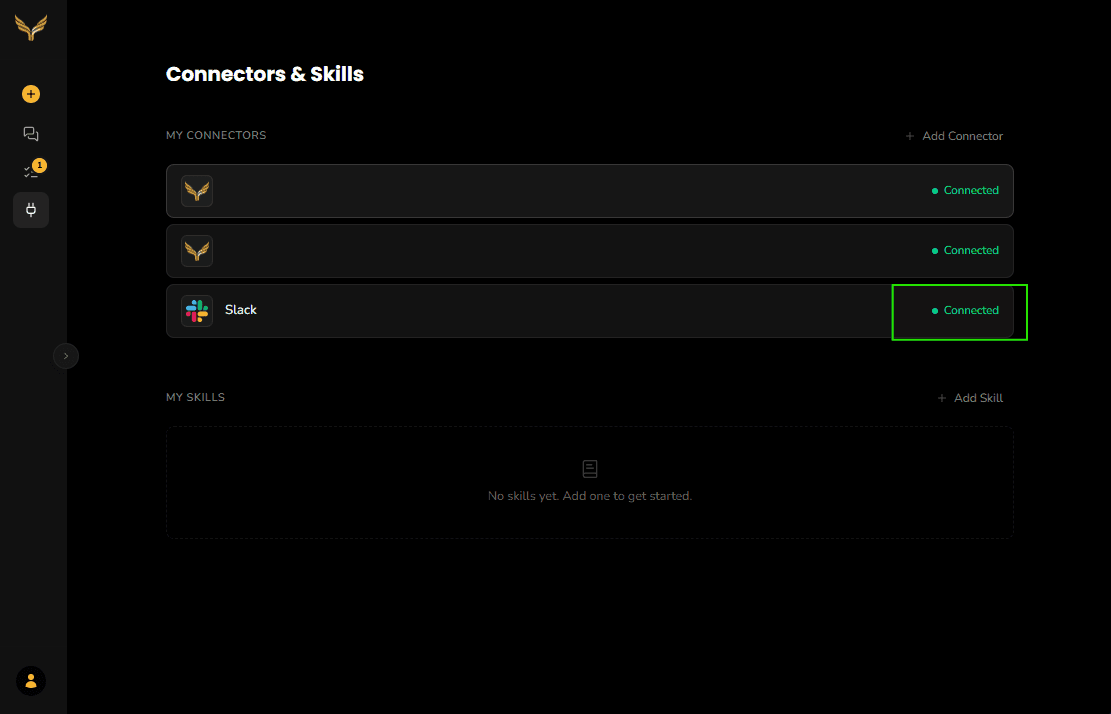
Connected. Slack now appears under My Connectors.
For the full connector walkthrough, see Add a connector.
Choose who can use it, and on which store
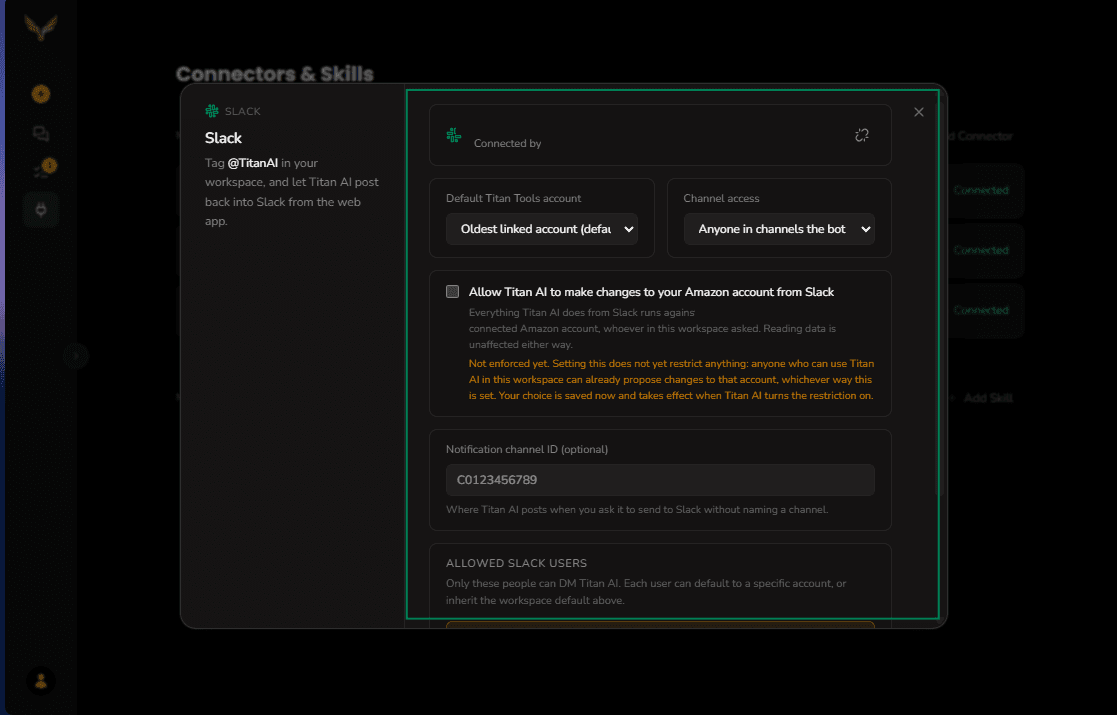
Once connected, the same panel carries five settings.
Default Titan Tools account. Which store a Slack turn runs against when nothing more specific applies. Leave it on Oldest linked account (default), or pick a store by name. This matters as soon as you have more than one store, because a question asked in Slack carries no store selector.
Channel access. Either Anyone in channels the bot is in, which is the default and means inviting Titan AI to a channel is what grants access to it, or Allowlisted users only, which restricts it to the people you list below no matter which channel they ask in. Pick the second one if your workspace has channels with people who should not see store numbers.
Allow Titan AI to make changes to your Amazon account from Slack. A tickbox, off by default. Everything Titan AI does from Slack runs against the connected Amazon account of whoever set the connector up, whoever in the workspace asked, so this is the person whose account is at risk and therefore the only one who can accept that risk. Reading data is unaffected either way.
Read the amber note under it before you rely on this. The setting is not enforced yet: your answer is saved now, but today anyone who can use Titan AI in the workspace can already propose changes to that account whichever way the box is set. It starts restricting things when Titan AI turns the restriction on. Until then, treat Channel access and Allowed Slack users as the controls that actually bite.
Notification channel ID (optional). Where Titan AI posts when you ask it to
send something to Slack without naming a channel. It takes a channel ID like
C0123456789, not a channel name.
Allowed Slack users. Add people by Slack user ID, in the form U0123456789.
Each entry can default that person to a specific store, or leave them on
Workspace default. This sets where their turns start, and does not stop them
switching store later in the conversation. Adding someone here is also what lets them direct message Titan AI:
channel access follows the Channel access setting above, but a DM always requires an
entry in this list.
Both fields take Slack IDs rather than display names or channel names. A user ID
starts with U and a channel ID with C. In Slack, open a person's profile or a
channel's details and use Copy member ID or Copy channel ID.
The two fields do not behave the same way when you get it wrong. Allowed Slack users is checked and refuses a badly shaped ID on the spot. Notification channel ID is not: a wrong value saves without complaint and the only symptom is that posts never arrive. Check that one by asking Titan AI to send something to Slack without naming a channel, and confirming it lands.
Use it in Slack
Invite Titan AI to a channel the way you would any app, then tag it.
- Ask in a channel. Tag @TitanAI with your question. The answer comes back as a thread on your message.
- Keep going in the thread. Replies in that thread continue the same conversation, so you only tag it on the first message.
- Fix a question you got wrong. Edit your message and Titan AI runs it again rather than leaving the old answer standing.
- Ask privately. If your Slack user ID is in Allowed Slack users, you can open a direct message with Titan AI and ask there instead.
Approving actions from Slack
When Titan AI wants to do something that changes your account, it does not just do it. The message gets four buttons:
- Allow once runs that one action.
- Always allow stops it asking again for that action, in that thread only. It does not carry into other threads or into the web app.
- Deny refuses it.
- View raw opens the full request so you can read exactly what it was going to send before you decide.
Whoever can use Titan AI in that channel can press these, not only the person who asked. That keeps a request from sitting unanswered because one person is away, but it is worth being clear about the reach: on the default Anyone in channels the bot is in, that means anyone in the channel, including people who are not in your Allowed Slack users list. If a write should only ever be approved by named people, set Channel access to Allowlisted users only.
If nobody presses anything within nine minutes, the request expires and is treated as denied. Nothing runs. Ask again and a fresh set of buttons appears.
Disconnect
Press the unlink icon next to your workspace name. Titan AI stops responding in Slack straight away.
Disconnecting does not throw your history away. Your settings, your allowed users and your existing threads are kept, so reconnecting the same workspace later picks up where you left off rather than starting from an empty panel.
Troubleshooting
Titan AI does not answer when tagged. Check it is actually in the channel: invite it the way you would any other app. If Channel access is set to Allowlisted users only, also check the asker's Slack user ID is in Allowed Slack users.
A direct message goes unanswered. DMs need an explicit entry. Add that person's Slack user ID under Allowed Slack users and try again.
Connecting is refused. Someone else has already connected this workspace to a Titan AI account. One workspace connects once, and the first install wins. Ask them to disconnect first if the connection should be yours.
It answers about the wrong store. Slack turns have no store selector, so they use the Default Titan Tools account, or the store that person defaults to under Allowed Slack users. Set one or both.
The approval buttons stopped working. They expire nine minutes after they appear. Re-run the request to get a new set.
Still stuck? Send us feedback and we will take a look.