 Titan AI
 Supercharge Titan AI with your ChatGPT account
Connect your ChatGPT account and Titan AI gets more power behind your chats, scheduled tasks and projects.
Connect your ChatGPT account and Titan AI gets more horsepower on everything it does, including GPT-6 Astra, the most powerful model available to it. It is the same Titan AI, with your account data, Titan's playbooks and your skills, now with more power behind every chat, task and project. The extra power runs on your ChatGPT plan's usage, and you can turn it off whenever you like without losing the connection.
You can connect a personal ChatGPT account, or a work account once your workspace admin allows it. How much you can run follows your ChatGPT plan's own limits.
Before you connect: turn on device code sign-in
Titan AI signs in to ChatGPT with a one-time code, and ChatGPT ships with that turned off.
Your own account:
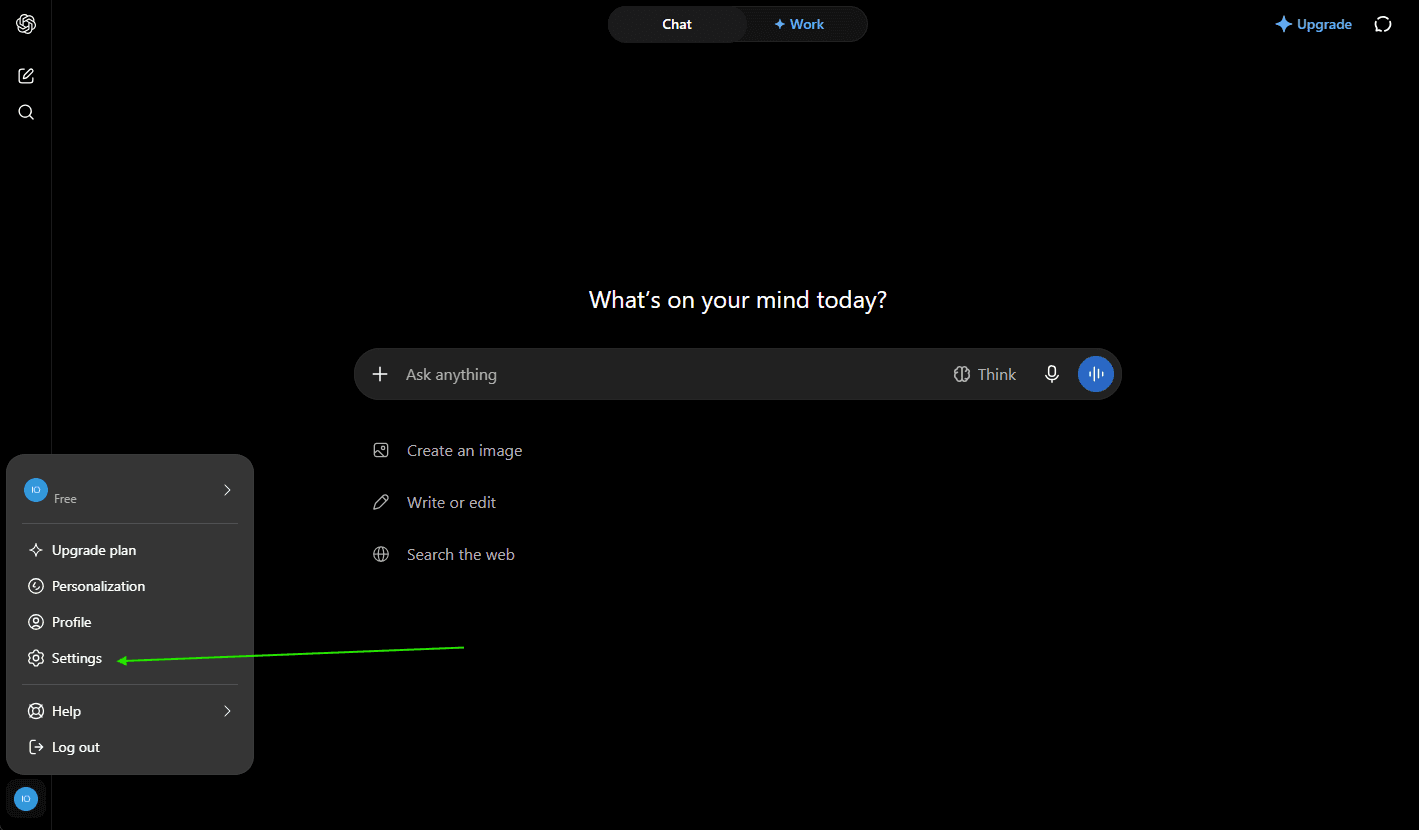
- In ChatGPT, open your profile menu at the bottom left and choose Settings.
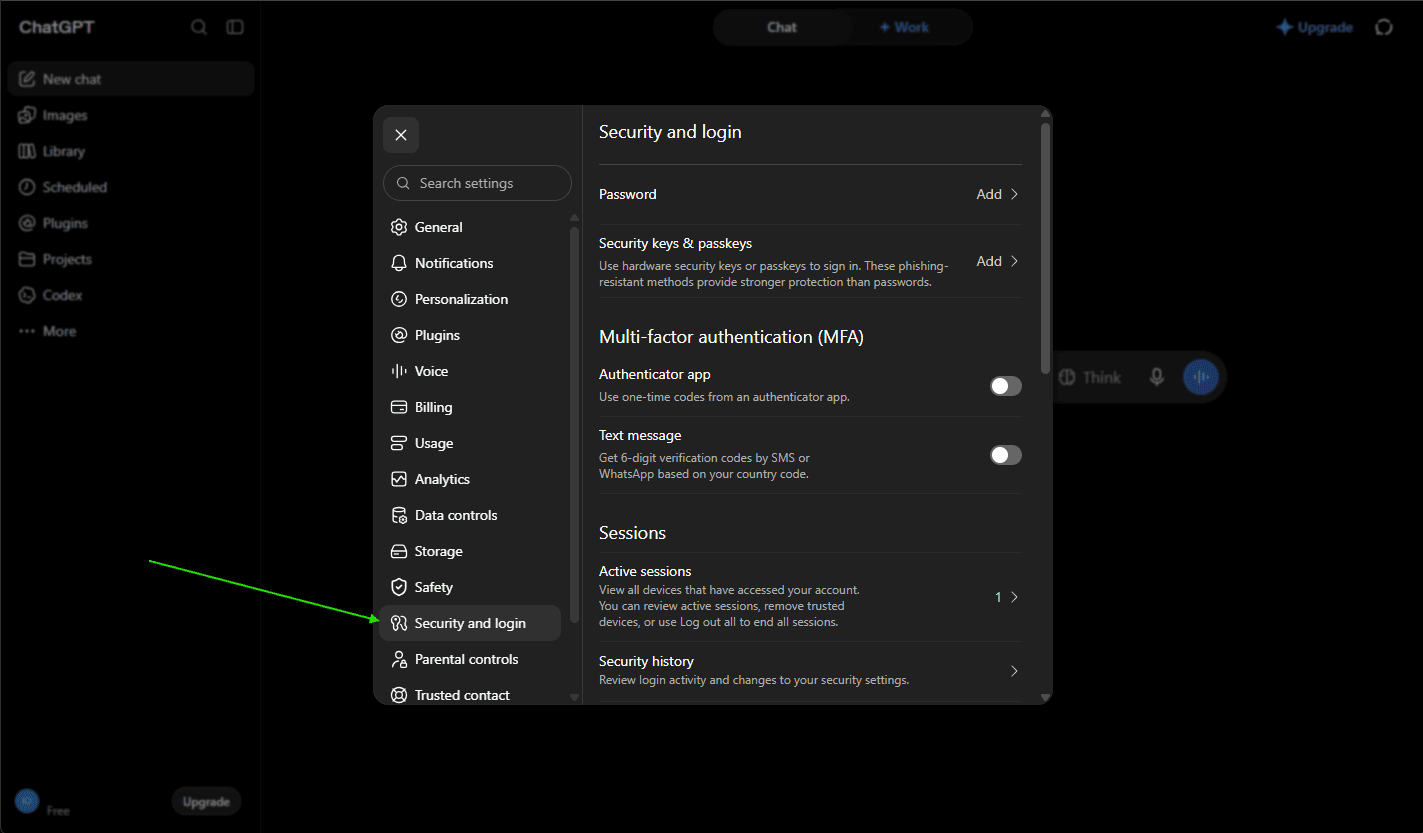
- Open Security and login.
- Scroll down and turn on Enable device code sign-in for Codex, Excel, PowerPoint, and Word.
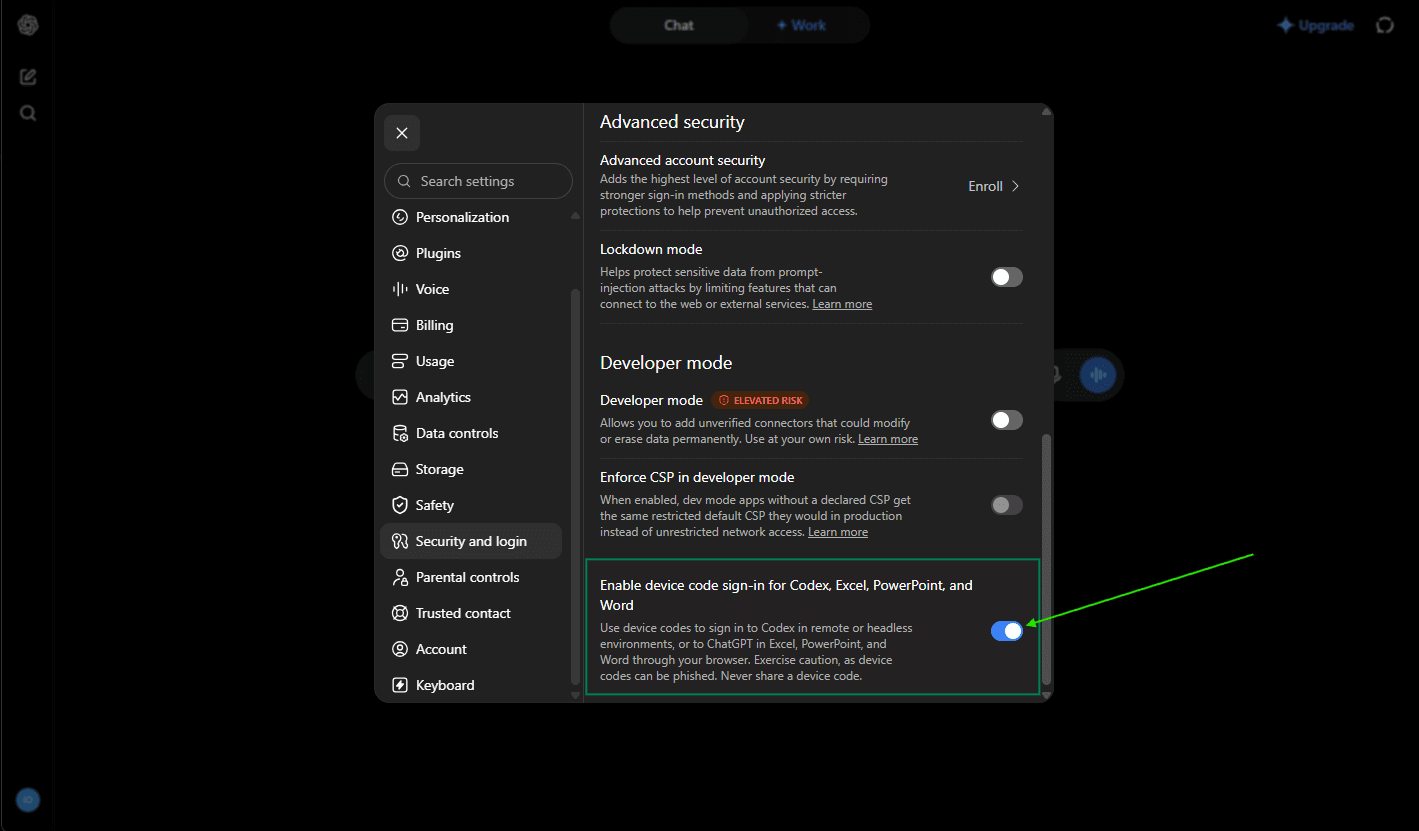
If you press Connect in Titan AI before switching this on, Titan AI shows Turn on device code sign-in first. Switch it on, then press Connect again.
A work account (Business or Enterprise): your workspace admin has to allow device code sign-in for the workspace. Until they do, pressing Connect in Titan AI shows Your workspace admin has to allow this.
Connect your account
- In Titan AI, open Settings and go to the Usage tab. On Supercharge Titan AI with your ChatGPT account, press Connect ChatGPT.
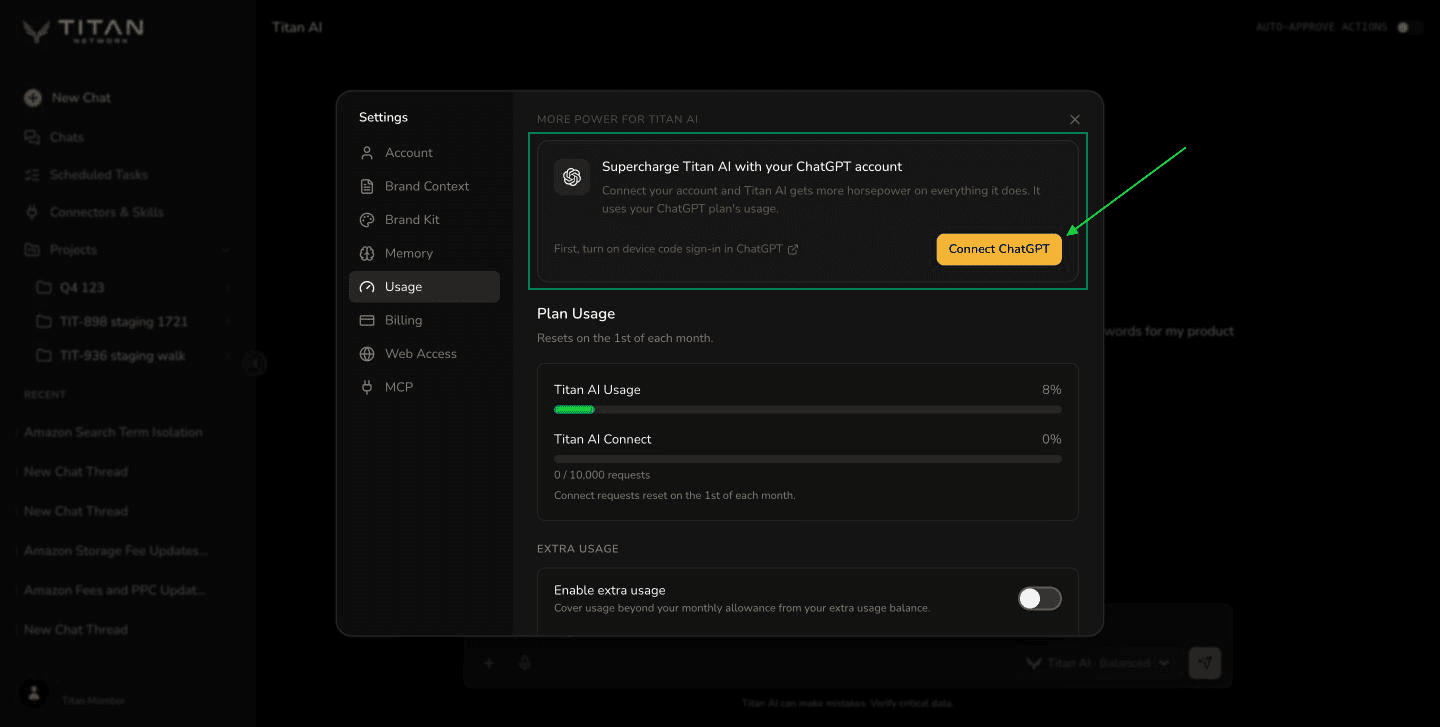
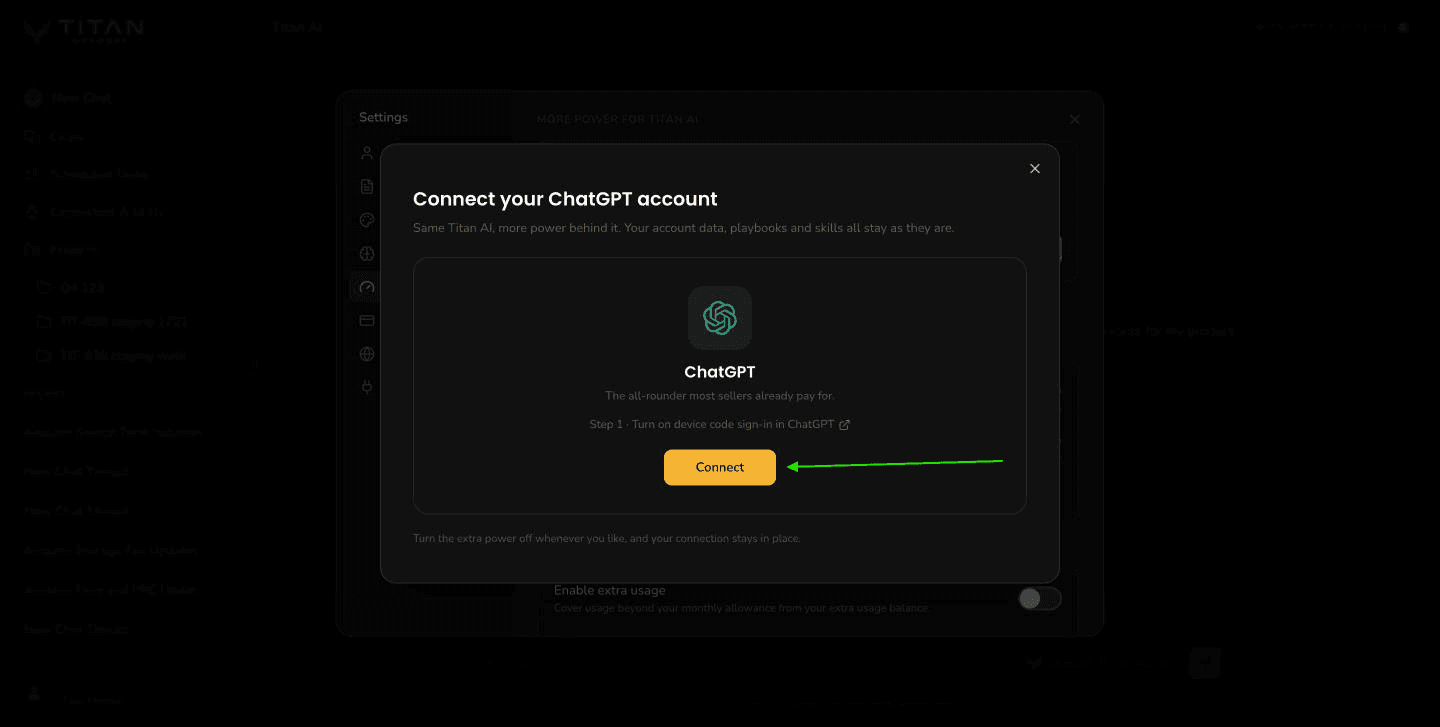
- A window titled Connect your ChatGPT account opens. On the ChatGPT card, press Connect.
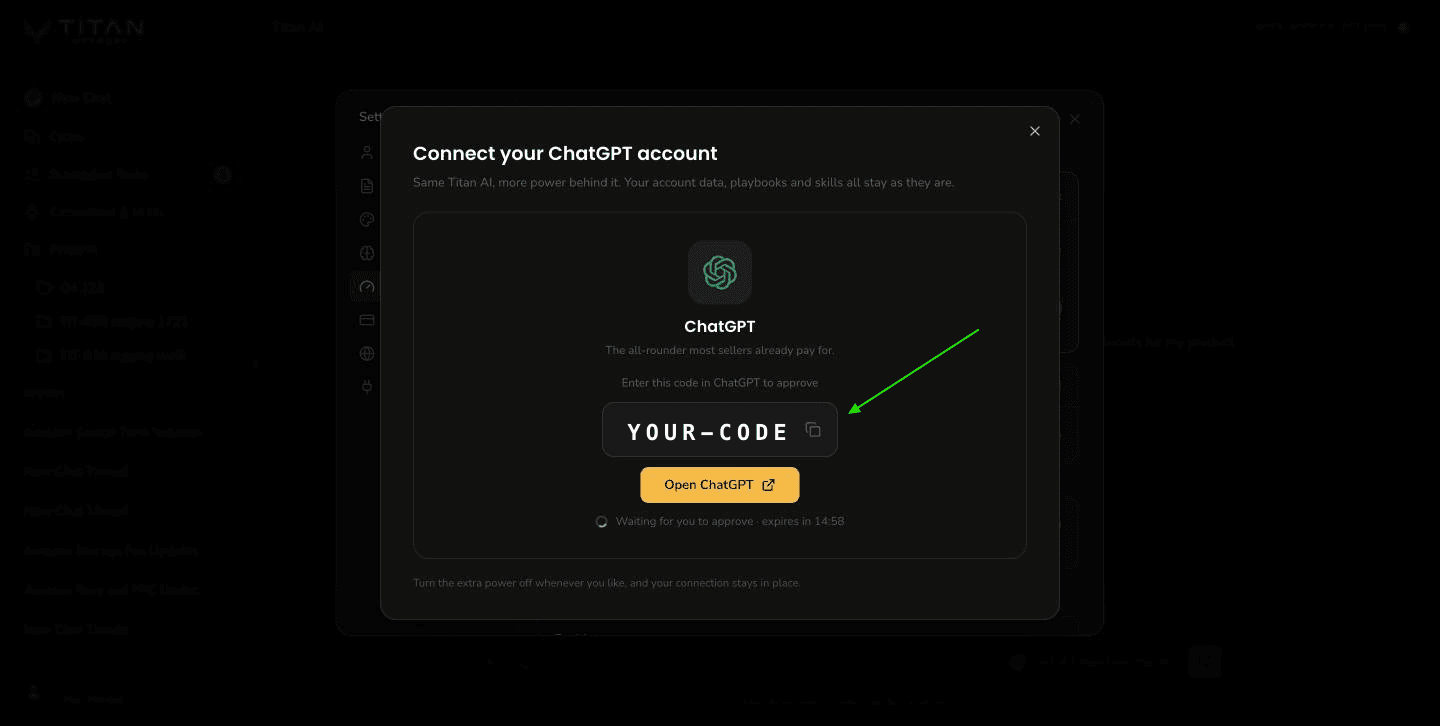
- The card swaps to a short code under Enter this code in ChatGPT to approve. Press Open ChatGPT. The code lasts 15 minutes.
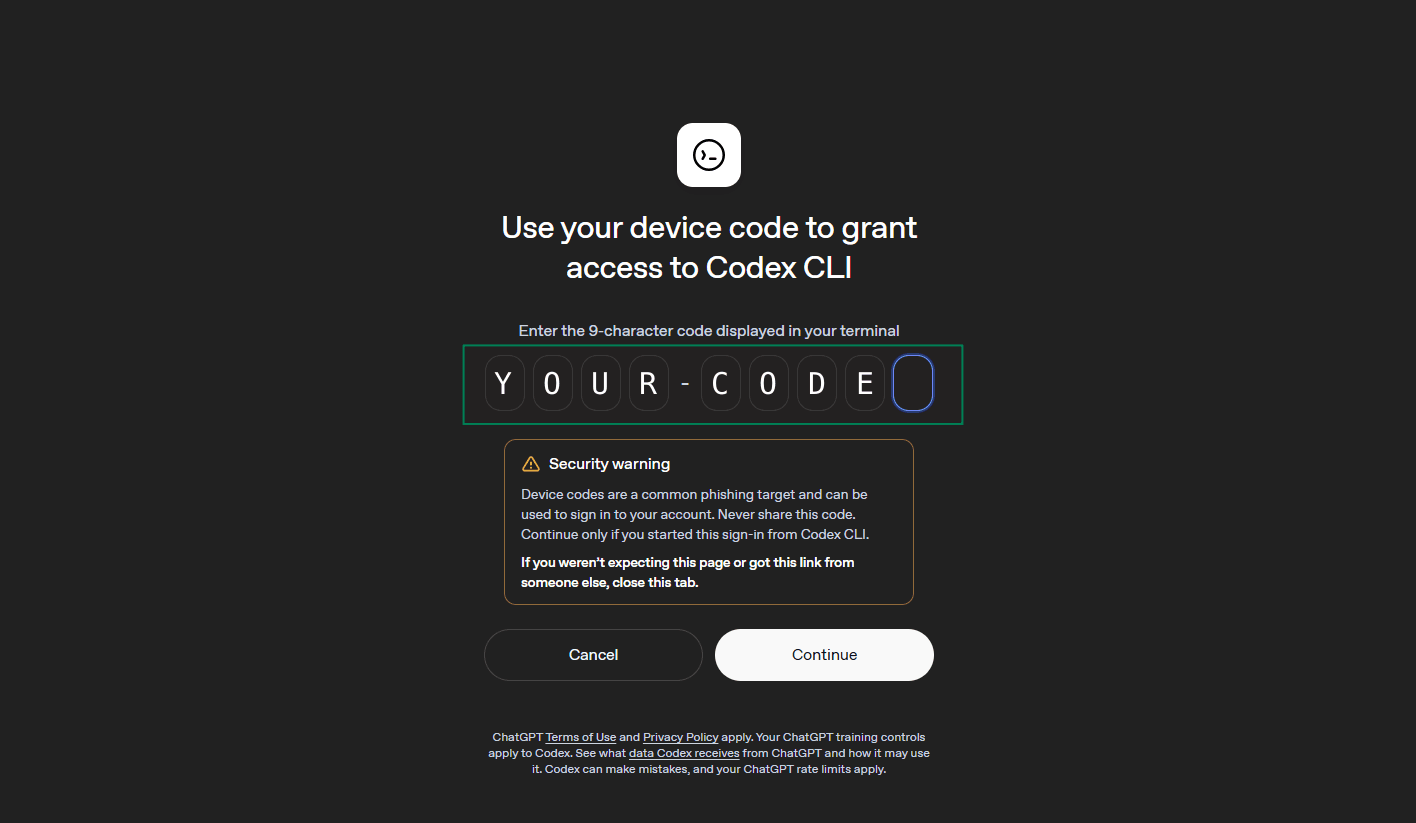
- ChatGPT opens a page titled Use your device code to grant access to Codex CLI. Sign in if asked, enter the code, press Continue and approve. Codex is the ChatGPT sign-in Titan AI uses.
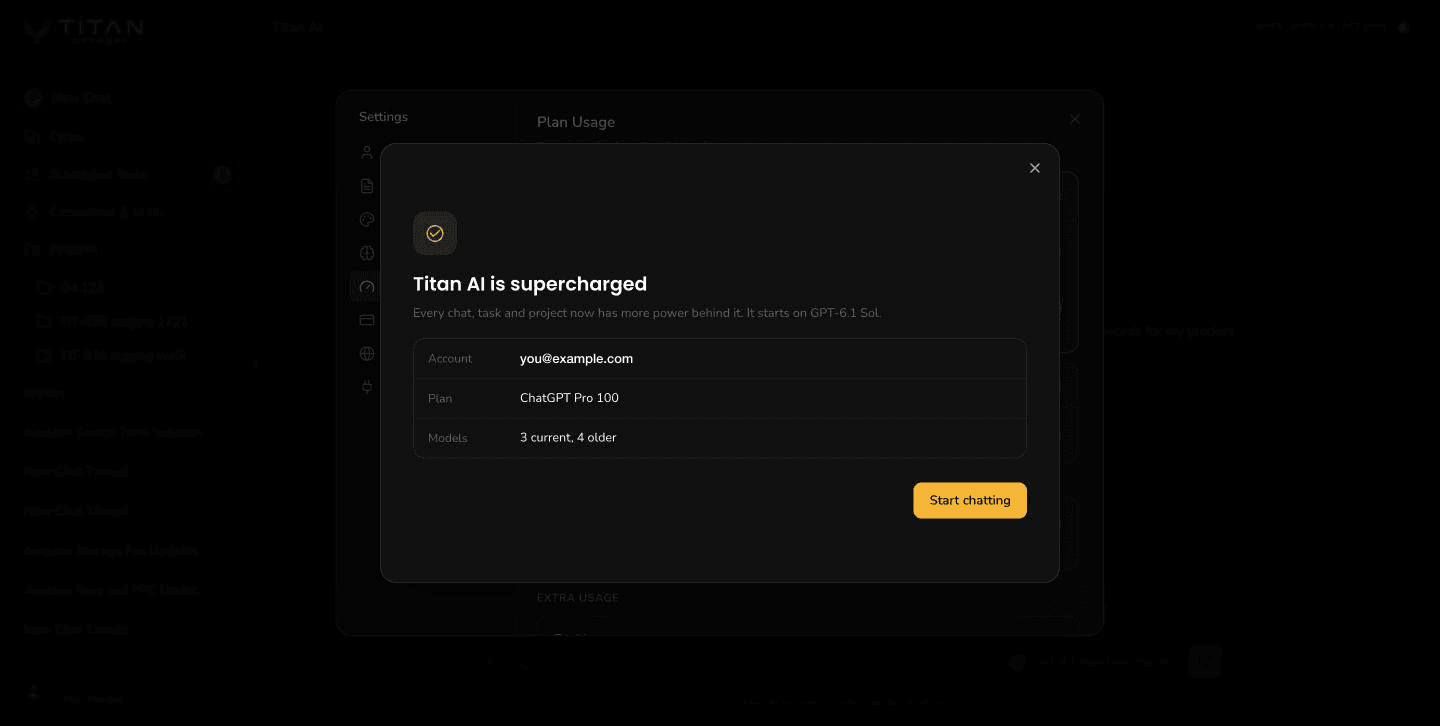
- The window moves on by itself once ChatGPT confirms, to Titan AI is supercharged, with the account you connected, its plan and the models it can use. Press Start chatting.
The composer now shows the ChatGPT logo, the model's name and how hard it thinks, for example "GPT-6.1 Sol · Medium", next to Send. In Settings, on the Usage tab, your ChatGPT card shows the account you connected and a ChatGPT Usage meter.
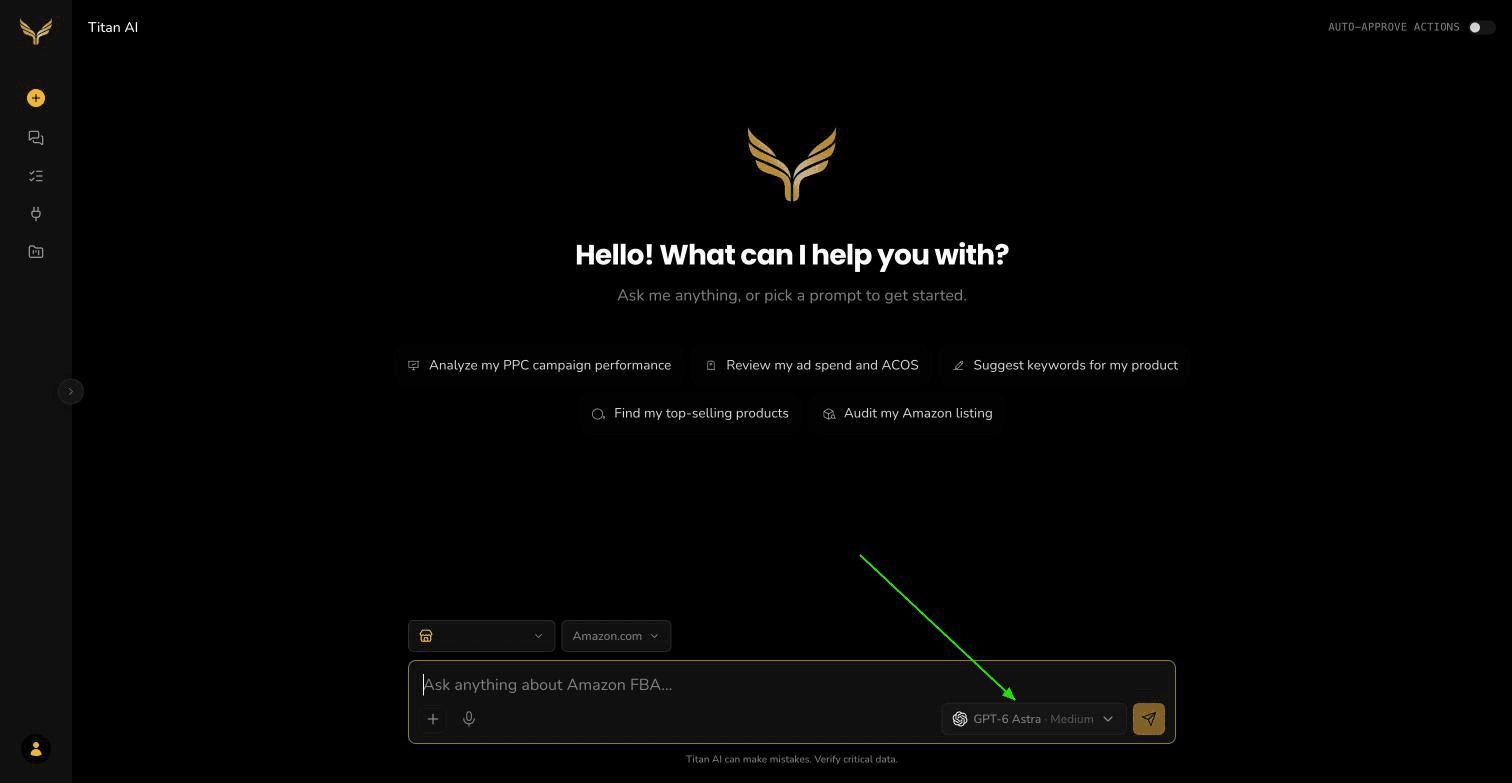
Titan AI stores your ChatGPT sign-in encrypted and never shows it back to you or anyone else. Settings shows which account you connected, never the sign-in itself.
Choose how much power to use
Press the model name next to Send. The bar runs from faster to smarter across OpenAI's current models: GPT-6 Luna, GPT-6.1 Sol and GPT-6 Astra. A new connection starts on GPT-6.1 Sol, the right choice for most work. Astra goes the deepest and uses your ChatGPT limit fastest.
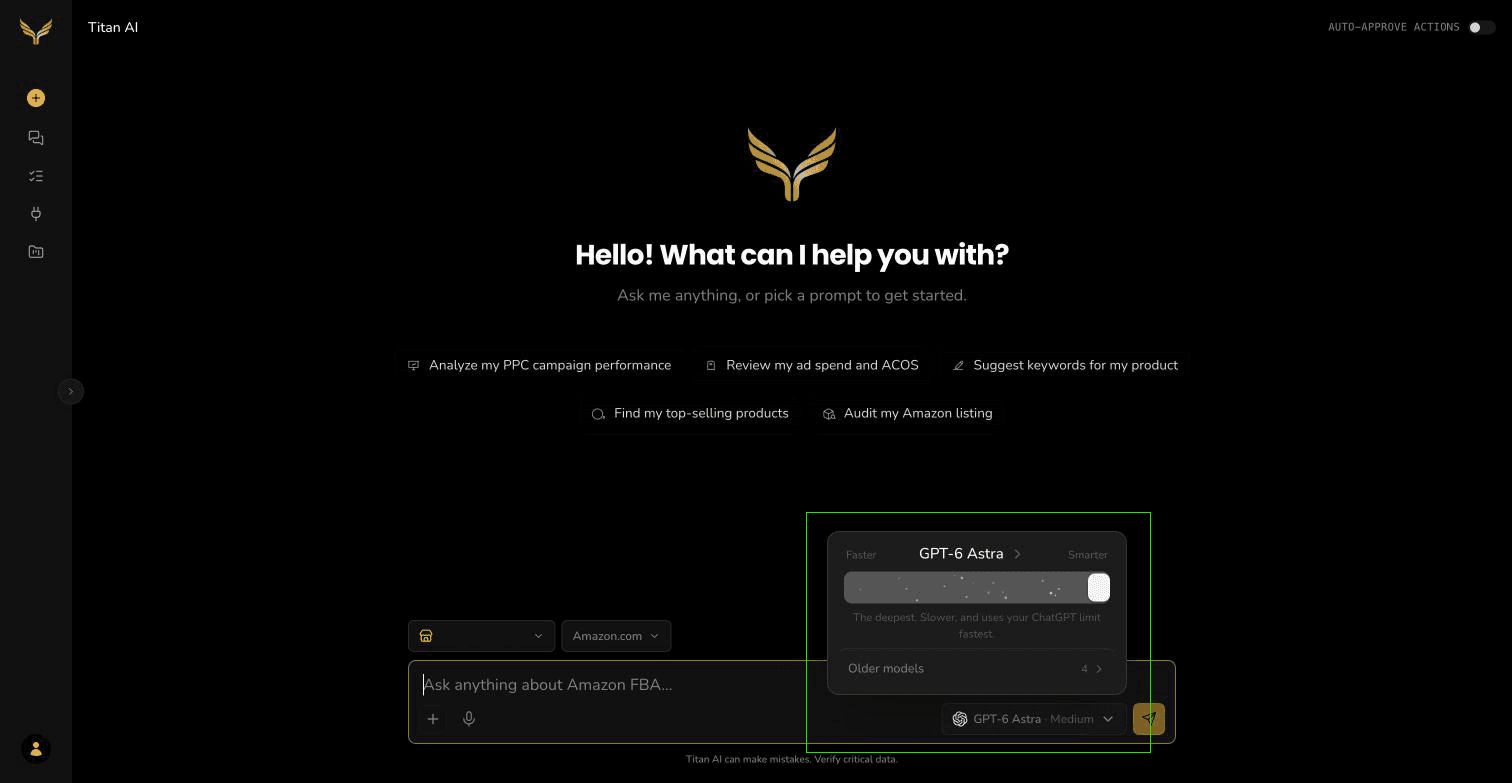
The choice is saved to your account, so it carries over to new chats and other devices. A chat where you changed the model keeps its own choice when you come back to it.
How hard the model thinks
Each model can think for longer before it answers. In the same menu, press the model's name above the bar to open its levels:
| Level | What it is for |
|---|---|
| Instant | Quick responses for everyday asks |
| Medium | A balanced level of reasoning |
| High | More reasoning for involved asks |
| Extra High | The deepest linked reasoning level |
Every model starts on Medium. Your choice is saved the same way as the model: to your account for new chats, and to the chat you changed it in. Changing the model keeps the level, and so does switching to Titan AI's own model and back.
This replaces the Light, Balanced and Deep picker while you run on ChatGPT. That picker is Titan AI's own, and it comes back when you switch to Titan AI. See Choose how much thinking a question gets.
Older models
The previous generations, GPT-5.6 Luna, GPT-5.6 Terra, GPT-5.6 Sol and GPT-6 Sol, are still available. To use one, turn on Show older models on your ChatGPT card in Settings, on the Usage tab.
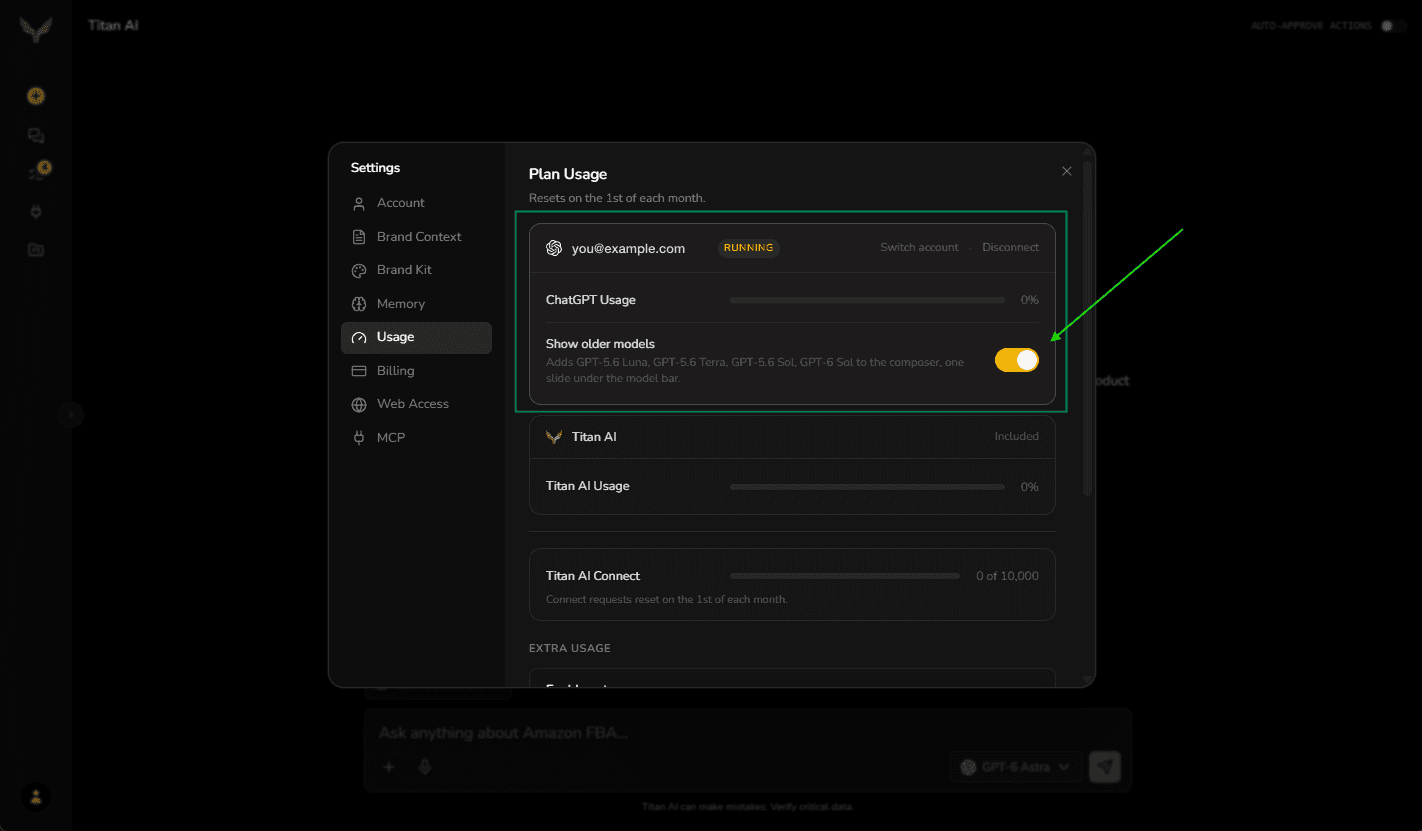
An Older models row then appears under the model bar. Press it to slide to an older model.
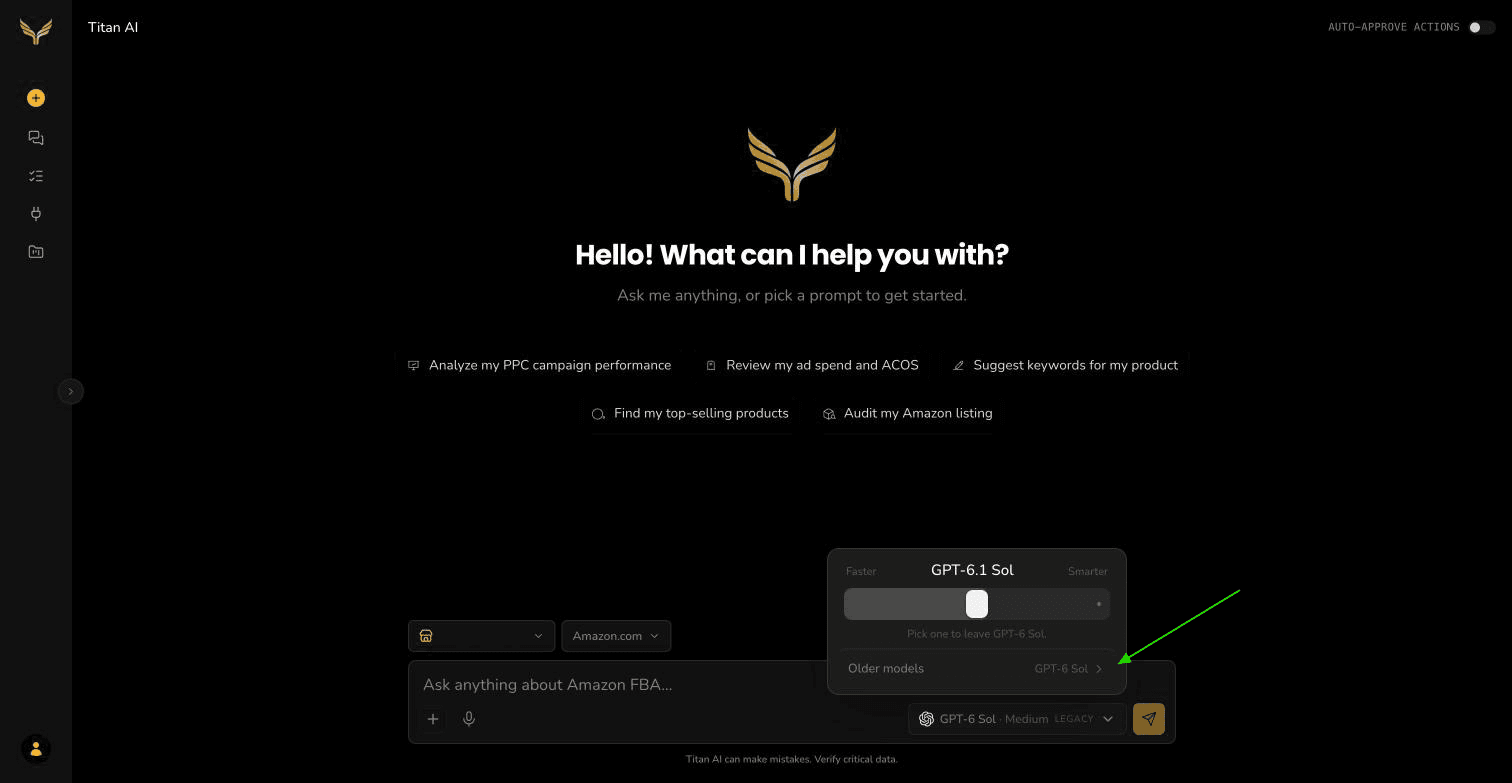
An older model is marked Legacy next to its name, with a line saying which current model OpenAI is moving it to.
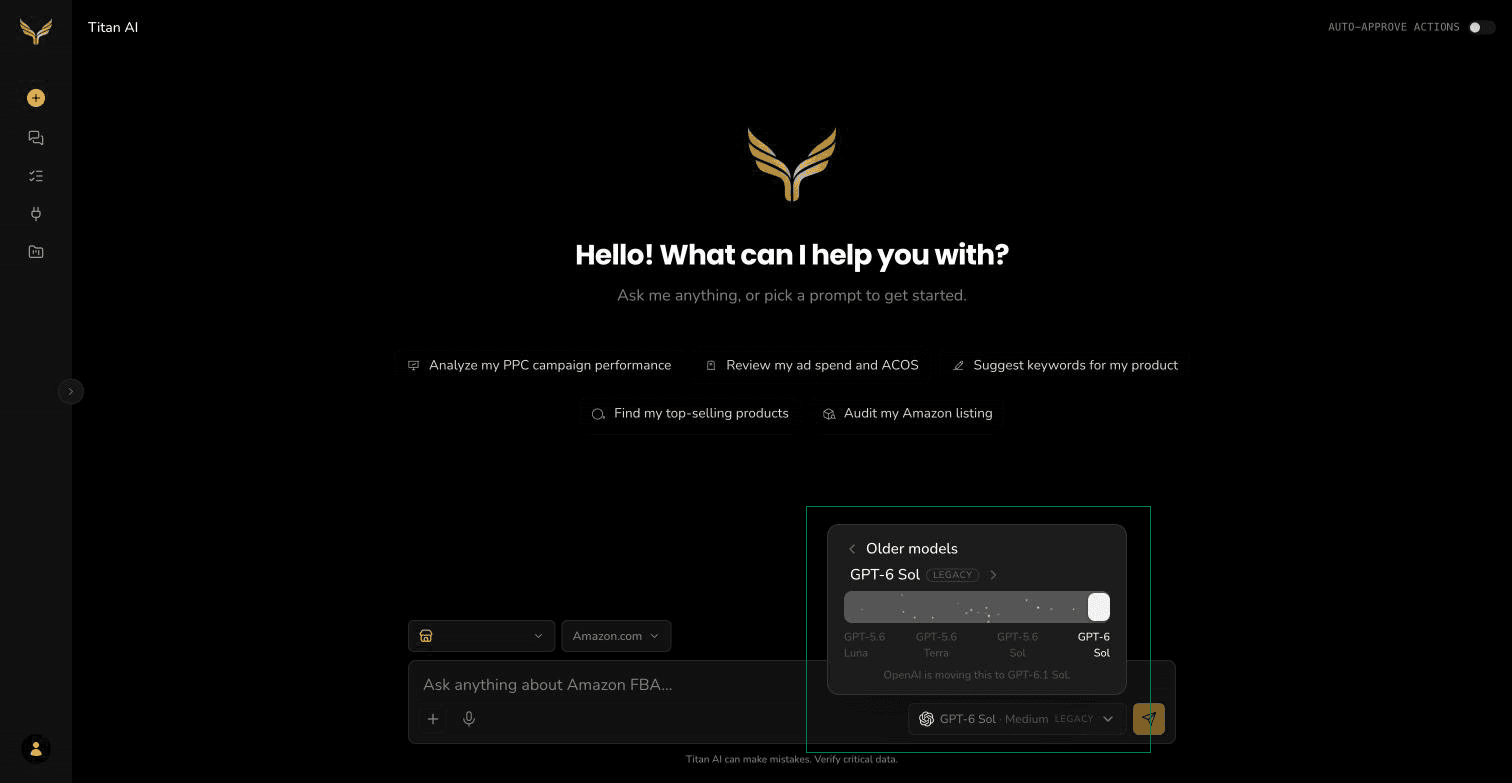
Turning the switch off while you are on an older model moves you to the current model that replaces it: GPT-6.1 Sol for GPT-6 Sol, GPT-5.6 Sol and GPT-5.6 Terra, and GPT-6 Luna for GPT-5.6 Luna.
What gets the extra power
Your chats, scheduled tasks and projects all run with it.
- A scheduled task you create is pinned to one model. Its Runs on (pinned) row starts on the model you are using when you create it, so a task you set up on GPT-6 Sol keeps running on it even though GPT-6 Sol is now an older model. For a ChatGPT model, the row has a second list that pins its level too.
- A project shows a Runs on choice: Account default follows whatever your account is set to when it runs, or you can pin one model. A project pins the model and not its level, so a new chat in a pinned project starts on Medium.
- Images you ask for in a chat are made on your ChatGPT plan too, on a paid plan, and count toward its image limit, unless you ask for your Titan AI allowance or a connector by name. A one-time notice above your first such image says so, each image is marked Made with your ChatGPT plan, and they appear in the Media panel, captioned Your ChatGPT plan. Scheduled tasks are not affected.
Work that runs on your ChatGPT account does not use Titan AI's monthly allowance. See Usage and limits for what the allowance covers.
Turn the extra power off
In Settings, on the Usage tab, pick the Titan AI card. It is marked Running, and your ChatGPT account stays connected above it. Pick the ChatGPT card again to turn the extra power back on, on the model you left.
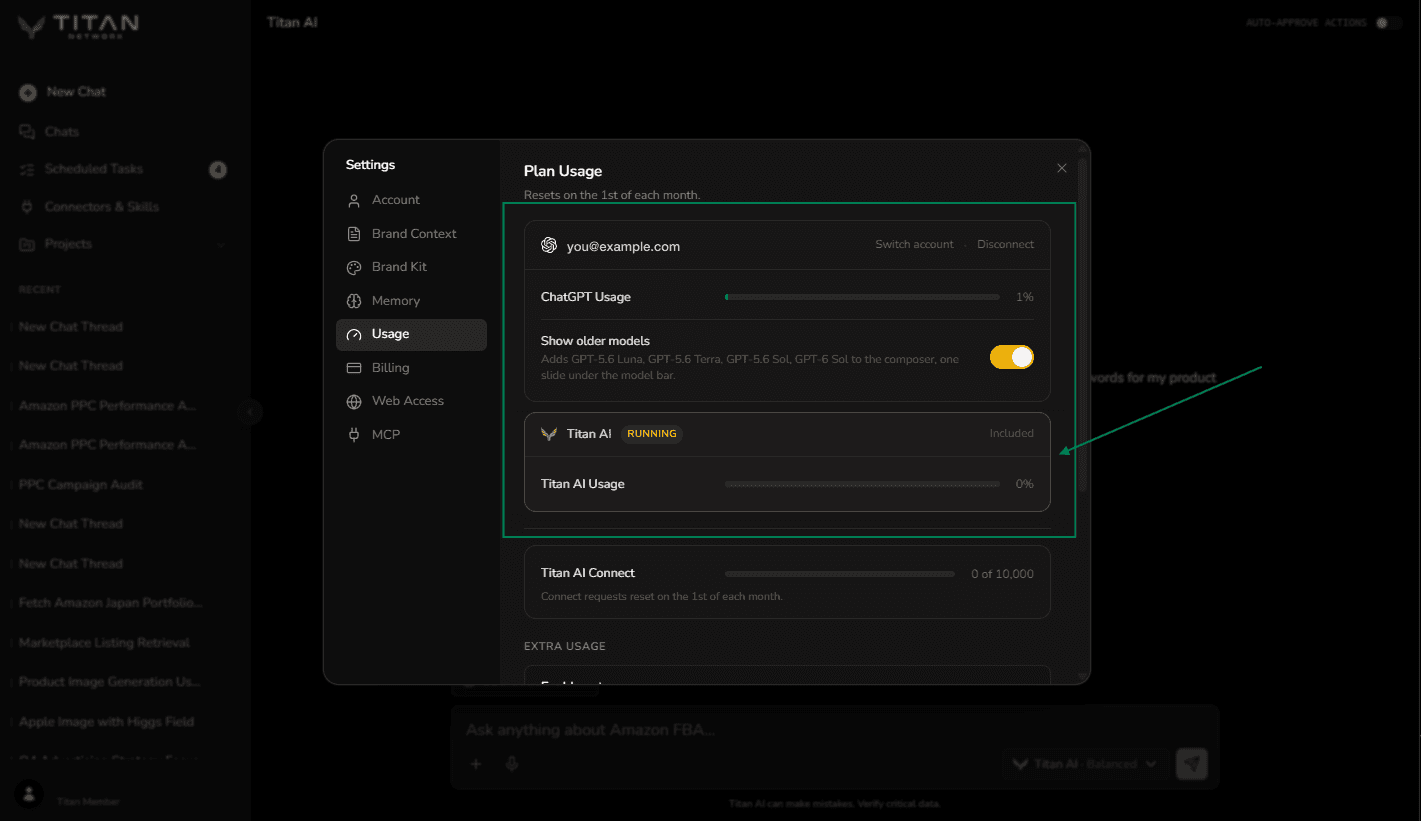
Turning it on or off in the middle of a chat keeps the chat going: the next answer picks up where the last one left off.
If you change it in another tab or on another device, a message you send from an older tab is not sent. Titan AI tells you which one your account is now on, for example Your account is now on Titan AI. Send again to continue on it., and keeps what you typed so you can send it again.
If ChatGPT is ever paused for everyone, your ChatGPT card says so, Titan AI keeps running your chats, and your connection is kept.
When you reach your ChatGPT limit
ChatGPT plans have usage limits. If you reach yours, the message is not sent. Instead, a Limit reached card in the chat says when your ChatGPT limit resets, with one button: Switch to Titan AI.
Press it and Titan AI takes over: the card settles to Switched to Titan AI, and your connection is kept. If the blocked message was the last one in the chat, it is answered on Titan AI straight away, in the same chat, as long as you have Titan AI credit left. With none left, Titan AI says No credits remaining instead. Once the reset time passes, you can turn the extra power back on.
A scheduled task that fires while you are at your limit runs on Titan AI instead, and its result says it ran on Titan AI because your ChatGPT limit was reached.
If your plan's image limit is reached, Titan AI says Your ChatGPT plan's image limit is reached, so no image was made on it. in the chat.
If the connection stops working
If your ChatGPT sign-in expires or is revoked, the composer shows Fix model link, which takes you to Settings to connect again, and Continue on Titan AI, which sends what you typed on Titan AI instead.
In Settings, on the Usage tab, the card says which happened:
- Your model link expired: press Re-link to sign in again. Your chats, tasks and projects are exactly where you left them.
- Access was revoked: the account was disconnected on ChatGPT's side. Press Link again, which needs a fresh approval.
A scheduled task that fires while the connection needs fixing runs on Titan AI, and its result says your ChatGPT link needs repairing in Settings, on the Usage tab.
If connecting does not work
The ChatGPT card says what went wrong:
- That code expired: codes last 15 minutes. Press Connect for a fresh one.
- The sign-in was cancelled: nothing was connected. Press Connect to try again.
- ChatGPT linking is unavailable right now: try again in a little while. Titan AI keeps running your chats in the meantime.
- We could not reach ChatGPT: check your connection and press Connect again.
Switch account or disconnect
In Settings, on the Usage tab, your ChatGPT card has Switch account, which connects a different ChatGPT account with a new code, and Disconnect. Disconnecting turns the extra power off and removes your ChatGPT sign-in. To use it again later, connect again with a new code.