 Titan AI
 Accounts and multiple stores
Linking more than one store, which one is active, and choosing a default.
Most people never think about this, because one login and one store needs no explaining. It matters as soon as you run more than one brand, work across a client's account, or keep work and personal selling apart.
What a store is here
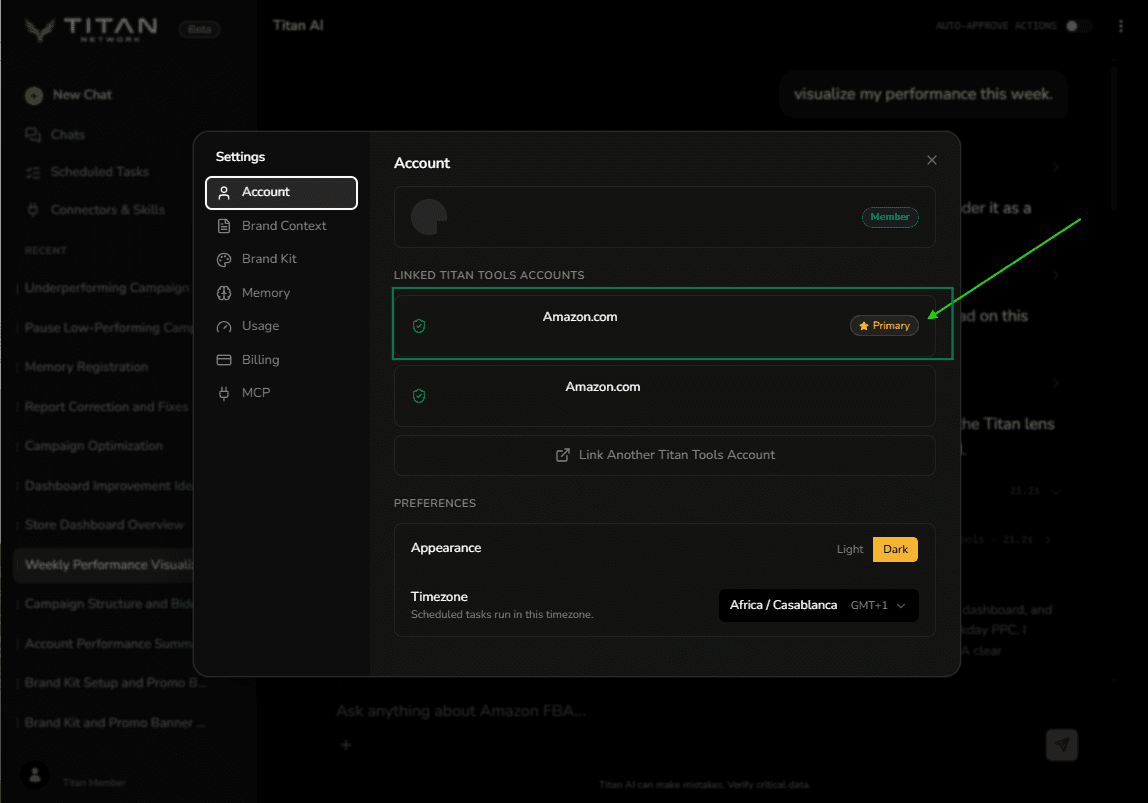
A store is one Amazon seller account in one marketplace, reached through your Titan Tools login. The Account tab in Settings lists every store you have linked, as one flat list, and every answer applies to whichever store is active.
That is the whole model on the Titan site. If you use Titan AI from Claude or another AI app, Titan AI MCP adds a second level above this one, where you also pick which Titan Tools account you are working under.
Link another store
Settings, on the Account tab, lists everything linked and offers Link Another Titan Tools Account.
- 1
Start the link
Click it and a small window opens. Linking is done from Settings rather than in chat: ask Titan AI to link a store and it will tell you where to go rather than doing it itself.
- 2
Sign in and approve
Sign in to Titan Tools in that window and approve the connection. This is the step that proves the account is yours.
- 3
Nothing to finish
The window confirms it worked and closes itself, and the new store appears in the list. There is no code to copy and nothing to paste back.
Because it opens a window rather than handing you a link, linking has to be done on the machine you are working on. Linking from your phone instead is a Titan AI MCP flow, and that one does give you a link and a completion code. That link is only good for about ten minutes, so if you get distracted, start it again rather than hunting for the problem.
Choosing a default store
You can mark one store Primary, which the Account tab calls your default store. Nothing is Primary until you say so: linking your first store does not set it, so if you want a default, pick it yourself on the Account tab.
Marking one has a second effect worth knowing. A Primary store cannot be disconnected while it holds that position, which is deliberate: it guarantees there is always one to return to. To retire it, make another store Primary first, then remove the old one.
If nothing is Primary, none of them is protected in that way, and Titan AI falls back to the store you linked earliest.
When switching seems to break something
| What you see | What is going on |
|---|---|
| An answer is about the wrong store | The active store is not the one you meant. The selector above the composer tells you which it is, and once a chat has started it is fixed, so switch by opening a new chat. The exception is an older chat that was never tied to a store, where you can still pick one before your next message. |
| Numbers vanished right after you switched accounts | This one is Titan AI MCP only: switching to a different Titan Tools account there clears the active store, so pick a store again. |
| Two stores look identical in the list | They are the same brand in different marketplaces. Say which marketplace you mean. |
| You are asked to reconnect | The connection to Titan Tools expired or was revoked. Reconnecting is the fix, and it takes seconds. |
| You cannot disconnect a store | It is marked Primary. Make another one Primary first, then remove it. |