 Titan AI
 How to
Send and track feedback
Choose the right way to send feedback, write a report the team can act on, and follow its status on the Feedback page.
There are three ways to send feedback in Titan AI. When you are signed in, a
thumbs down, the chat menu's Feedback form and the Send feedback page each put
an item on the Feedback page with a TF- reference and a status, so you can
follow it instead of sending the same thing twice. A thumbs up only records the
rating.
| Where to start | Best for |
|---|---|
| Thumbs up or thumbs down below an answer | One answer was helpful, wrong, or unhelpful |
| Feedback in a conversation's chat menu | Something went wrong while you were working in that conversation |
| The Send feedback page | A feature request, a question, or a problem you want to describe in full |
Rate one answer
Use the thumbs when your feedback is about one particular answer. The rating is tied to that answer and its conversation, so the team sees exactly what you rated.
- 1
Choose a rating
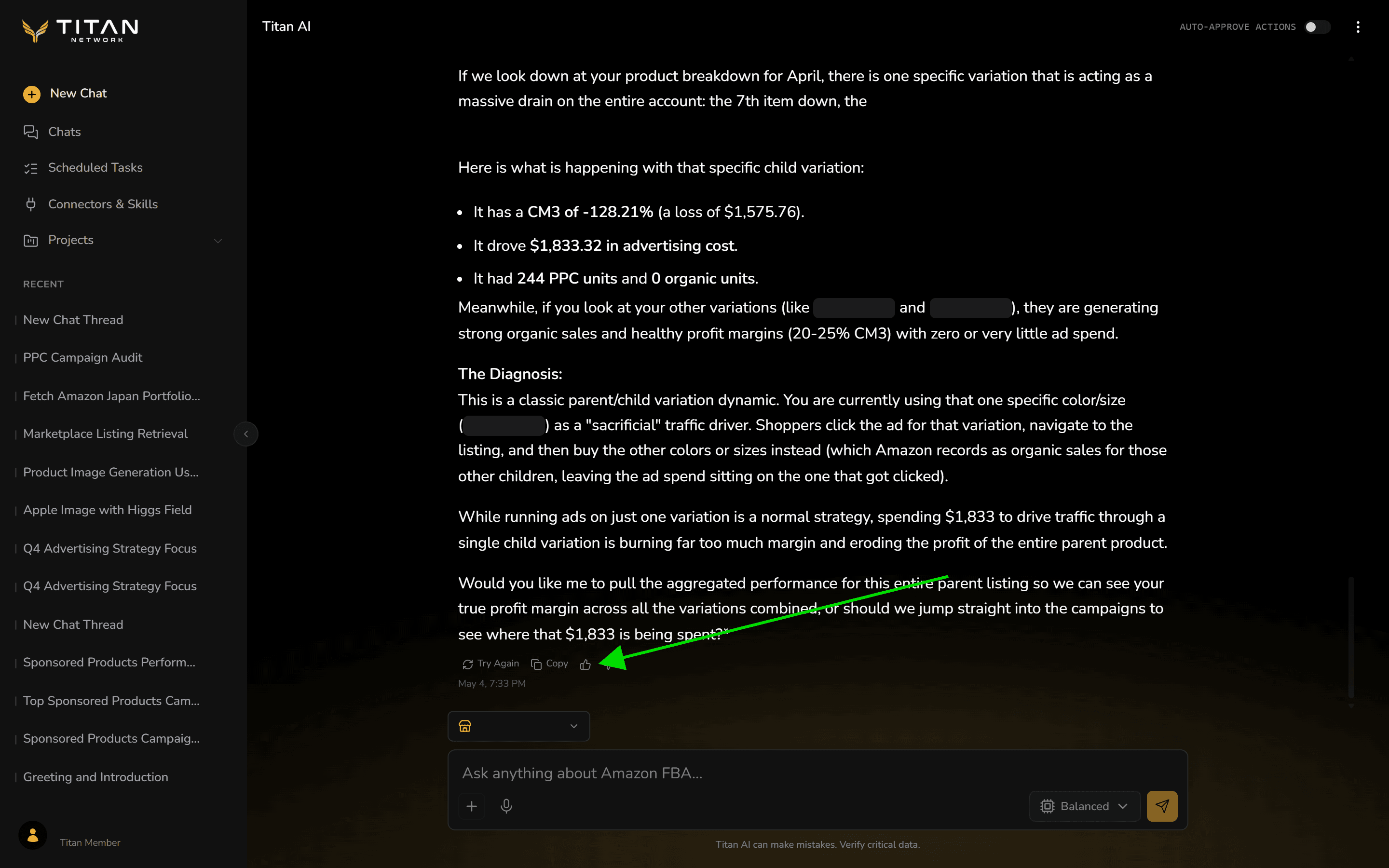
The thumbs up and thumbs down sit under every answer, next to Try Again and Copy. Thumbs up records that the answer helped. Thumbs down opens a box for the reason.
- 2
Say what went wrong
Thumbs down opens What went wrong? Write what was wrong and what you expected instead, then choose Submit. The box is optional, but a thumbs down with no reason tells the team almost nothing: the reason is what makes it something they can fix.
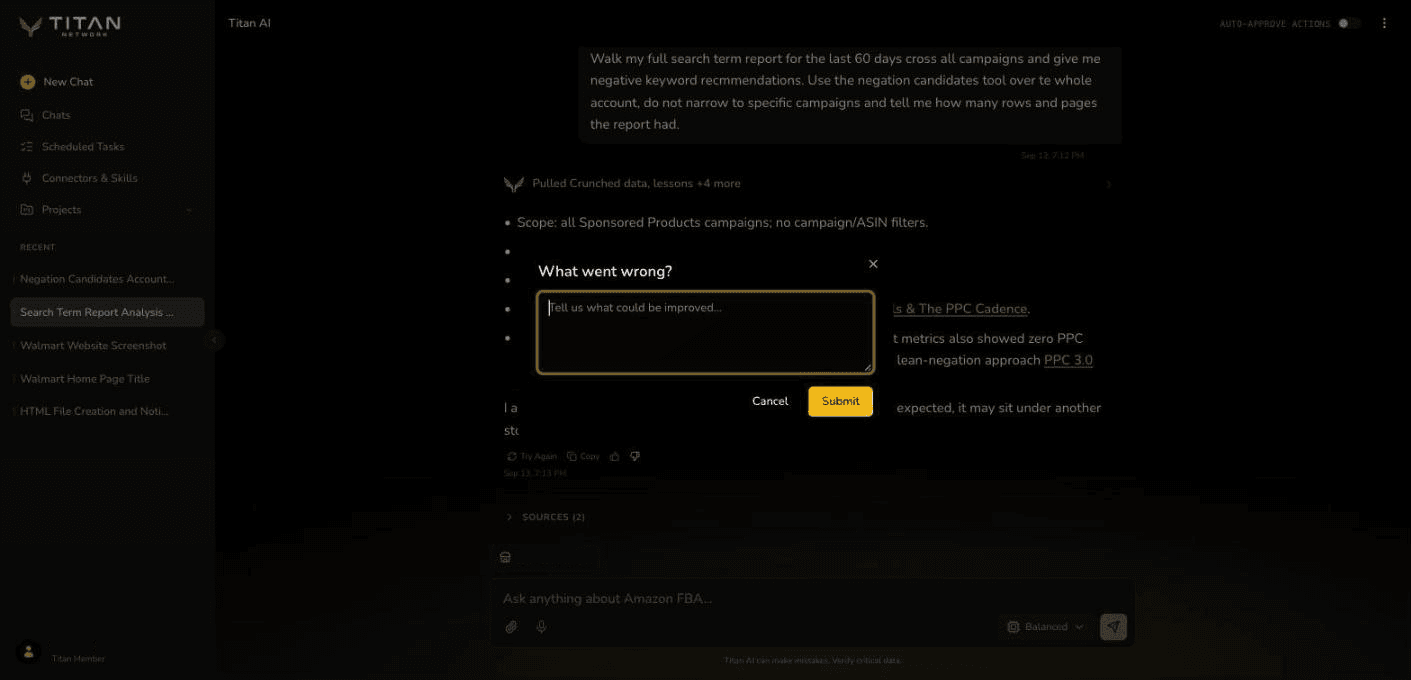
When you are signed in, a thumbs down also opens an item on the Feedback page. More thumbs downs in the same conversation are added to that same item until it is resolved or deferred, so one bad conversation shows up once rather than several times.
Send feedback from a conversation
Use this when the problem is bigger than one answer, or when a screenshot or file would help show it.
- 1
Open Feedback from the chat menu
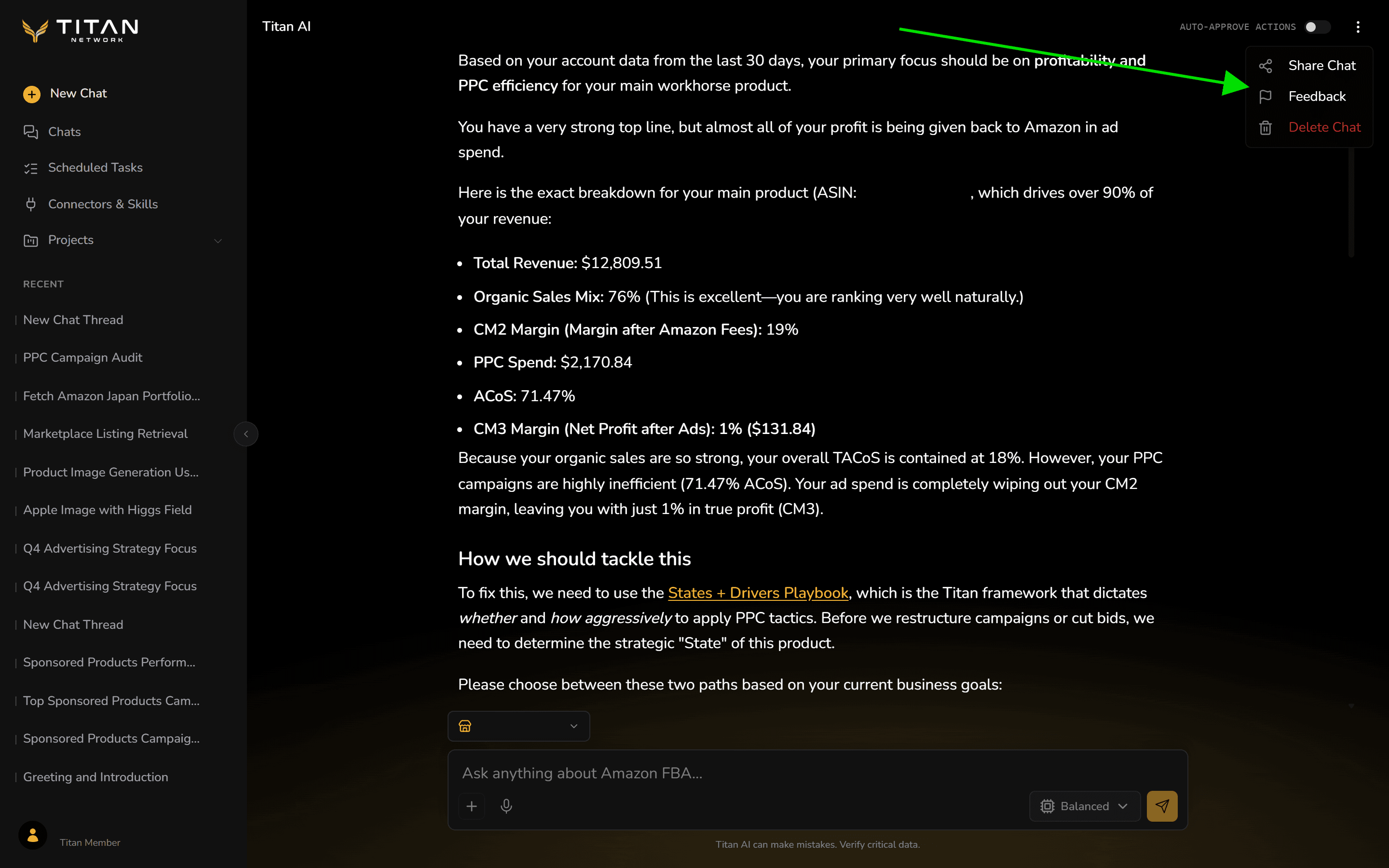
In the conversation where it happened, open the menu at the top right and choose Feedback. The menu appears once the conversation has started.
- 2
Describe the problem
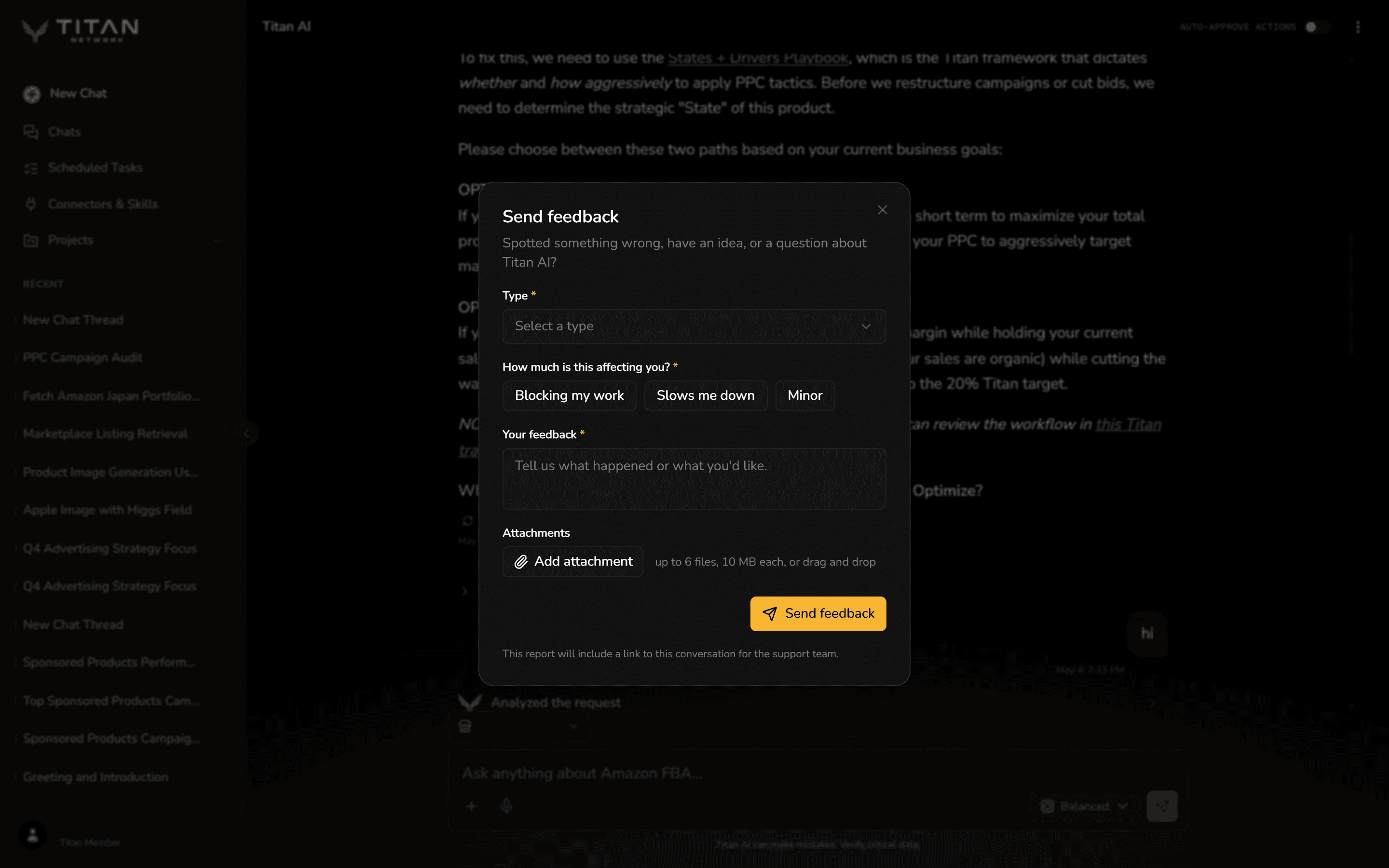
Choose a Type, say How much is this affecting you?, and write what happened under Your feedback. Add a screenshot or file under Attachments if you have one, up to six files of 10 MB each. You are signed in, so the form does not ask for your email, and the report includes a link to this conversation for the team.
- 3
Send it and keep the reference
Choose Send feedback. The confirmation gives your reference, which starts with
TF-. View submissions opens the Feedback page, where you can follow it.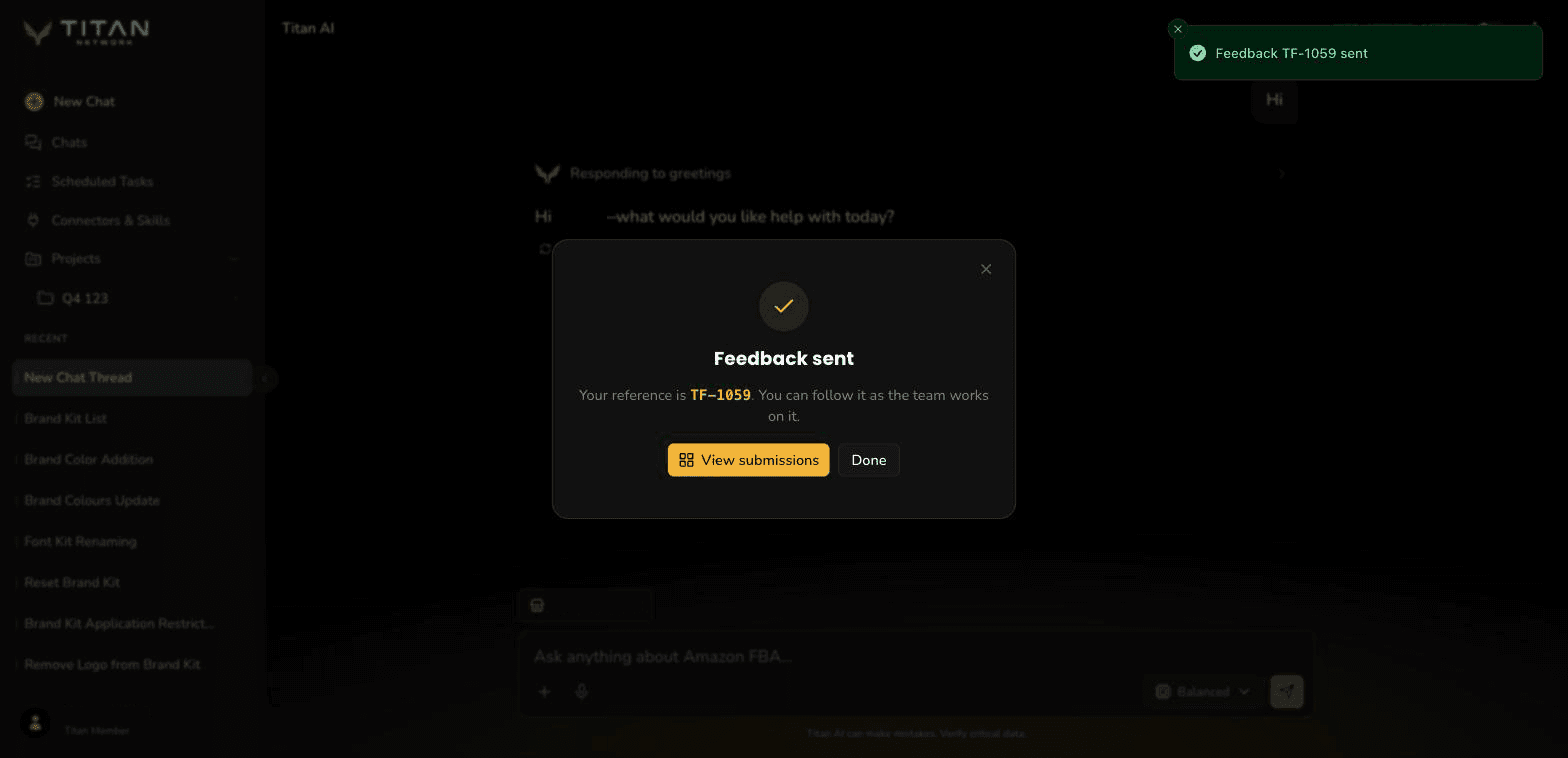
Use the Send feedback page
Open Send feedback when you are not in the middle of a conversation, or when you want to add a recording or a link. Sign in first if you are asked to.
- 1
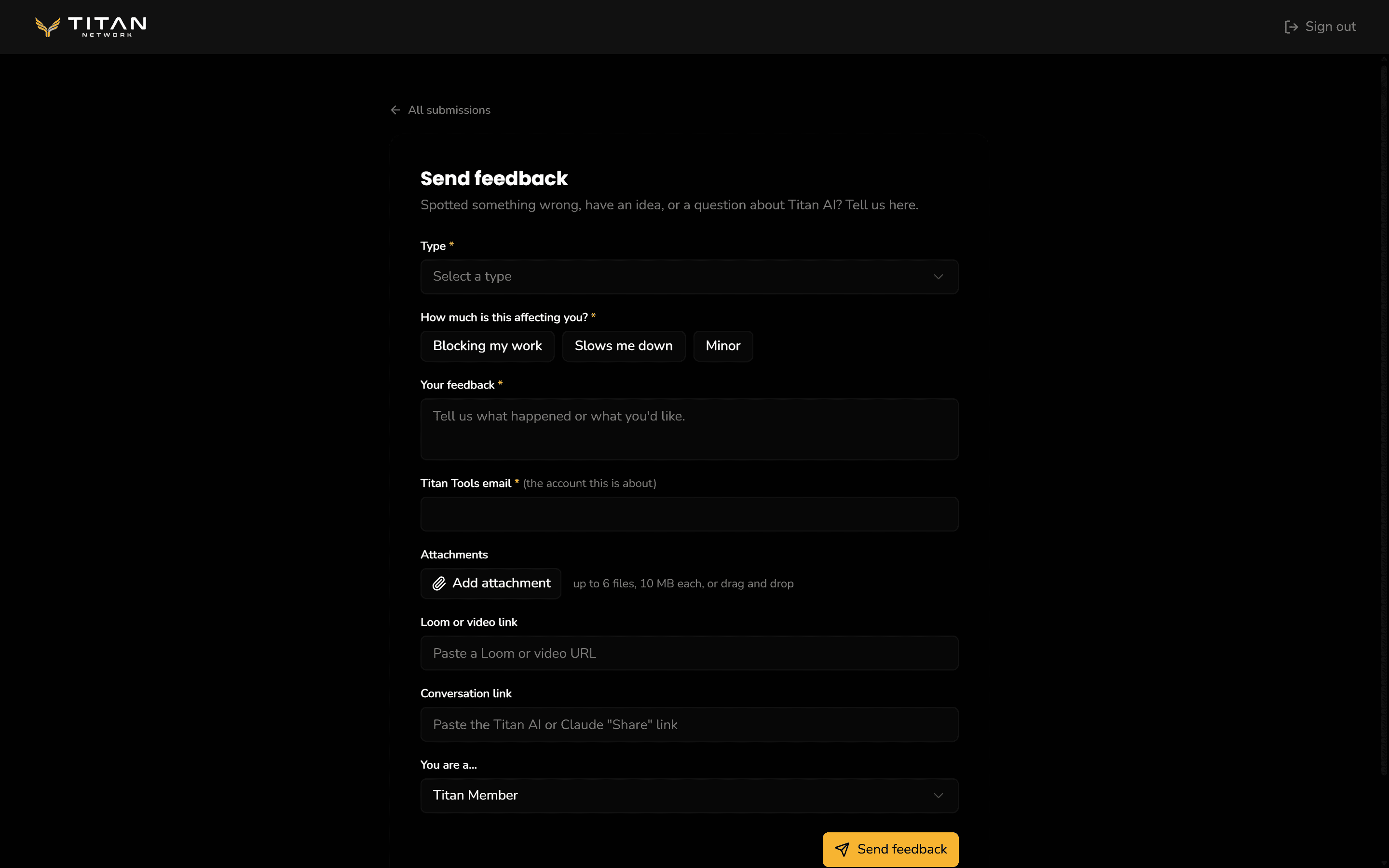
Choose the type and impact
Under Type, choose Issue, Suggestion or Question. Then choose how much it is affecting you: Blocking my work, Slows me down or Minor.
- 2
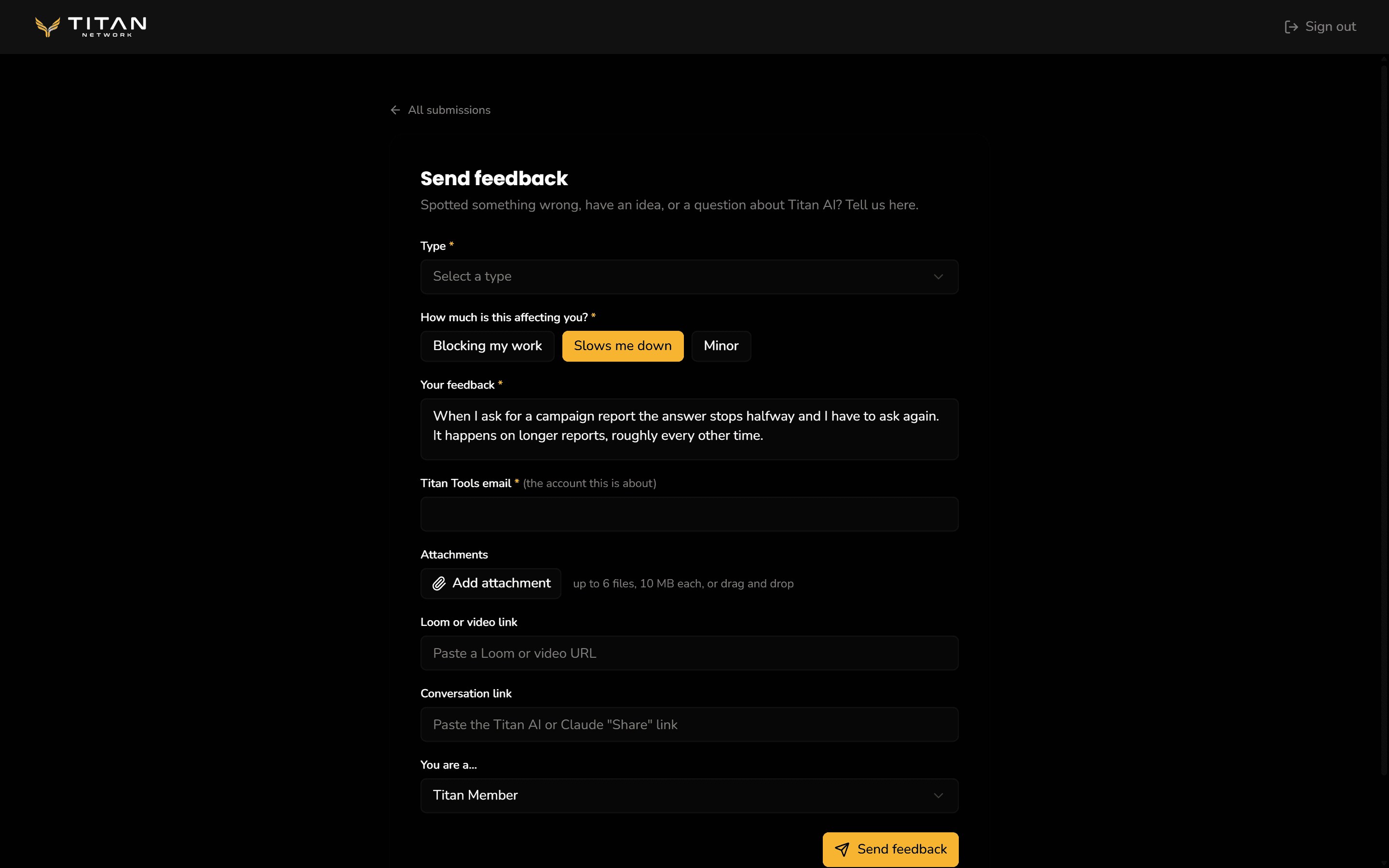
Add the details
Write your feedback. Titan Tools email is filled in from your account; change it if the feedback is about a different account. You can also add up to six attachments, a Loom or video link, and a Conversation link (the Share link of a Titan AI or Claude chat). Under You are a..., choose the role that describes you.
- 3
Send it
Choose Send feedback. The confirmation shows your
TF-reference, with View submissions to go to the Feedback page and Send another for a second, separate report.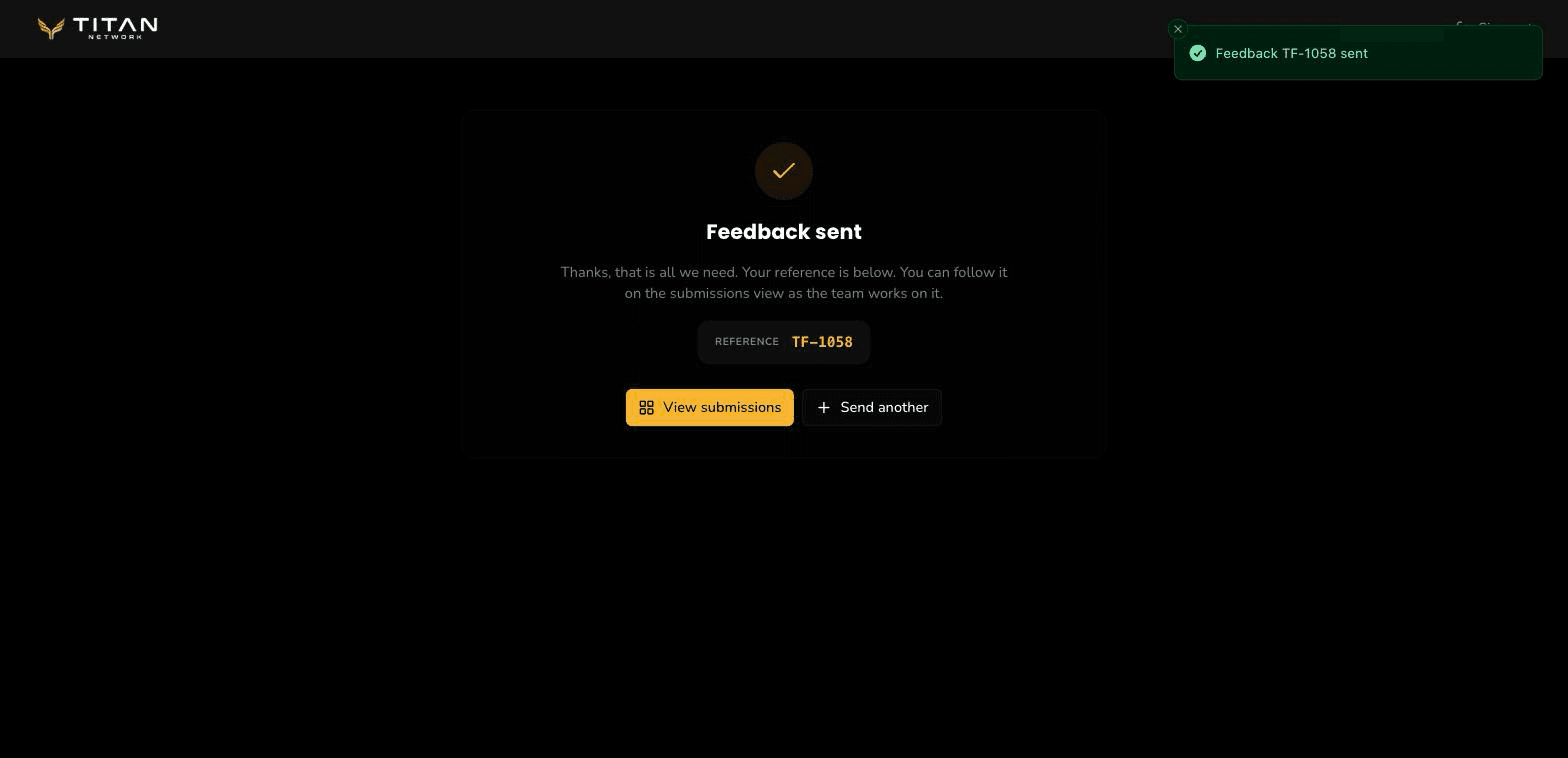
Follow your feedback
Every item, whether it came from a thumbs down or from either form, appears on
the Feedback page with its TF- reference, a
short summary and its current status. Your feedback does not disappear once it
is sent: the status changes as the team works on it.
The Feedback page lists feedback from every member. Other members see only the
TF- reference, the short summary, the type, the status and the date. Your description, email,
attachments and links are not shown to other members. Your own items carry a
Yours badge.
- 1
Find it and check the status
Find your reference in the list. Planned, Resolved and Deferred items are hidden until you tick them in the status filter. These are the six statuses. The notes they mention appear on your own items, when the team adds one:
Status What it means Open Received, and waiting for the team to look at it. Under review The team is looking at it and deciding what happens next. Planned Work is planned. The item can show What is planned. In progress Work is underway. The item can show an Update. Resolved The work is finished. The item can show a Resolution explaining the outcome. Deferred Not planned for now. The item can show Deferred because. 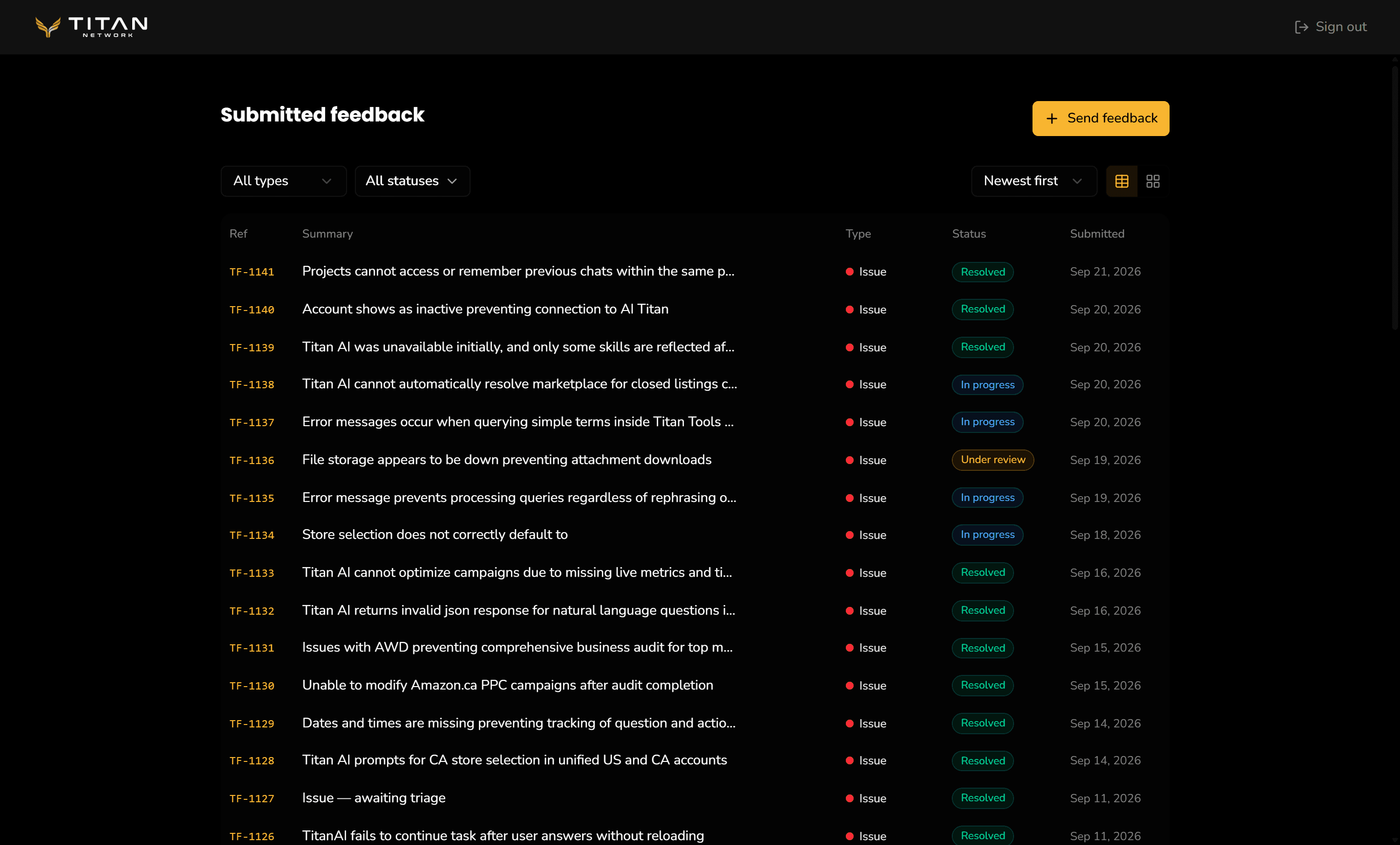
Every status is ticked in the filter here, so it reads All statuses and Resolved items show. - 2
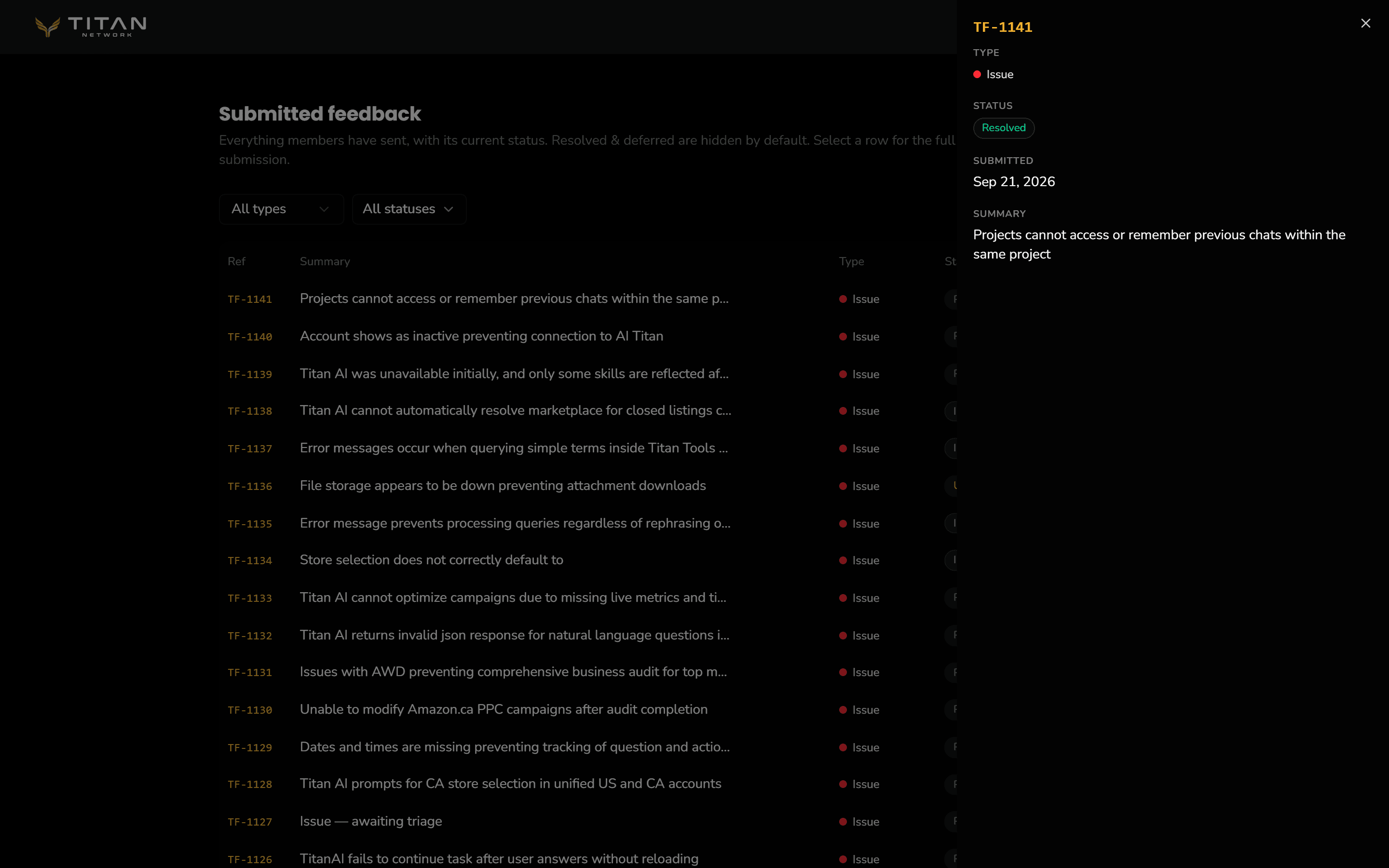
Open an item
Select a row to open it. Another member's item shows its type, status, date and summary. On your own item you also see what you sent, the email and role on it, any note from the team, and the Status history: each status it has moved through, with the date.
Write feedback the team can act on
Before you send it, include:
- what you expected;
- what happened instead;
- the brand or account you were working in;
- a screenshot or a short recording when you can show it;
- one issue per submission.
Several unrelated problems in one submission are harder to follow and slower to fix. Send them separately and each gets its own reference and status.