 Titan AI
 Organise work into projects
Group related chats, give them shared instructions and files, lock them to one store, and let each chat draw on the others.
A project is a home for one area of work, such as a product launch or one of your brands. Its chats sit together in the sidebar, and every chat in it reads the same instructions and files, so you set them up once instead of repeating yourself in every conversation. A chat in a project can also look back at the project's other chats.
Open Projects from the sidebar.
Create a project
- 1
Open the form
On the Projects page, press New project.
- 2
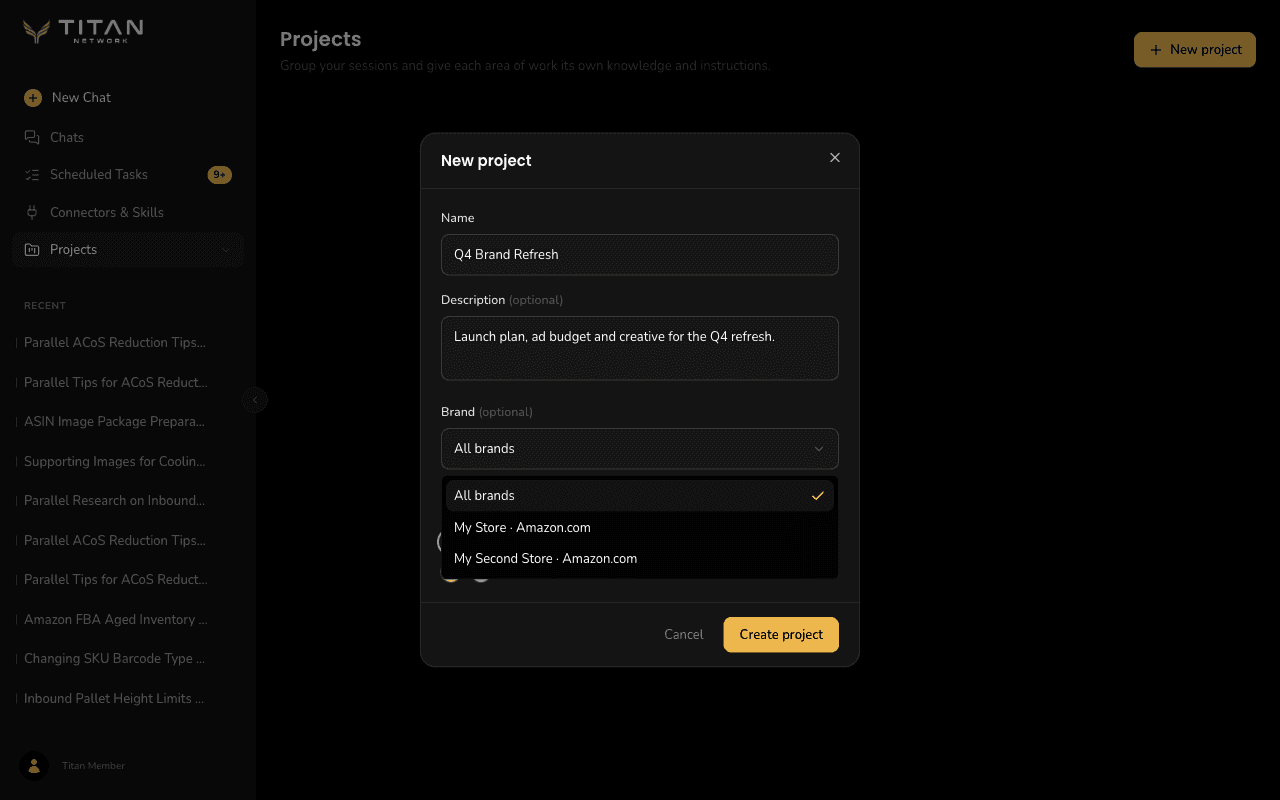
Name
What the project is called, for example "Q4 Brand Refresh". This is the only field you have to fill in.
- 3
Description
Optional. A one-line summary of what the project is for. It shows on the project's card.
- 4
Brand
Optional. Leave it on All brands, or pick one of your stores to lock the project to it. See the next section before you choose.
- 5
Color
Pick a colour so you can tell the project apart from the others in the sidebar.
Press Create project to save it.
Lock a project to one store
The Brand field decides which store the chats in a project work on.
| Brand | What happens |
|---|---|
| All brands | Chats in the project work the way chats always do: you pick the store before your first message. The field reads "Sessions in this project can use any brand you can reach." |
| One store | Every new chat in the project starts on that store, and the store selector shows it as a label you cannot change. The field reads "Every session in this project reads" followed by the store's name. |
The list offers every store you can reach: your linked accounts, and the stores under the email you sign in with. Once a project has a brand, its card on the Projects page shows the store's name next to its number of sessions.
Locking a project to a store does not move chats that already work on a different one. If you move an existing chat into a branded project, it stays on the store it was using. The brand applies to new chats started in the project, and to any chat that has not used a store yet.
Change a project's store
Open the project's ... menu on the Projects page and choose Edit, then pick a different store under Brand and press Save edits.
The popup warns you when you do this: "Chats already in this project keep the store they use now." Only new chats, and chats that have not used a store yet, pick up the new one. To work on the new store in an existing conversation, start a new chat in the project.
If you unlink a store that a project is locked to, the Brand field shows the store's seller ID in place of its name. That tells you what the project still points at. Pick another store or switch it back to All brands before you change anything else about the project: until you do, saving any edit to it fails, even a new name or colour.
Give the project instructions and files
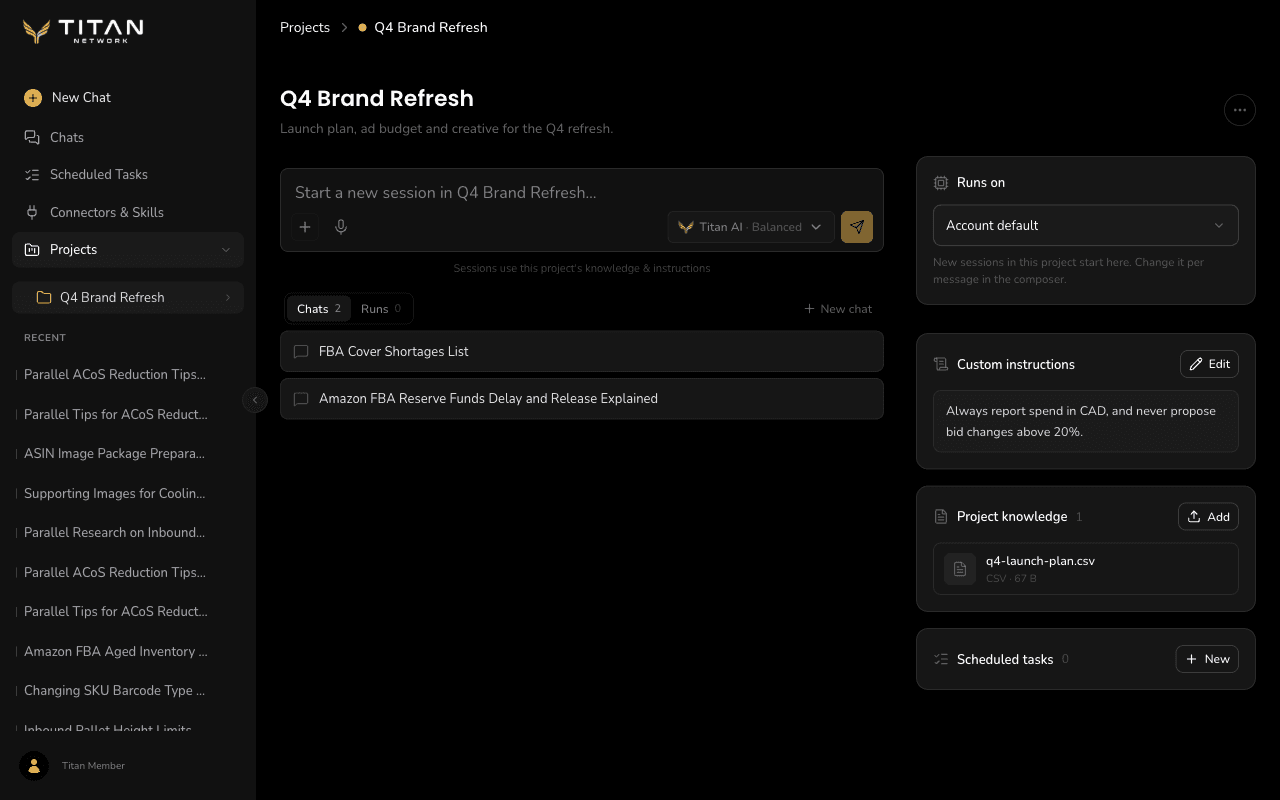
Open a project to see its workspace. The panel on the right holds what every chat in the project shares.
Custom instructions are standing orders for every chat in the project, for example "always report spend in CAD, and never propose bid changes above 20%". Press Add, write them, and press Save. Use Edit to change them later. They apply from the next message you send in any of the project's chats.
Project knowledge is files Titan AI can read in every chat in the project: plans, exports, briefs, notes. Press Add, or drop files onto the card. It accepts PDF, Word (DOCX), Excel (XLSX), CSV, TXT, Markdown and JSON files. A project holds up to 20 files, each up to 8 MB and 16 MB in total. Two files cannot share a name, so to replace a file, remove the old one first. Pictures are not accepted here; put logos and product images in your brand kit instead.
You can also ask Titan AI, in any of the project's chats, to change the instructions or the files for you. See Let Titan AI change the project.
Add chats to a project
There are three ways in:
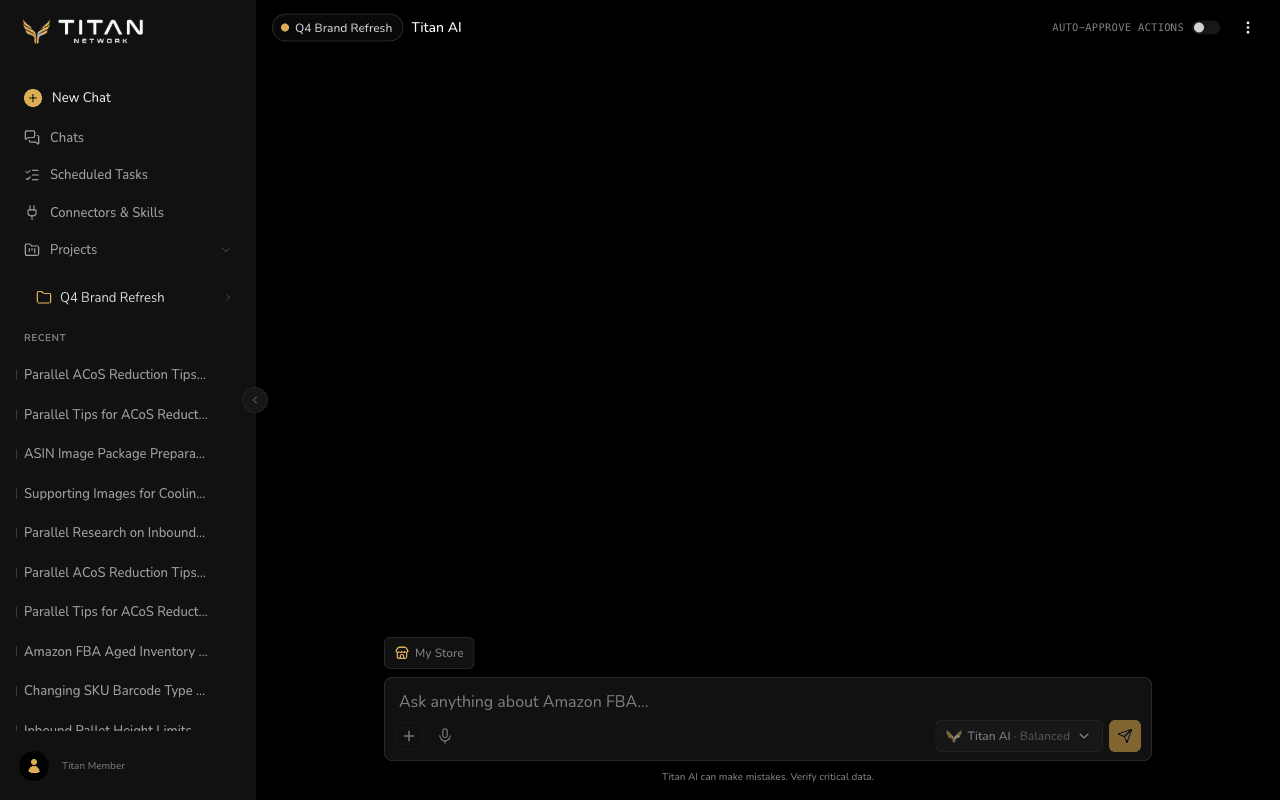
- Start one in the project. Type in the box on the project's page and send it: a new chat opens in the project with your message ready in its box, and you press send there. To send a file with that first message, open the + menu in the box and choose Attach file: the file goes with your message into the chat that opens. Or press New chat above the project's list of chats.
- Move an existing chat. In the sidebar, open the chat's ... menu, choose Move to project and pick the project.
- Drag it. Drag a chat from the sidebar onto the project.
A chat in a project is listed under that project in the sidebar, not under Recent. Press the arrow beside a project to show its chats. To take a chat out again, use Move to project and choose Remove from project.
A pinned chat stays under Pinned and cannot be moved. Unpin it first.
Chats in a project can read each other
Each chat in a project knows the titles of the project's other chats, the 20 you used most recently. When you ask about earlier work, for example "what did we decide about the launch price?", Titan AI can open one of those chats and read it, or search the project's 100 most recent chats for a phrase. It reads what you and Titan AI wrote in them, not the files or tool results inside them, and from a long chat it reads the most recent part.
Only your own chats in the same project are read. A chat you archive, or take out of the project, is no longer read by the others. This works in chats on the web, not in Slack and not in a scheduled task's runs.
Let Titan AI change the project
From a chat in the project, you can ask Titan AI to change the project's instructions or its knowledge files, for example "add to the project instructions that we report in CAD" or "save this summary to the project as launch-notes". Each change is shown on a card in the chat before anything is saved.
| What Titan AI proposes | The card | Press |
|---|---|---|
| A change to the custom instructions | Add to project instructions or Replace project instructions, with the instructions Now and After you approve side by side. You can edit the text, and switch between Add to them and Replace them, before you save. | Save instructions |
| A new knowledge file | Save to project knowledge, with the file's name, size and contents | Save file |
| A new version of a knowledge file | Replace a project knowledge file | Replace file |
| Removing a knowledge file | Remove from project knowledge, with "The file leaves the project. Chats in the project can no longer read it." | Remove file |
Press Cancel to turn a change down, and nothing is saved. A card you leave unanswered for 9 minutes is turned down on its own.
If Auto-approve actions is on in the chat, Titan AI's changes to the project are saved without a card, the same as any other action it takes. Turn it off in that chat if you want to see each change first. See Approve what Titan AI changes.
Titan AI writes knowledge files as text: Markdown, TXT, CSV or JSON. It can remove any file, but it cannot replace a PDF, Word or Excel file you uploaded; asking it to saves a new text file beside it. The same limits apply as for files you upload: 20 files, each up to 8 MB and 16 MB in total. Instructions can be up to 8,000 characters.
Titan AI cannot change a project's name, description, brand or colour. Use Edit for those.
Scheduled tasks in a project
The Scheduled tasks card on a project's page lists the tasks that belong to the project. Press New on that card to create one inside the project. The Runs tab next to Chats shows what those tasks have done.
A task Titan AI creates for you from a chat in the project also belongs to the project. You can ask it to move one of your existing tasks into the project, or out of it.
A task does not follow the project's brand. It runs against the store you pick in the task's own Store field, so check that field when you create a task in a branded project. Everything else about a task works as described in Create a scheduled task.
Edit or delete a project
On the Projects page, open a project's ... menu:
- Edit changes its name, description, brand and colour.
- Delete removes the project straight away, with no confirmation. Its chats are not deleted: they move back to Recent. Any scheduled tasks it had keep running on their schedule, no longer in any project. Its knowledge files are deleted with it.
To choose what happens to a project's scheduled tasks, delete it from the project's own page instead, using the ... menu next to its name. It asks first, and lets you keep the tasks running or delete them too, along with their run history. The knowledge files are deleted either way.