 Titan AI
 What Titan AI does for you
Hand over the account work you keep putting off, and stay in control of anything that changes.
Titan AI is an operator that works inside your Amazon business. You ask it questions in plain English, it reads your live account data, and it can carry out changes in your Amazon Ads account when you let it.
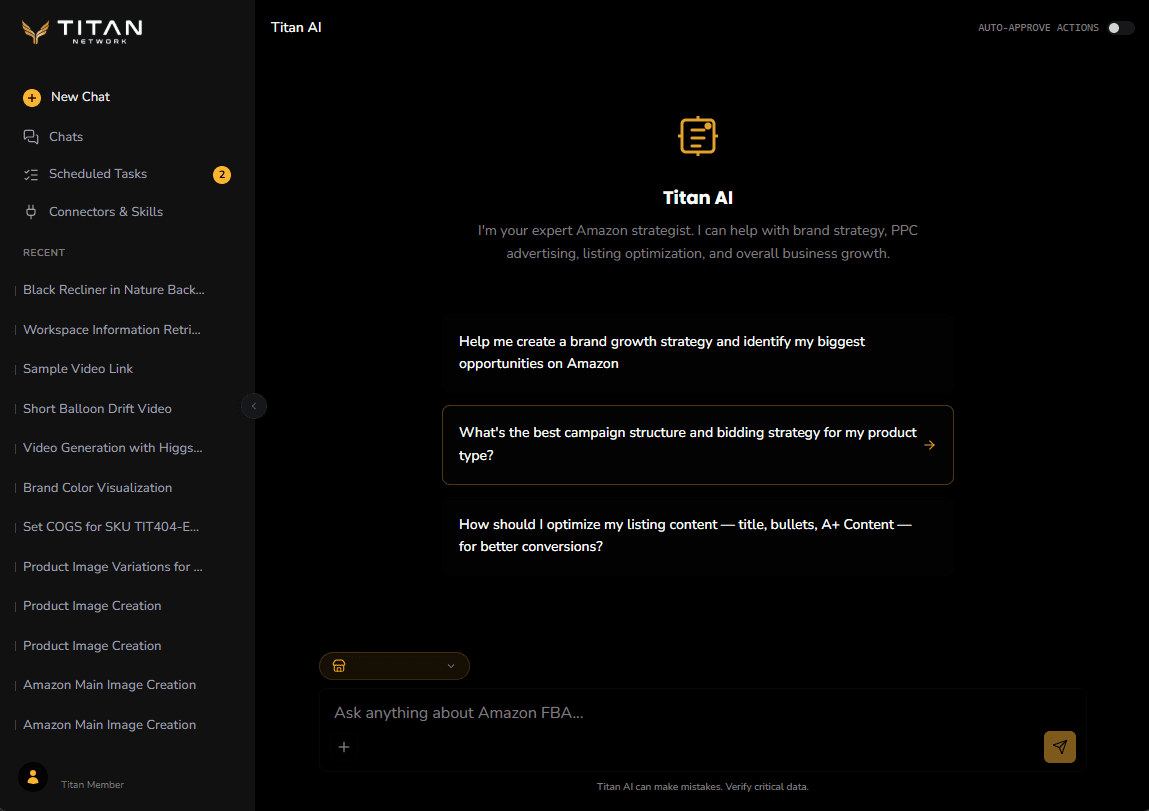
It is not a chat window bolted onto a report. The point is the work: a task that runs every Monday morning and tells you what needs attention, a skill that encodes how your brand handles a margin problem, a connector that puts the output where your team already works.
New here? Your first week is the shortest path to something useful.
What you can hand over
Ask about your business
Sales, ads, products, inventory. In plain English, answered from your live account rather than a report you have to read.
A store pulse every morning
Work that runs on a schedule and reports back, whether or not you remember to ask.
Your way of doing a job
Write down how you want something handled once, and get that instead of a generic answer.
Stop repeating yourself
Your brand, your targets and your constraints, held once so every answer accounts for them.
Output that looks like yours
Your logo, colors and type on whatever Titan AI makes for you.
More stores, and somewhere to send it
Another brand to work on, or the output where your team already reads.
Work from another AI app
Reach the same store data from Claude, Claude Code or another app you have open.
Everything it can do
The whole list of what Titan AI can look up and change.
Before you start
You need a Titan Tools account with at least one Amazon store connected. Titan AI reads everything through that link, so until a store is connected there is nothing for it to look at.
Two settings are worth checking on day one, both in Settings:
- Your timezone. Scheduled tasks fire at a local time of day, in the timezone set on your account. If that is wrong, a 7am task is not a 7am task.
- Tool permissions. You can block an individual tool outright. A blocked tool stays blocked, including on scheduled runs that nobody is watching.
What "actions" means
Most of what Titan AI does is read your data. Some of it writes: changing a bid, adding a negative keyword, building a campaign. Those are called actions, and they change your real Amazon Ads account and spend real money.
There is no practice mode. When an action runs, it runs against your live account. Nothing has an undo button, so treat approval as the moment you are spending money. What is permanent and how to reverse is worth five minutes before your first one.
Who gets asked, and when, depends on where you are working:
| Where you are | How an action is approved |
|---|---|
| Chatting in the app | Almost every action is put to you as it comes up, unless you switch auto-approve on, which then stays on across conversations until you reload. A few run as soon as you ask: what does not stop to ask. |
| A scheduled task | Governed by that task's auto-approve setting, which is on when a task is created. See Scheduled tasks. |
| Claude, Claude Code | You approve each call in that client. |
| OpenClaw | No per-call prompt. See OpenClaw. |