 Titan AI
 Create a scheduled task
Set up work that runs on a schedule, and decide whether it can change your account unattended.
A scheduled task is a job you describe once and Titan AI runs on a schedule. It reads your store, does the work, and reports what it found. If you let it, it can also act on what it finds.
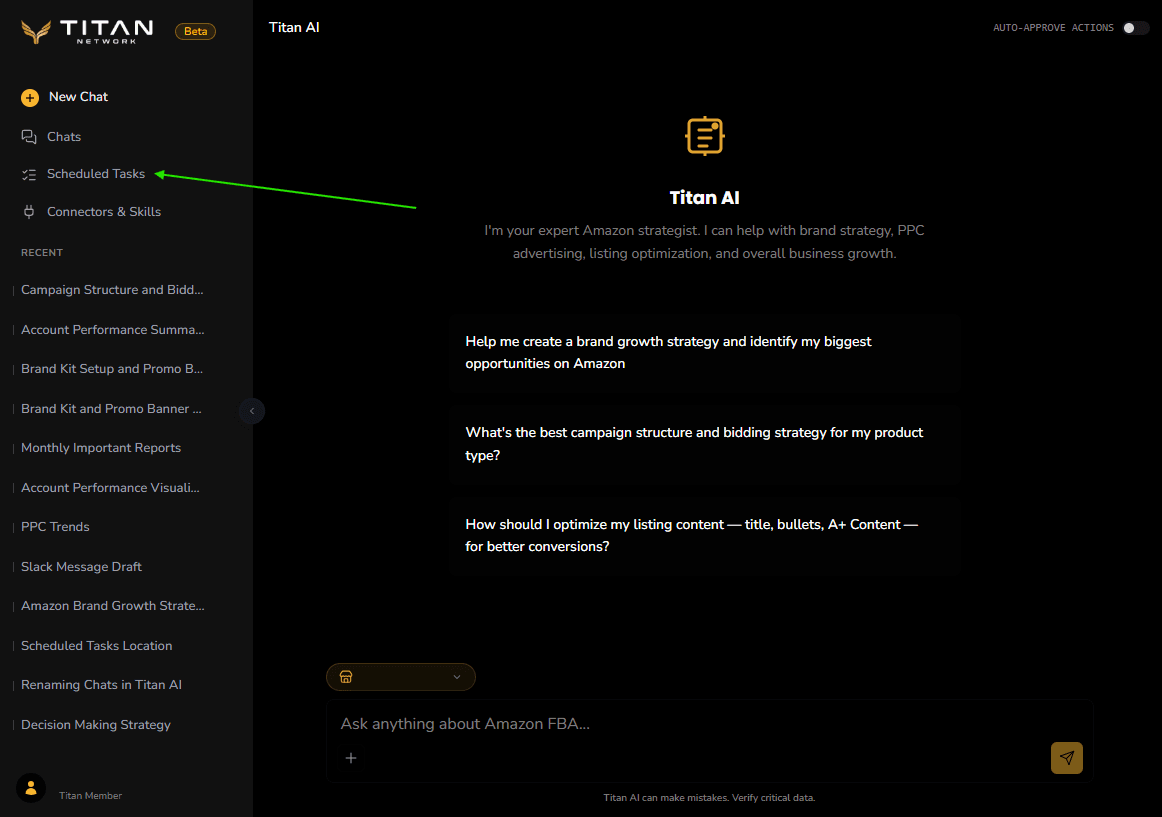
Open Scheduled Tasks from the sidebar.
Start a task
There are three ways in, and they all end at the same form.
- 1
Describe it in plain English
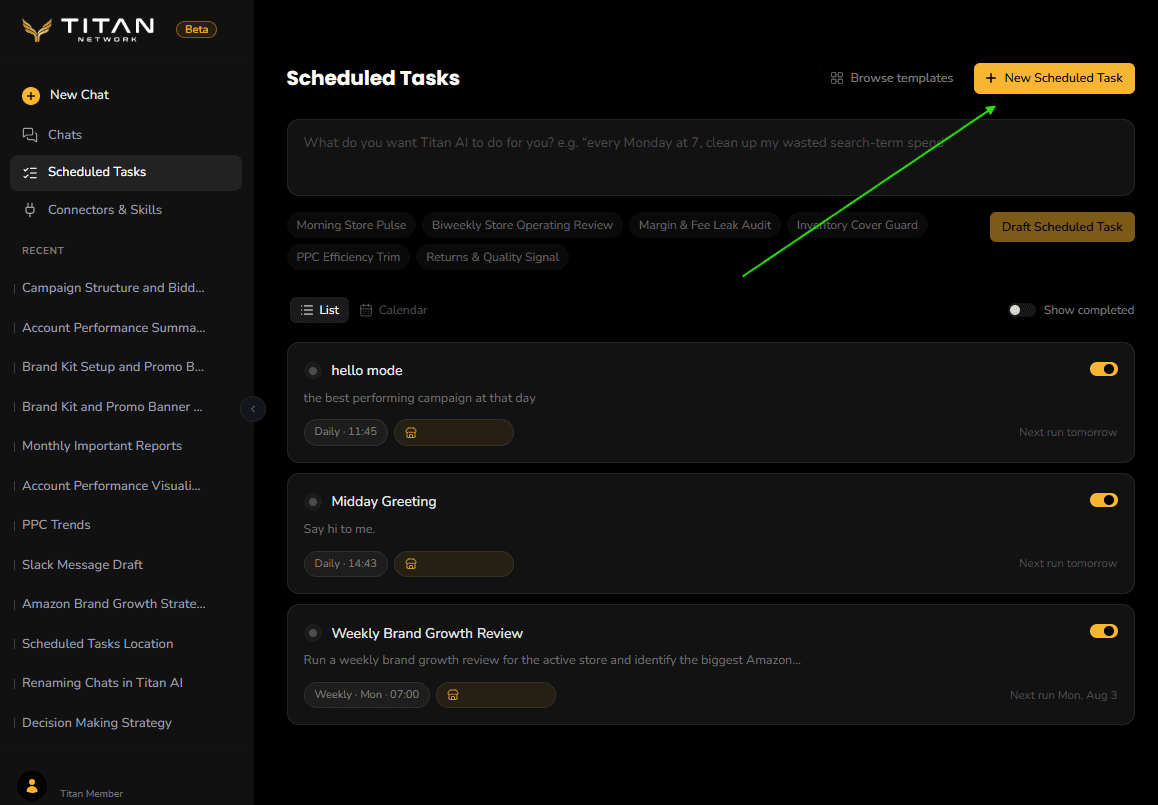
Type what you want into the box at the top, for example "every Monday at 7, clean up my wasted search-term spend", then press Draft Scheduled Task. Titan AI fills the form in for you and you correct anything it got wrong.
- 2
Start from a template
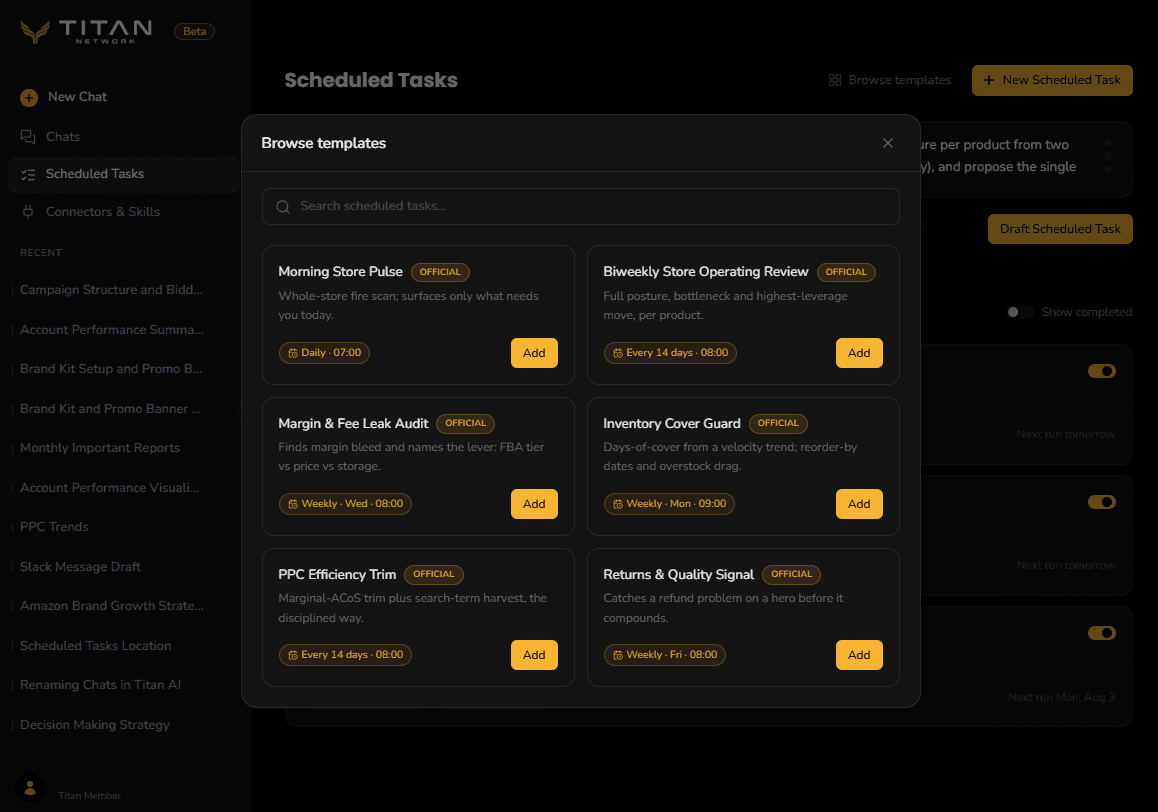
Press Browse templates and pick one of the six starters. Press Add on the one you want.
- 3
Start from blank
Press New Scheduled Task.
The six templates
| Template | What it does |
|---|---|
| Morning Store Pulse | Whole-store fire scan; surfaces only what needs you today. |
| Biweekly Store Operating Review | Full posture, bottleneck and highest-leverage move, per product. |
| Margin & Fee Leak Audit | Finds margin bleed and names the lever: FBA tier vs price vs storage. |
| Inventory Cover Guard | Days-of-cover from a velocity trend; reorder-by dates and overstock drag. |
| PPC Efficiency Trim | Marginal-ACoS trim plus search-term harvest, the disciplined way. |
| Returns & Quality Signal | Catches a refund problem on a hero before it compounds. |
A template is a starting point, not a fixed thing. Everything in it is editable before you schedule it, and afterwards.
Fill in the form
- 1
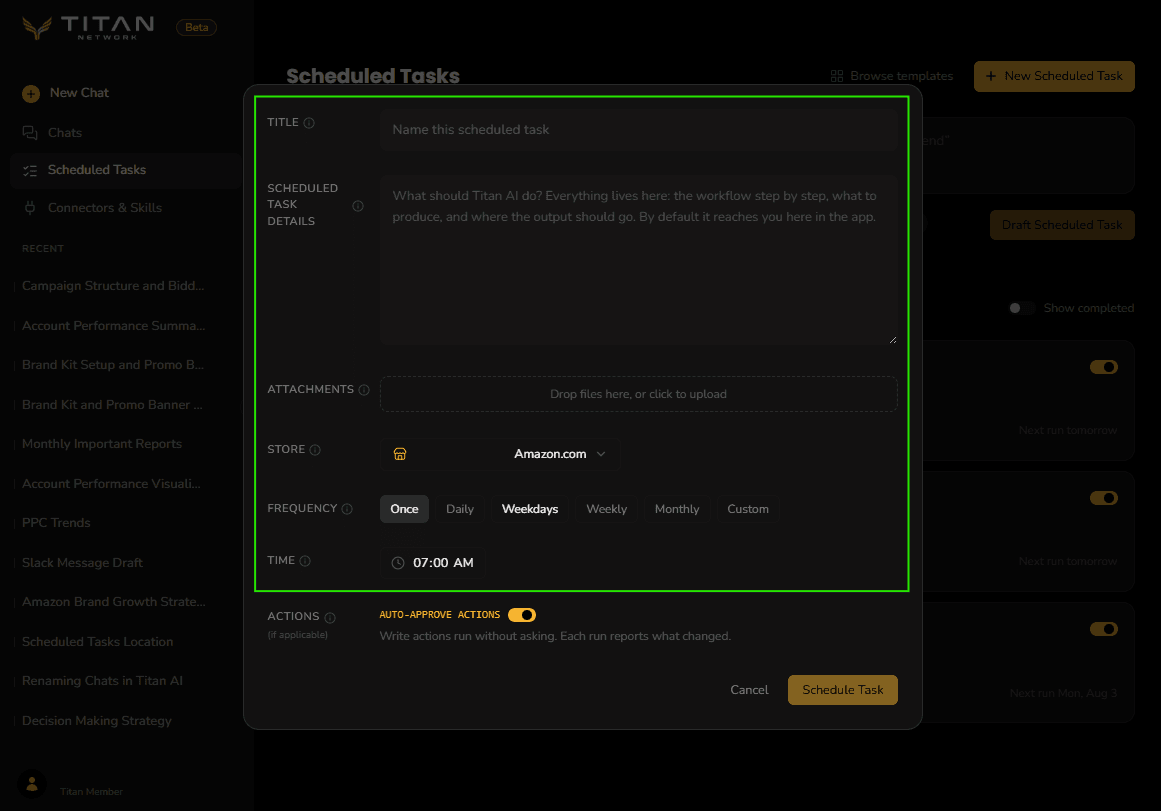
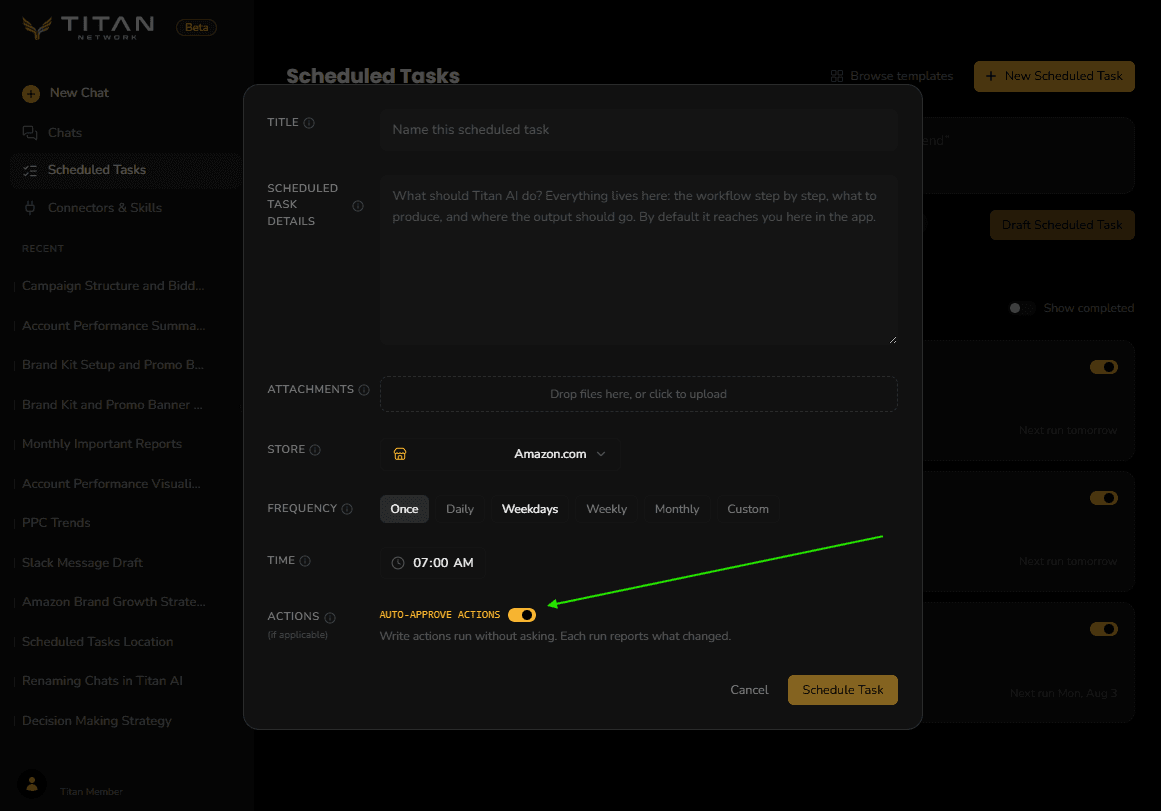
Title
What this task is called. The field prompts you to Name this scheduled task.
- 2
Scheduled Task Details
The brief. Everything lives here: the workflow step by step, what to produce, and where the output should go. By default the output reaches you in the app. Be specific. This is the difference between a useful report and a vague one.
- 3
Attachments
Optional documents Titan AI can read while the task runs, as PDF, CSV, XLSX or TXT. Useful for a cost sheet or a target list it should work against.
- 4
Store
Which Amazon store the task runs against. Titan AI's data tools are pinned to that seller, so a task cannot wander into another store.
- 5
Frequency and Time
How often it fires, and at what local time. See below.
- 6
Actions
Whether the task may change your account on its own. Read the next section before you leave this alone.
Press Schedule Task to save it.
Frequency options
| Option | When it runs |
|---|---|
| Once | A single run, then it is done. |
| Daily | Every day. |
| Weekdays | Monday to Friday. |
| Weekly | One chosen day each week. |
| Monthly | Either Each chosen date of the month, or On the first, second, third, fourth or last chosen weekday. |
| Custom | Every N days, weeks or months. |
Time is the local time of day the task fires, in your account timezone, which is set in Settings. If you have not set it, set it before you rely on a morning task arriving in the morning.
Decide what the task may change
This is the setting that matters most, so it gets its own section.
The Actions row has a toggle labelled auto-approve actions.
A new scheduled task is created with auto-approve on. That means write actions the task proposes, such as bid changes and negative keywords, run on their own at the scheduled time with nobody watching, against your live account. If that is not what you want, turn it off before you press Schedule Task.
| Toggle | What happens on a run |
|---|---|
| On | Write actions run without asking. Each run reports what changed. |
| Off | Write actions the task proposes are ignored, not applied. The run still reports what it would have done, and tells you how many actions it ignored. |
Note what "off" does and does not mean. It does not queue the actions for you to approve later, and it does not hold them anywhere. It reports them and discards them. If you want a change applied after reading a report, you make it yourself or you ask for it in chat.
A sensible way to start on any task that can write: leave auto-approve off for the first few runs, read what it says it would have done, and only turn it on once you agree with its judgement.
Off is not a full dry run, though. It holds back the changes the task proposes, which is nearly all of them, but a couple of things never go through the approval step at all and so still happen on an off run: marking alerts as read, and setting up a report on a repeating schedule. What does not stop to ask lists them.
Run, edit and manage
Your tasks are listed on the Scheduled Tasks page. Each card shows its frequency, the store it runs against and when it runs next. Switch between List and Calendar at the top right; the calendar has a week and a month view.
Each card has a toggle that activates or deactivates the task. A deactivated task stays as you wrote it and stops firing.
Open a task to read what it actually did. Every run is listed down the side with how long it took, and opening one shows the same step-by-step working you get in chat, ending in Continue in Chat if you want to pick the run up and dig in.
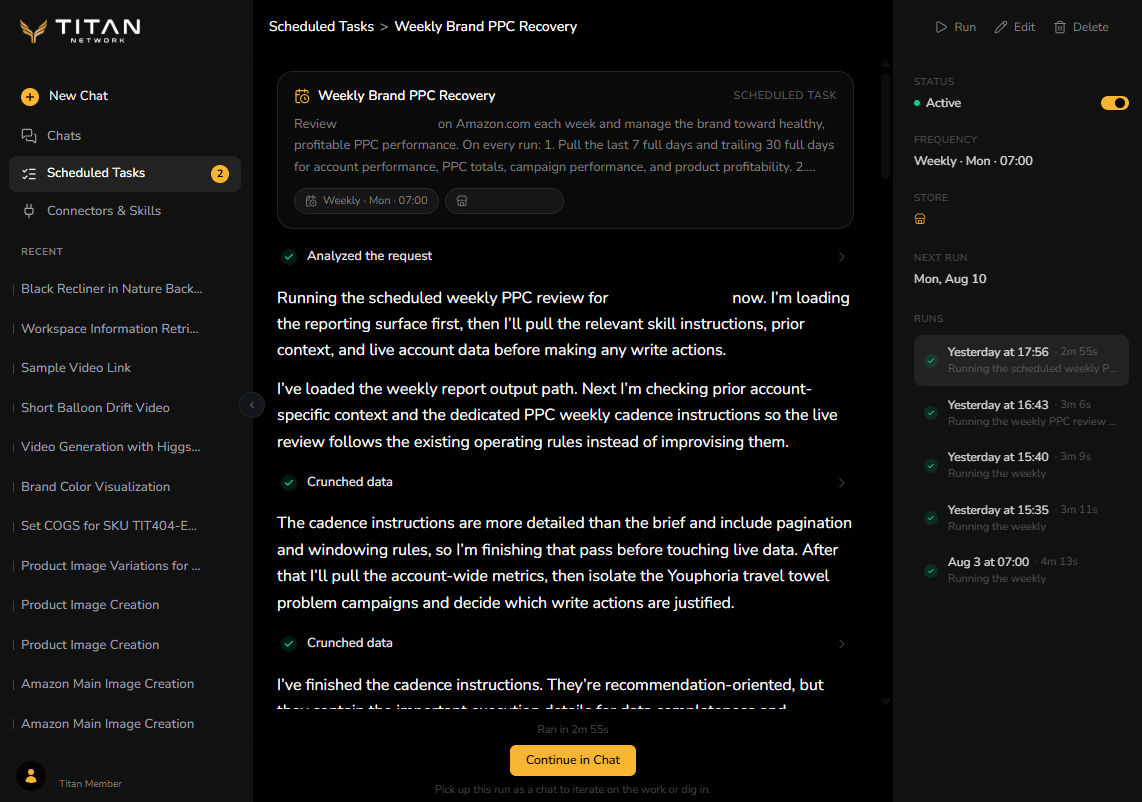
From there you can also Run it immediately, Edit it, or Delete it. Deleting removes the task and its run history, and cannot be undone.
Finished one-time tasks are hidden by default. Use Show completed to see them.
A one-time task that has already run is done. If you decide you want it on a schedule after all, open it and make it recurring rather than creating a new one, so you keep its history.