 Titan AI
Share or manage a chat
Send a chat to someone, report a problem with it, copy an answer out, or delete the conversation.
Four things you can do with an answer once you have it: send it to someone, report a problem with it, copy it out, or delete the whole chat.
Send a chat to someone
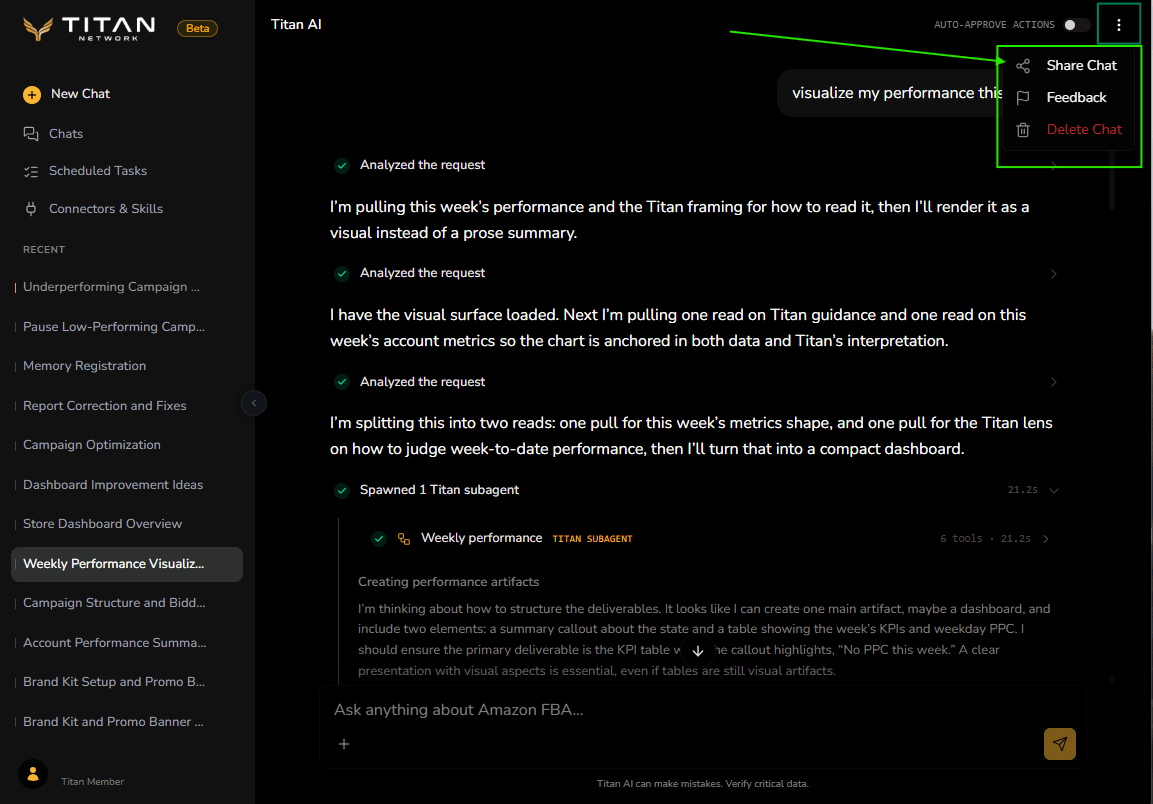
Share Chat, in the menu at the top right of a conversation, creates a link to it. Anyone with the link can read the conversation without signing in, so treat it the way you would treat any link that shows your numbers.
You can revoke the link later. Revoking it does not delete the chat, it just stops that link working, so share freely and tidy up afterwards.
A share link is not a snapshot. It shows the conversation as it stands right now, so anything you add to that chat after sharing it stays readable to whoever holds the link. When you are done, either revoke the link or carry on in a new chat.
Sharing is not an invitation into your account. Whoever reads it cannot ask follow-up questions in your chat and cannot see anything else in your store.
Report a problem
The same Chat menu includes Feedback, and every answer has thumbs up and thumbs down controls. See Send and track feedback to choose the right route, explain what went wrong, and follow a report afterwards.
Copy an answer out
Every answer has a copy control. That is the quickest way to get a number into a spreadsheet, a message to your supplier, or a note for yourself, without dragging a selection across the text.
Remove a chat
Delete Chat in the chat menu removes the conversation for good, and a share link to it stops working with it. If stopping one person reading is all you wanted, revoke the link instead and keep the chat.