 Titan AI
Know when an answer is ready
Carry on elsewhere while Titan AI works, and get told when an answer is ready or a change needs your approval.
Some questions take Titan AI a while, such as a full review of every campaign. You do not have to watch the chat while it works. Move to another chat or page, or to another tab, and Titan AI tells you when the answer is ready or when it needs your approval to change something.
This works for chats on the Titan AI web app.
How Titan AI tells you
| What happened | Where you are | What you see |
|---|---|---|
| An answer is taking a while | In that chat | The Notify me when it's done card, until you allow or block browser notifications |
| The answer is ready | On another page or chat in Titan AI | The Your answer is ready card |
| A change is waiting for your approval | On another page or chat in Titan AI | The Approval needed card |
| Either of the above | In another tab or another app | A notification from your browser, once you allow them |
In the chat that is working, the answer and any approval card show in the chat itself, so the Your answer is ready and Approval needed cards never appear there. They appear on the other pages and chats you open in the same browser tab.
Turn on browser notifications
- 1
Ask something that takes a while
When an answer has taken more than a few seconds, a card appears above the message box: Notify me when it's done. It reads "This one is taking a while. Carry on elsewhere and Titan will tell you the moment it lands."
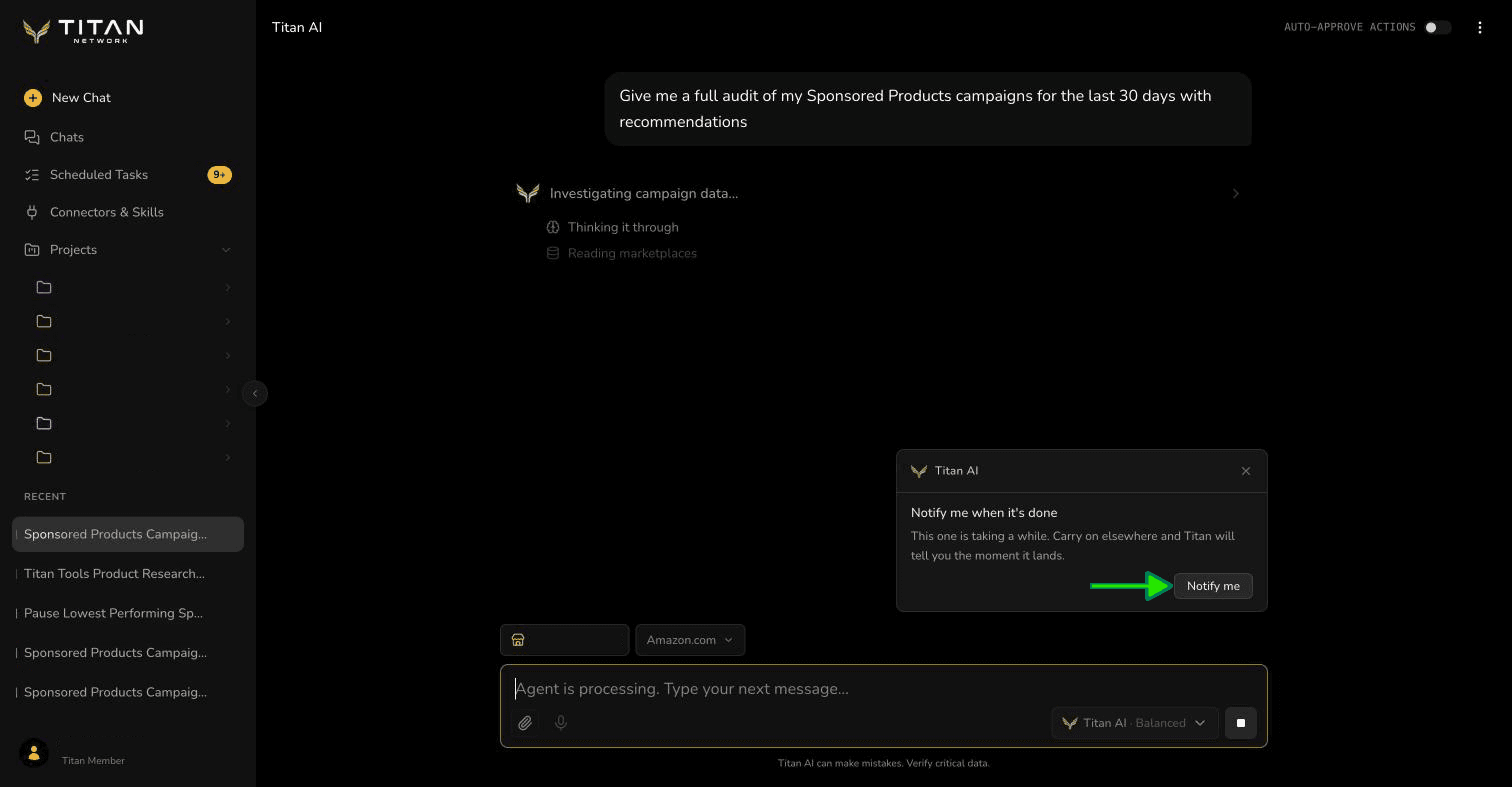
The card appears while a slow answer is still being written. - 2
Press Notify me, then Allow
Your browser asks whether the site may show notifications. Press Allow. Titan AI says Browser notifications are on. The first time you allow notifications in this browser, Titan AI also sends one test notification: "Notifications are on. This is how Titan will tell you when an answer is ready."
If you do not see the test, notifications for your browser are switched off in your computer's settings. Switch them on there.
- 3
Carry on elsewhere
Move to another chat or page, or to another tab. You can close the card with the X if you would rather stay and watch.
The card only asks once. After you allow or block notifications, it does not appear again, and it leaves on its own when the answer is ready.
When the answer is ready
If you moved to another chat or page while Titan AI was still working, the Your answer is ready card appears there. It says how long the answer took, for example "Finished in 3m 24s. It is waiting in the conversation."
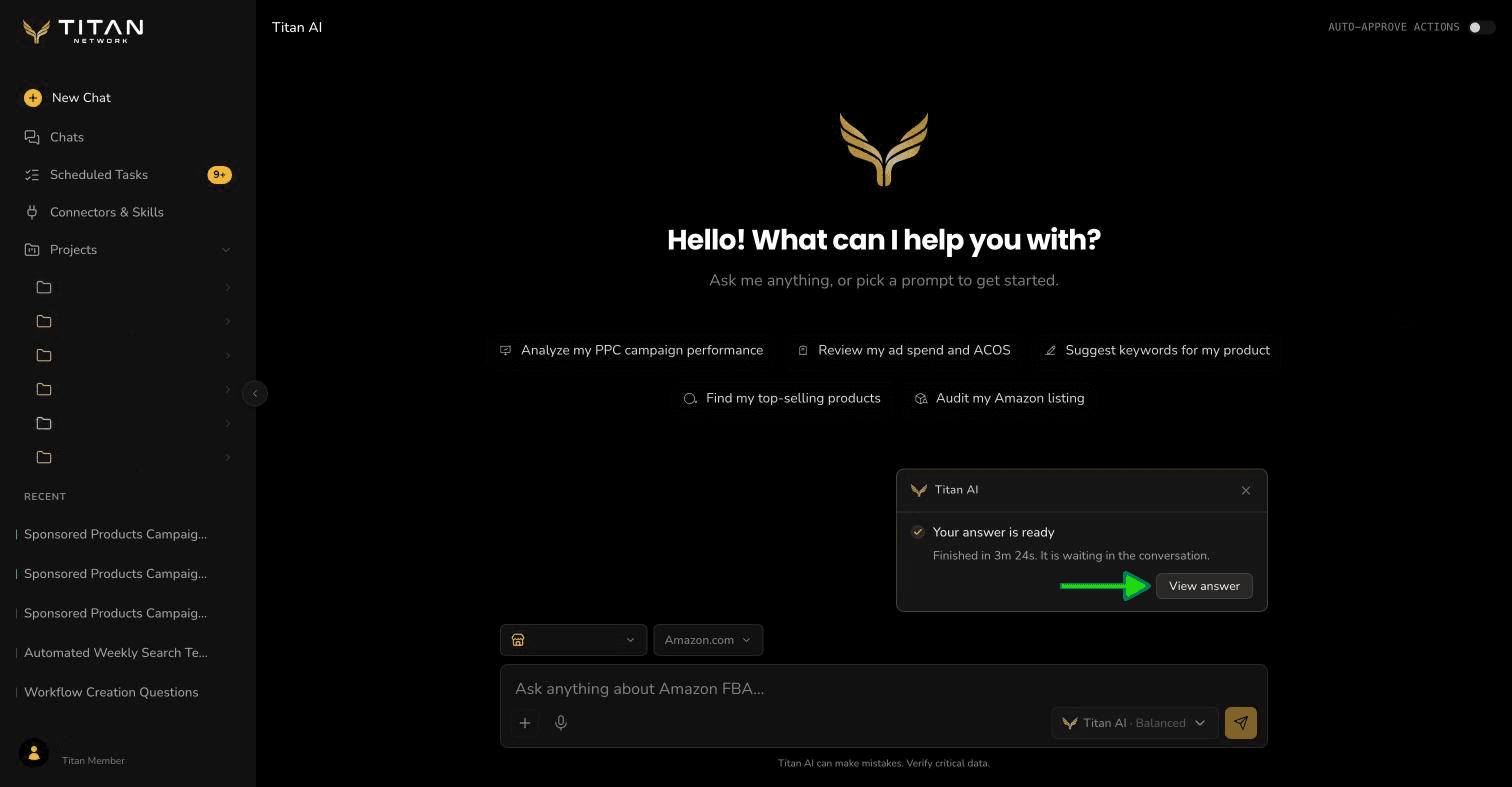
- Press View answer to go straight to the answer.
- The card hides itself 9 seconds after it appears. Point at it to keep it on screen while you read it.
- Close it with the X if you do not need it.
The card appears only for answers that took more than a few seconds. A quick answer does not need it.
When a change needs your approval
When Titan AI proposes a change to your account, such as pausing a campaign, it waits for your approval. If you are on another chat or page at that moment, the Approval needed card appears there. It names the kind of change, for example Update SP campaign.
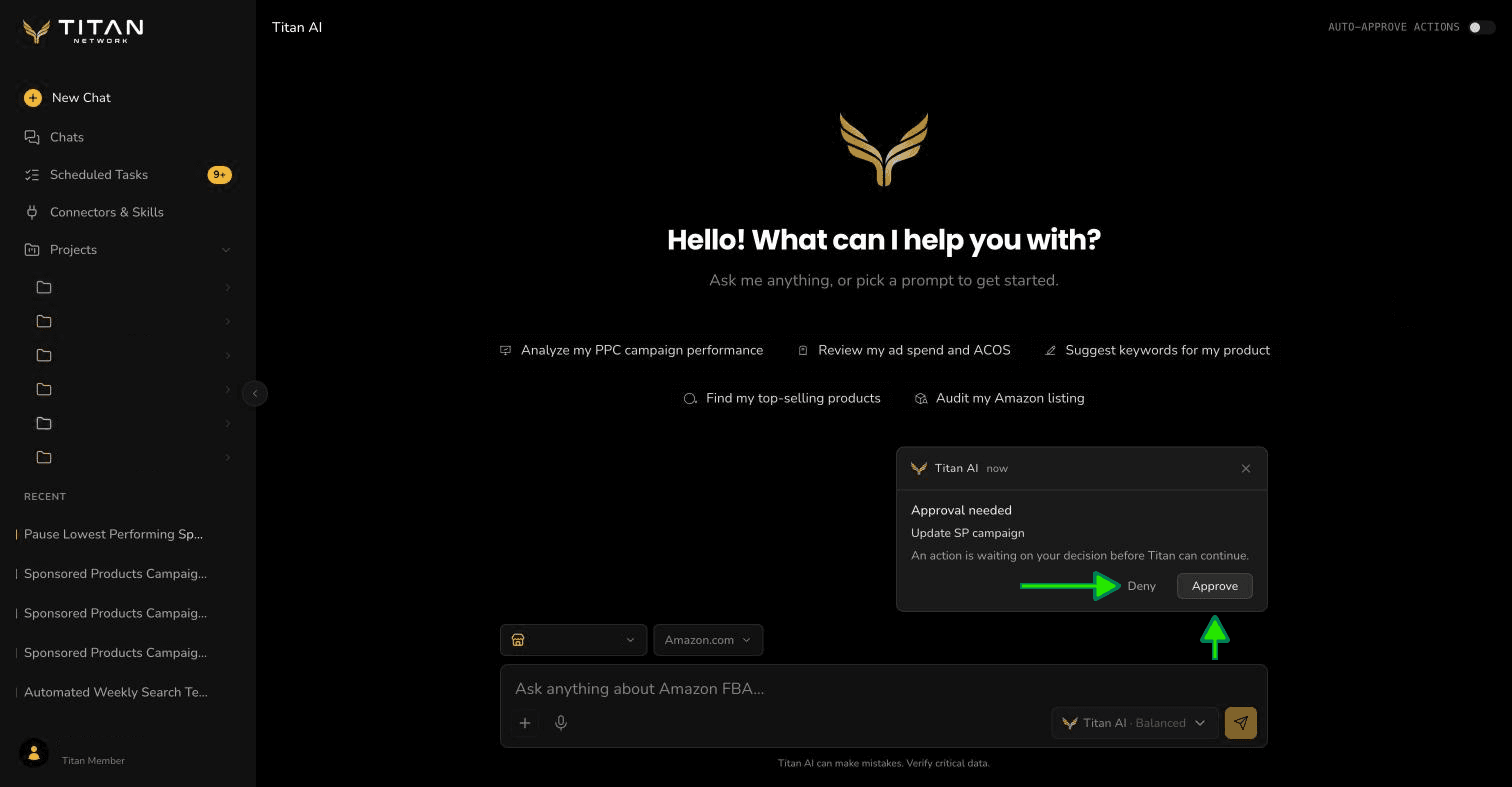
- Press Approve to let Titan AI make this one change.
- Press Deny to stop it. Nothing in your account changes.
- Press anywhere else on the card to open the chat and read the full proposal before you decide.
The card stays until you answer it or close it with the X. If nobody answers, the request is cancelled after nine minutes, as every approval is. See Approve what Titan AI changes.
If you are not sure what the change does, open the chat first. The card shows the kind of change, not which campaign or what the new figure is.
Notifications from your browser
Once you allow notifications, Titan AI also tells you when you are in another tab or another app:
- An answer is ready. The notification reads "Titan AI" and "Your answer is ready. Open Titan to view it." Press it to open the answer.
- A change needs your approval. The notification reads "Waiting for your approval:" followed by the kind of change, and "It will be cancelled if you do not respond." Press it to open the chat. Where your browser shows buttons on a notification, it also offers Deny and Approve. On a Mac they sit under Options.
Titan AI can only notify you while a Titan AI tab is open in your browser. If you close every Titan AI tab, nothing arrives until you come back.
If you blocked notifications
Everything inside Titan AI still works: the Your answer is ready and Approval needed cards appear as usual. Only the notifications from your browser stop.
To allow them later, open your browser's settings for the Titan AI site, set Notifications to Allow, and reload the page.
Troubleshooting
I allowed notifications but nothing arrives. Check that notifications for your browser are on in your computer's settings, and that a do not disturb or focus mode is not hiding them. Titan AI also needs a Titan AI tab open in the browser.
The Notify me card never appears. It only appears while your browser has not been asked yet. If you already allowed or blocked notifications, it stays away.
"That request is no longer waiting." You answered an approval from a notification after it was already answered somewhere else, or after it expired. There is nothing more to do.
"Titan couldn't send that decision." Your answer from the notification did not reach Titan AI. The request is still waiting. Open the chat and answer it there.