 Titan AI
 Setup
Composio
Connect Composio once and reach the apps it manages, Gmail, Sheets, Shopify and more, from your chats and scheduled tasks.
Composio is a third-party service that holds connections to a large catalogue of other apps and offers them through one address. Connecting it to Titan AI means one connector on your side instead of one per app, and Composio handles signing in to each app for you.
It is the connector to reach for when the thing you want Titan AI to touch is an ordinary business app, a spreadsheet, an inbox, a store, rather than something Amazon-specific that Titan AI already does natively.
Before you start
You need a Composio account, and inside it the apps you want to reach need to be connected on Composio's side. Titan AI can only use what Composio is already able to do for you: connecting Composio to Titan AI does not sign you in to Gmail or Shopify by itself.
Composio advertises a catalogue of 250+ tools. Which of those you actually get is decided by your Composio account, not by Titan AI, so treat the catalogue as Composio's to answer for.
Connect Composio
Composio is in the connector catalogue, so you do not type any addresses in by hand. It follows the same two-part OAuth route as Higgsfield: add the connector, then connect it.
- 1
Open the catalogue
Open Connectors & Skills from the sidebar, press Add Connector, and choose Browse Connectors. Find Composio in the list.
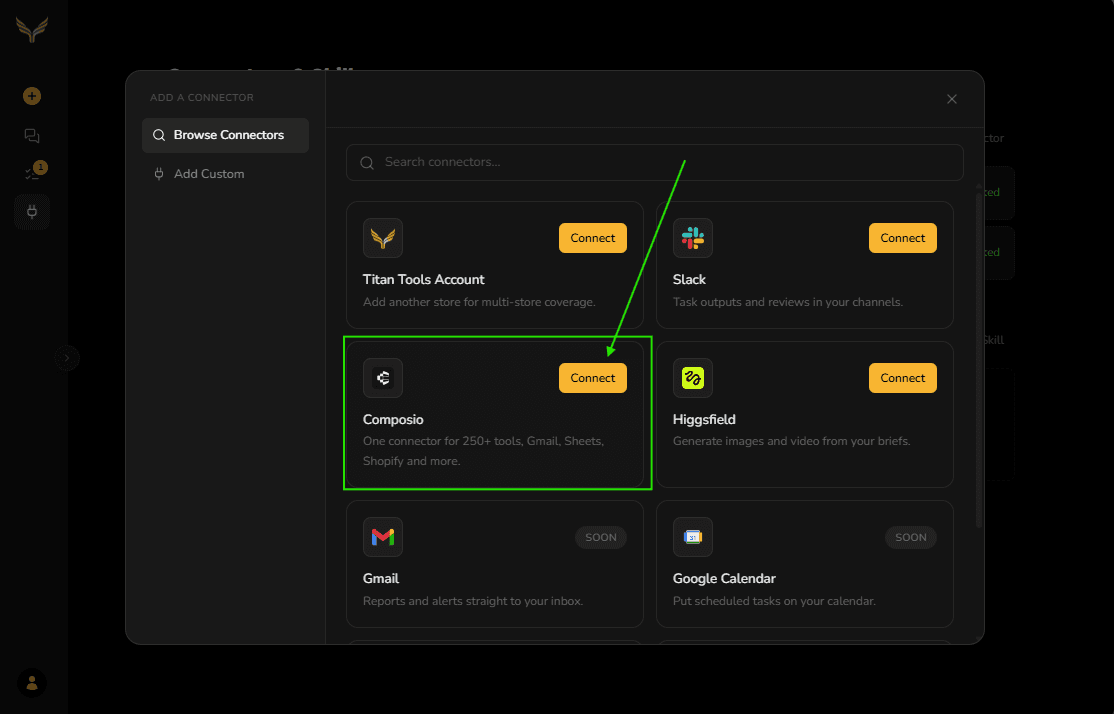
Composio sits in the catalogue alongside Titan Tools Account, Slack and Higgsfield. - 2
Add it
Press Connect on the Composio entry. Titan AI fills in the name and the server address for you, so press Add connector. There is no key to paste and no address to look up.
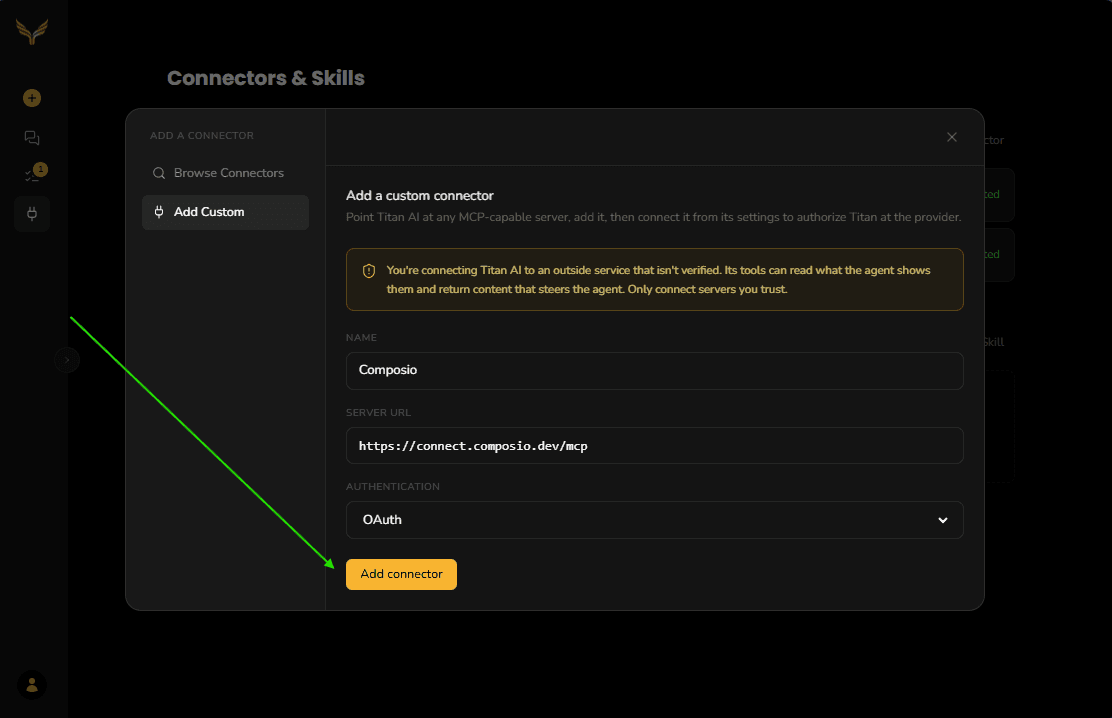
The form arrives filled in. Authentication is already set to OAuth. - 3
Connect it
Composio now shows Needs connecting under My Connectors. Click the row, then click Connect. This sends you to Composio to sign in and approve access for Titan AI.
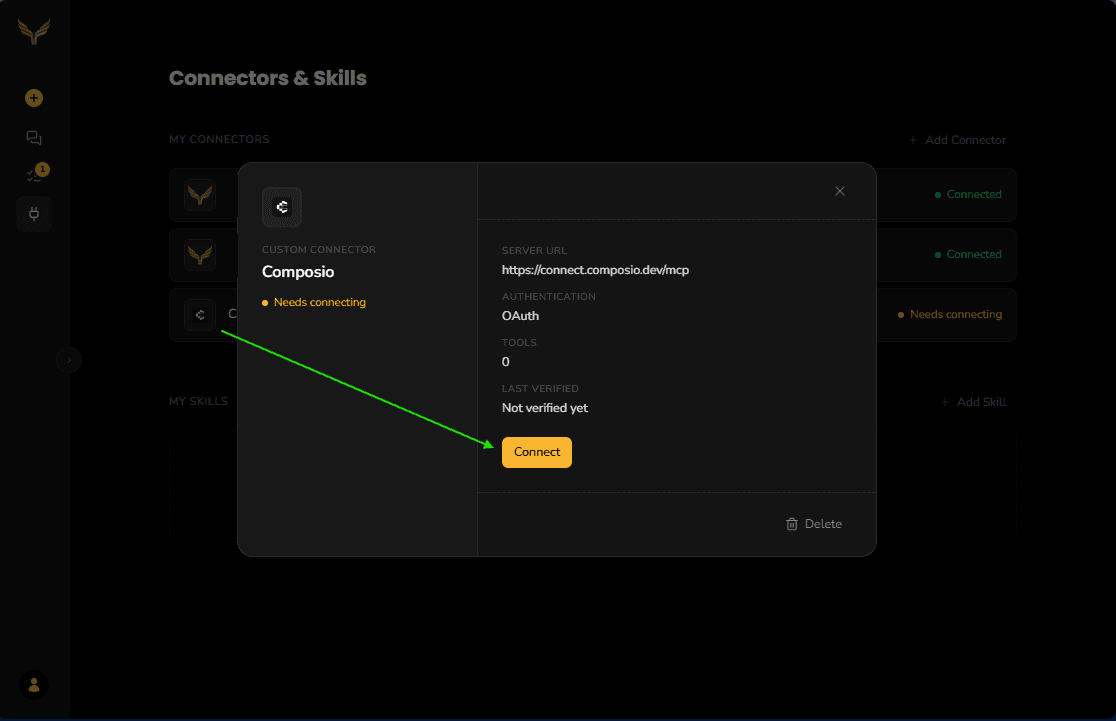
Before you connect it, the connector has no tools and reads Not verified yet. 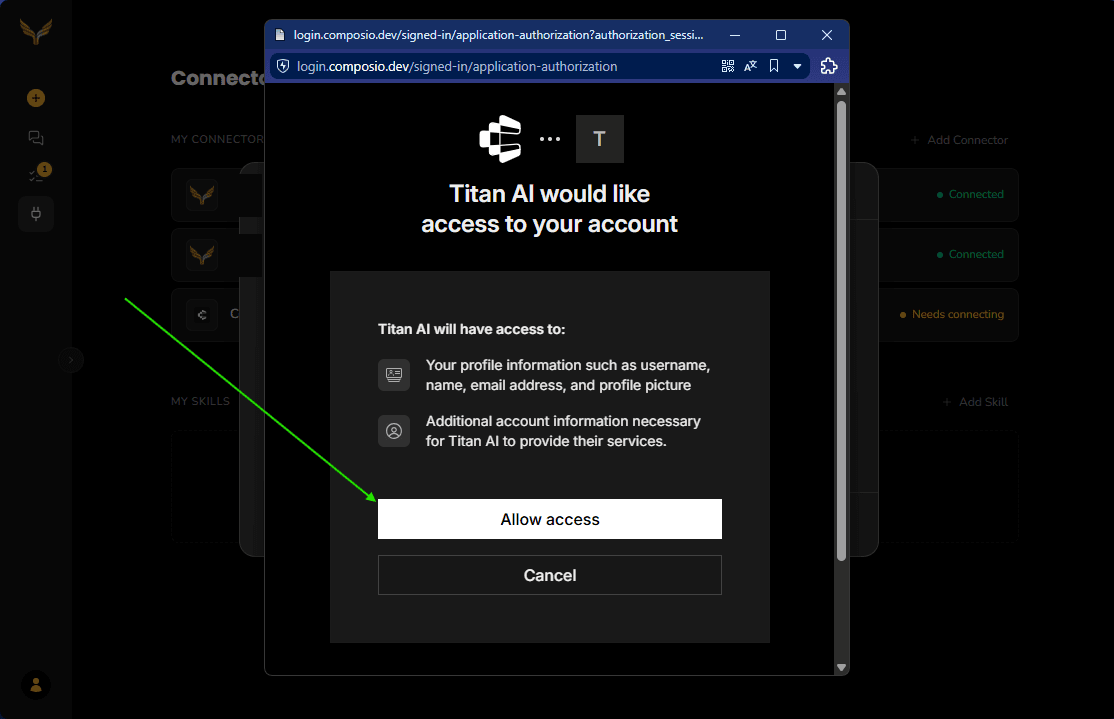
You approve Titan AI at Composio, not in Titan AI. - 4
Confirm it connected
Back in Titan AI, the Composio row shows Connected. If it still says Needs connecting, open it and click Connect again.
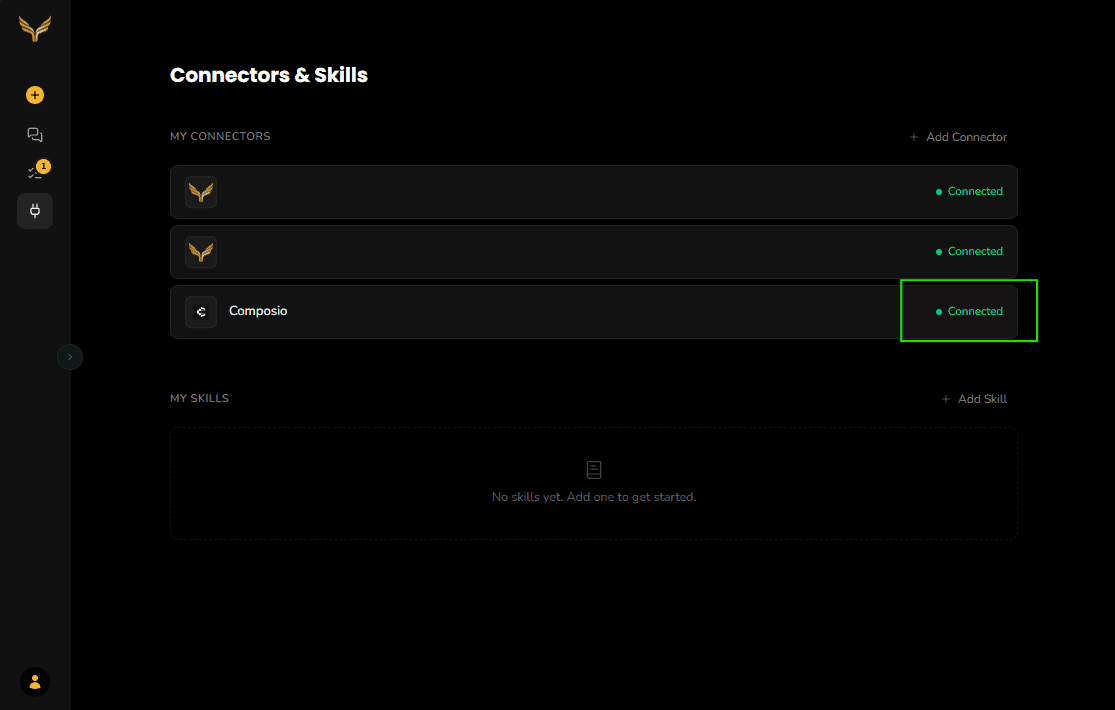
Connected. Composio now appears under My Connectors like any other.
Connectors that sign you in at the provider have nothing to probe until you have authorised, so Add is available straight away and the connector sits as Needs connecting until you complete the second step. Adding it is not the same as connecting it, and until you connect it, it has no tools.
For the full connector walkthrough, see Add a connector.
Use it
Once connected, ask for what you want in plain language and name the app. Titan AI reads the list of tools your Composio account exposes and picks from it.
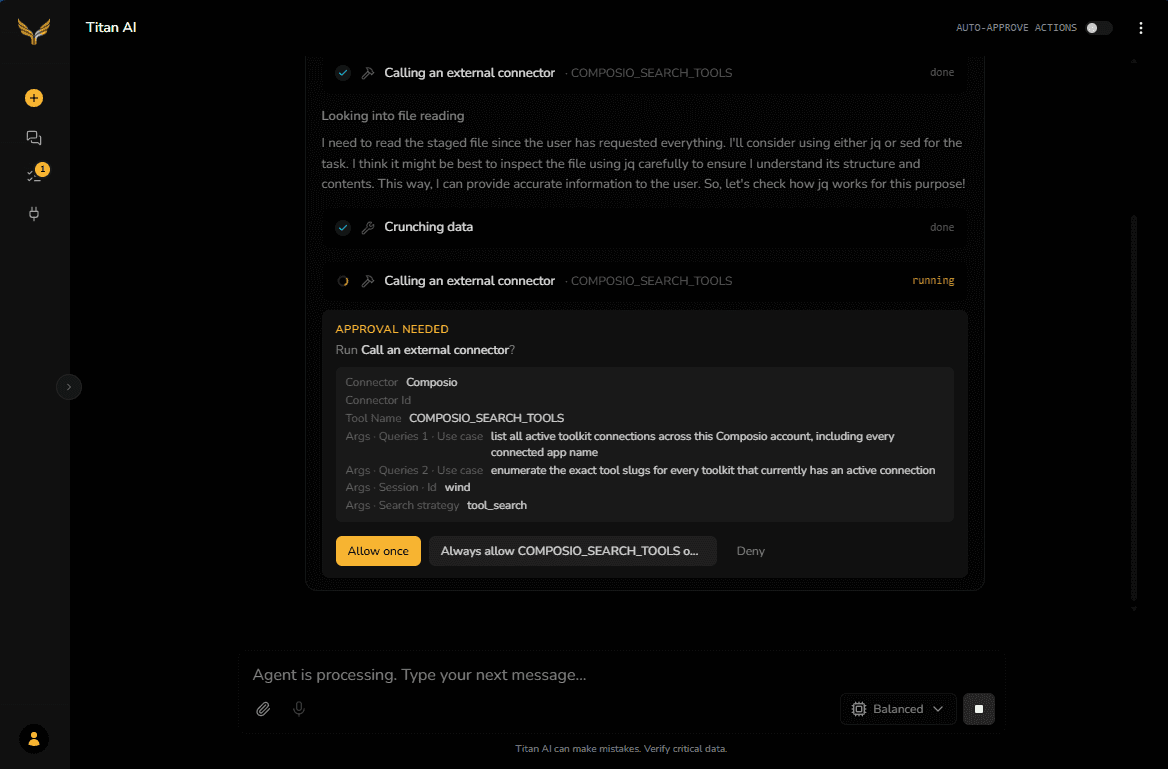
Composio calls go through an approval card naming the connector and the tool, and you answer one call at a time. Assume that includes reads: asking for a list of your Gmail messages raises a card just as sending one does. Titan AI reads what tools your Composio connector offers without asking, because that is how it knows what it may call, but that is the discovery step rather than a call to Composio on your behalf.
The auto-approve switch covers Composio calls like every other write, and it stays on for every conversation in that browser tab until you reload the page. A connector you waved through once in one chat can keep acting unasked in the next one. Reload, or switch it back off, when you are done.
Actions run on your own Composio account, under the sign-in you approved. Titan AI cannot see or control what Composio charges you for them, or what limits your plan there carries.
If you connected Composio the old way
Composio used to be added by pasting a server address and an API key of your own. Connectors set up that way carry on working and there is nothing you have to do. If you would rather move to signing in, remove the old connector and add Composio again from Browse Connectors.
Troubleshooting
The connector still says Needs connecting. Open the Composio row and click Connect again, or remove it and add it again from Browse Connectors. The sign-in is a one-time step, and re-adding gives you a fresh attempt.
Titan AI says it cannot find a tool for an app you use. Check that app is connected inside Composio itself. Titan AI only sees what your Composio account offers, so an app you have not connected there is not available here.
A call fails on Composio's side. The error comes back from Composio rather than from Titan AI, so the answer is usually in your Composio account: an expired sign-in to that app, or a plan limit. Reconnect the app there and try again.
It stopped working after a while. That is almost always an expired authorisation. Open the connector and reconnect it.
Still stuck? Send us feedback and we will take a look.