 Titan AI
 Browse, create and upload skills
Write down how you want a job done once, and Titan AI follows it every time.
A skill is your playbook. It tells Titan AI how you want a particular job handled: the steps, the rules, what a good result looks like. Without one, you get a competent generic answer. With one, you get your answer.
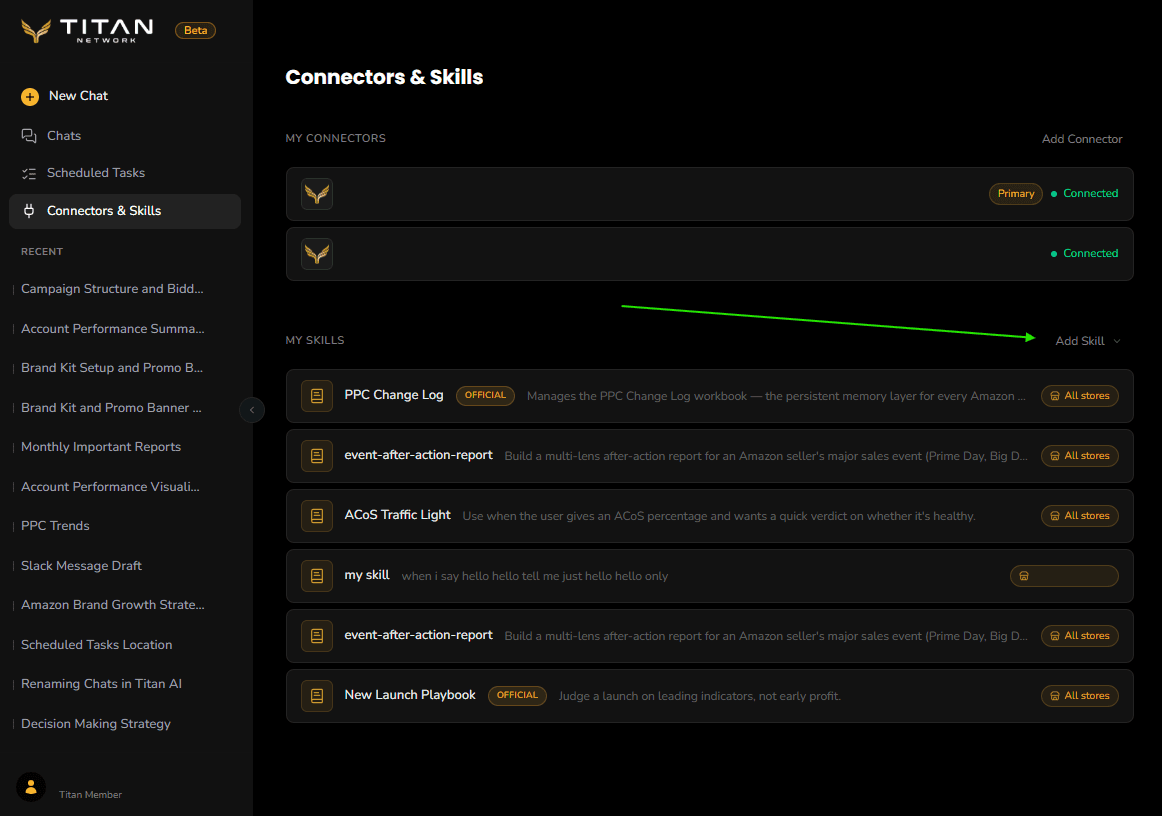
Skills live on the Connectors & Skills page, under My Skills.
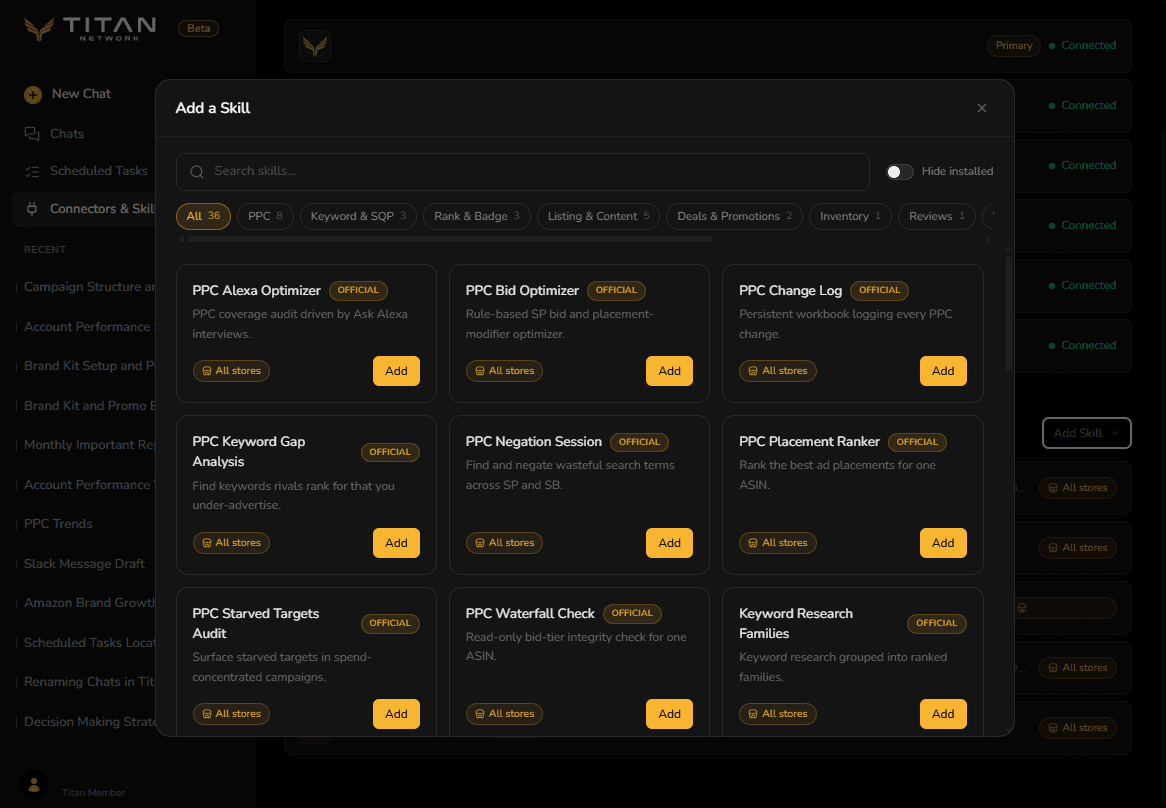
Browse existing skills
Press Add Skill, then Browse Skills to see what is already available. Some are published by Titan and carry an Official badge; the rest are yours.
Create a skill
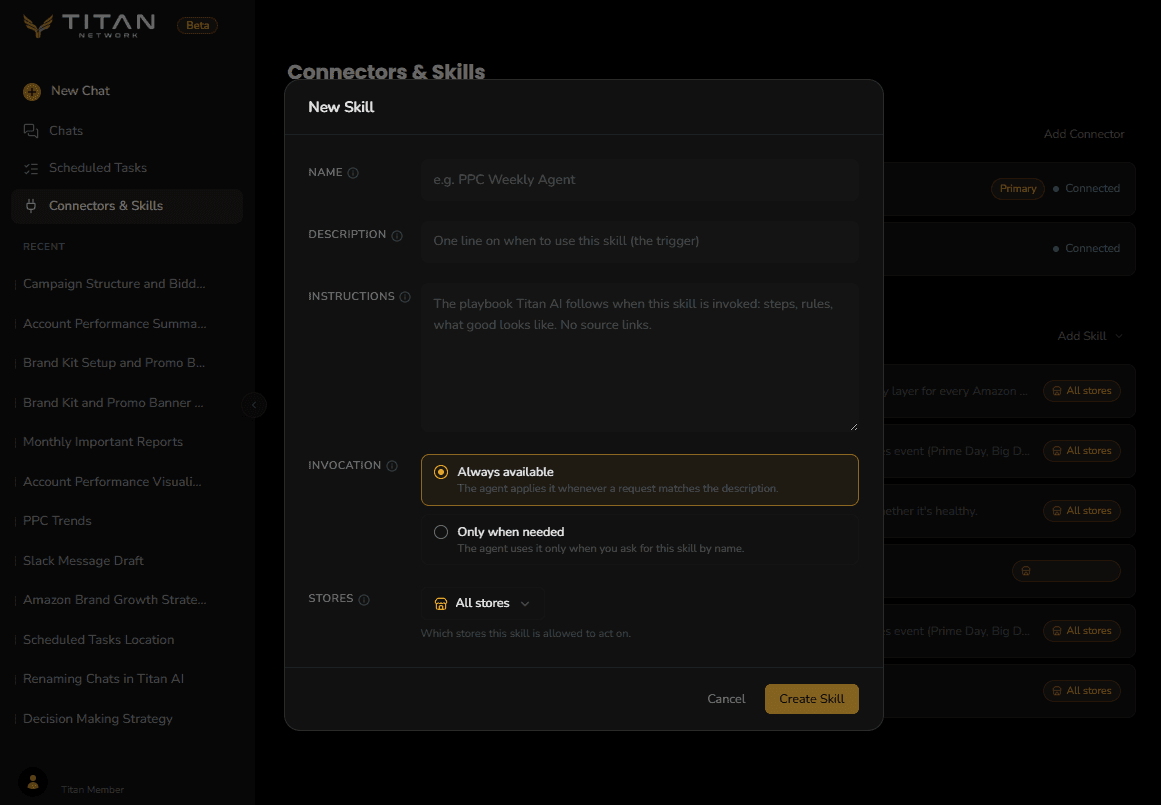
Press Add Skill, then Create New. There are five things to fill in.
- 1
Name
What you will call it, for example "PPC Weekly Agent".
- 2
Description
One line on when to use this skill. This is the trigger: it is how Titan AI decides the skill is relevant, so describe the situation, not the mechanics.
- 3
Instructions
The playbook itself. The steps Titan AI follows when this skill is invoked, the rules it must respect, and what good looks like. This is the part worth spending time on.
- 4
Invocation
Either Always available, meaning Titan AI applies it whenever a request matches the description, or Only when needed, meaning it is used only when you ask for the skill by name. Use the second one for anything narrow or opinionated that should not colour unrelated answers.
- 5
Stores
Which stores this skill is allowed to act on.
Write instructions the way you would brief a new hire who is good at the job but does not know your brand. State the constraints you would otherwise have to correct every time: your margin floor, the ASINs that are off limits, the format you want the answer in.
What a good skill looks like
The description decides whether a skill gets reached for at all, so it earns the most care. Three that work:
| Description (the trigger) | What the instructions pin down |
|---|---|
| "Use when I ask for a weekly PPC maintenance session." | The order of work: negatives first, then bids, then harvesting. Your ACoS ceiling. Which campaigns never to touch. |
| "Use when I ask whether anything is about to go out of stock." | Which cover threshold counts as urgent for your lead times, and whether to include warehousing stock. |
| "Use when I ask if a deal was worth running." | The KPIs you judge a deal on, your margin floor, and what a pass or fail looks like. |
In each one the description names a situation and the instructions carry the judgement Titan AI cannot guess. Titan ships ready-made skills too, so check Add Skill before writing one from scratch.
Keep it short enough to be followed
A long skill is read in full. It is not always followed in full. The usual failure is quiet: a step in the middle gets skipped, the answer still looks finished, and nothing tells you a check did not run.
So treat the main skill file as a short one. A good target is under 500 lines, or about 30,000 characters. The check counts bytes rather than letters, so a skill written with accented or non-Latin characters reaches it sooner.
Past that, split it rather than trimming the substance:
- Keep in the main file the things that must never be missed. When to use the skill, the rules that are never broken, the numbered list of steps in order, and what the finished output has to contain.
- Move the detail of each step into its own supporting file, and say in the main file which file to read before running that step. One file per step is easier to follow than one file for everything.
Supporting files come with a skill when it is created. There are two ways to get them:
- Ask Titan AI to write the skill in chat. It can create the supporting files alongside the main one in the same step.
- Upload a
.skillor.zipbundle. Whatever files the bundle contains are saved with the skill.
An existing skill that is already too long is split by having Titan AI write a fresh version of it, because supporting files are added when a skill is created. Official skills published by Titan manage their own files and are not split by hand.
If a skill goes over the length that works well, it still saves. Nothing is blocked. When you asked Titan AI to write or edit it in chat, it says so at the time:
My PPC cleanup skill has grown too long. Write me a fresh version where the main file has the rules and the numbered steps, and each step's detail sits in its own supporting file.
Have Titan AI write the skill for you
Describe the job in chat and ask for a skill. Titan AI drafts one and shows it to you before saving, so you edit rather than start from nothing.
Turn how we just did that PPC cleanup into a skill I can reuse every Monday.
Write me a skill for checking whether anything is about to go out of stock, using a 30 day cover threshold.
Upload a skill
If you already have a skill bundle, press Add Skill, then Upload Skill.
Your operating system's file picker opens. Accepted files are .skill, .zip and
.json.
View, edit and remove
Each skill in My Skills opens to a detail view. From there you can edit it or delete it. Editing an existing skill saves with Save Changes rather than creating a second copy, so a skill you refine over time keeps one identity.