 Titan AI
 Setup
Discord
Add the Titan bot to your Discord server so Titan AI can read its channels and post a message there when you ask.
Connecting Discord adds the Titan bot to one Discord server you choose. From then on you can ask Titan AI, in a chat, what has been said in a channel, who is in the server, or to post a message for you.
Titan AI only reaches Discord when you ask it to. It does not watch your channels, and it does not post on its own.
Before you start
You need the Manage Server permission in the Discord server you want to connect. Discord checks this when you pick the server.
One Titan AI account connects to one Discord server at a time.
Discord works in chats on Titan AI itself. It is not available when you ask Titan AI from Slack, and scheduled tasks cannot use it.
Connect Discord
- 1
Open Connectors & Skills
Click the Connectors & Skills icon in the sidebar.
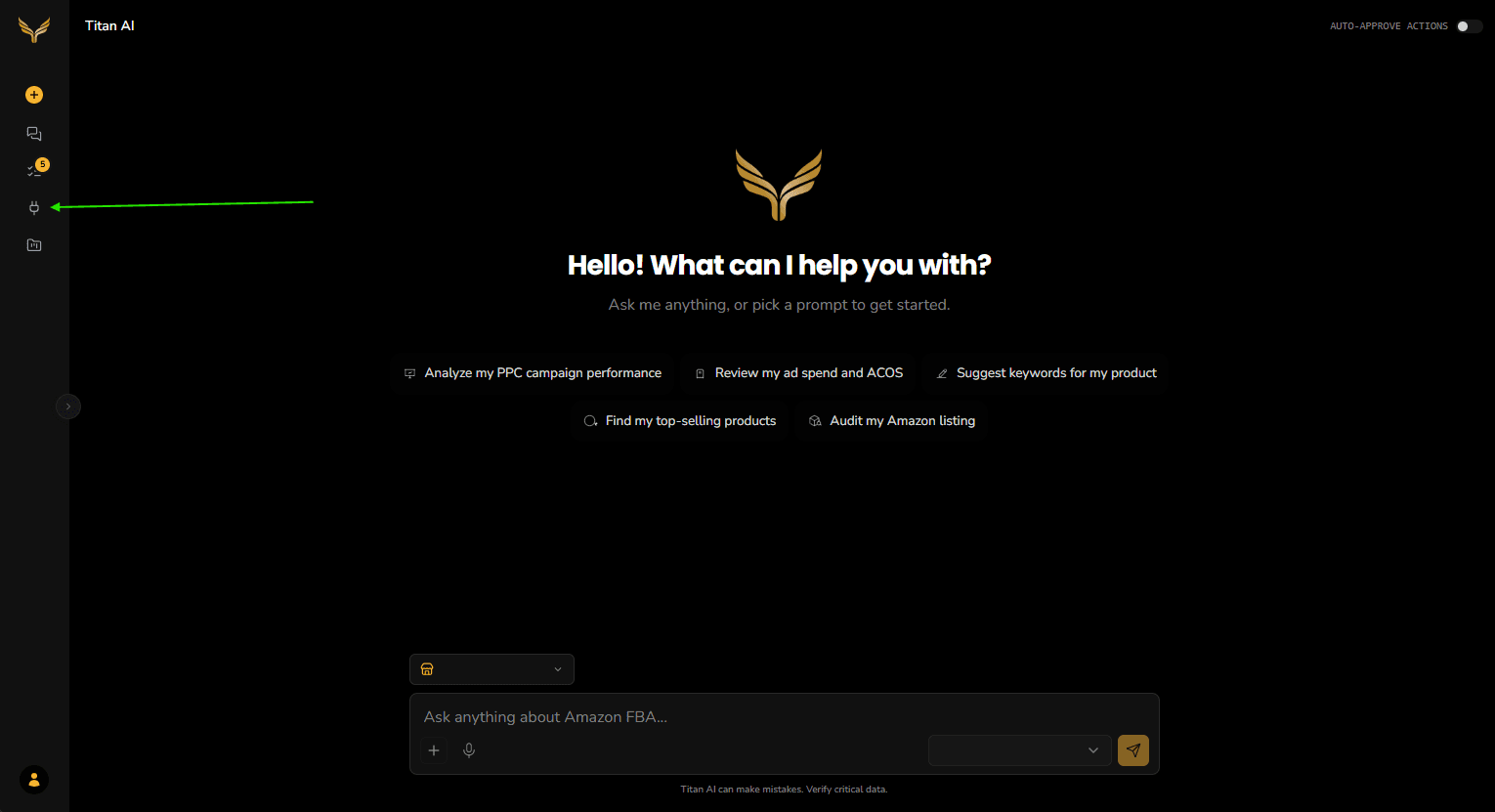
Connectors & Skills sits in the sidebar. - 2
Press Add Connector
Add Connector sits above My Connectors. Discord only appears under My Connectors once it is connected.
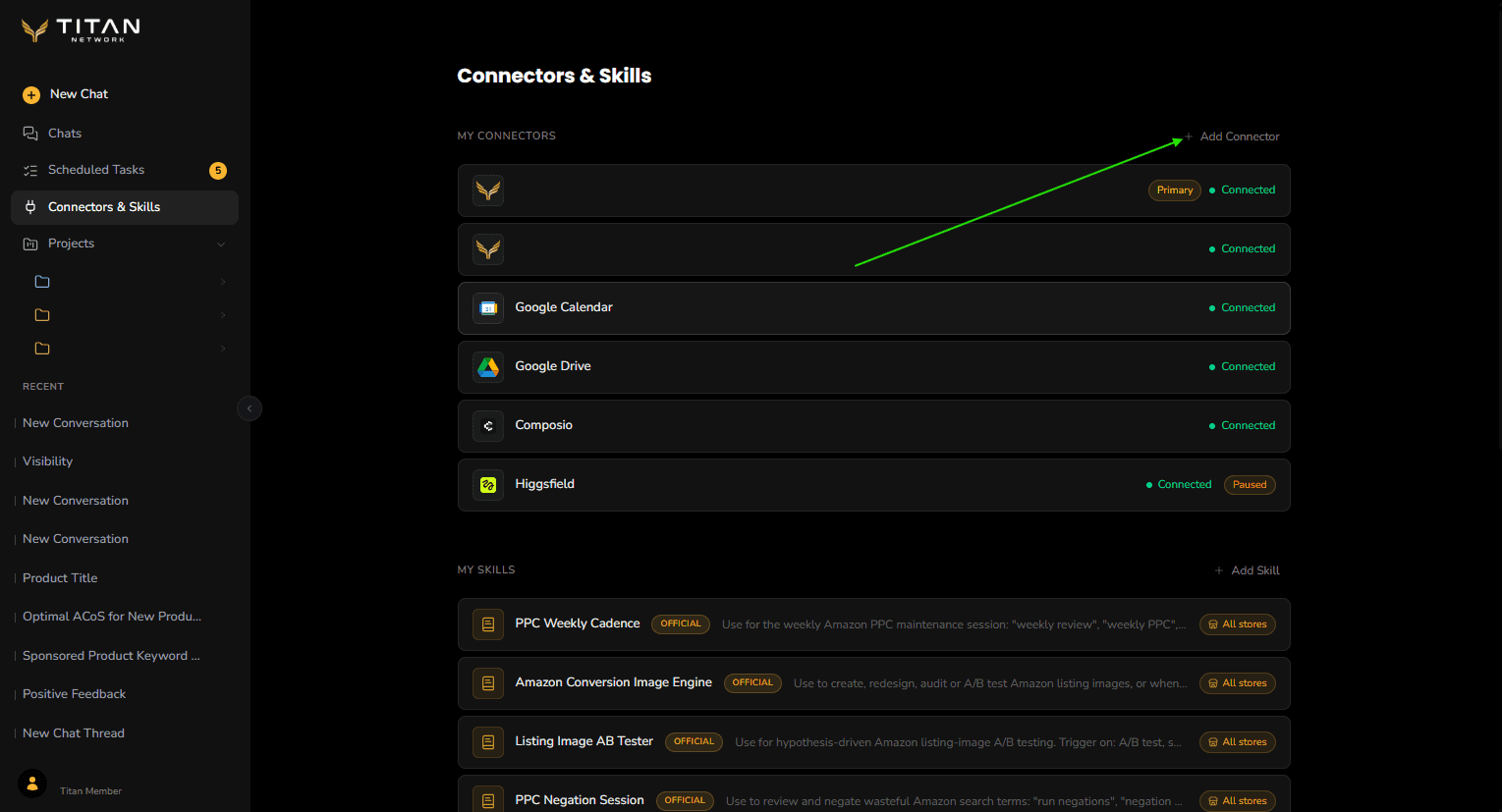
Add Connector opens the catalogue. - 3
Press Connect on Discord
In Browse Connectors, find Discord and press Connect.
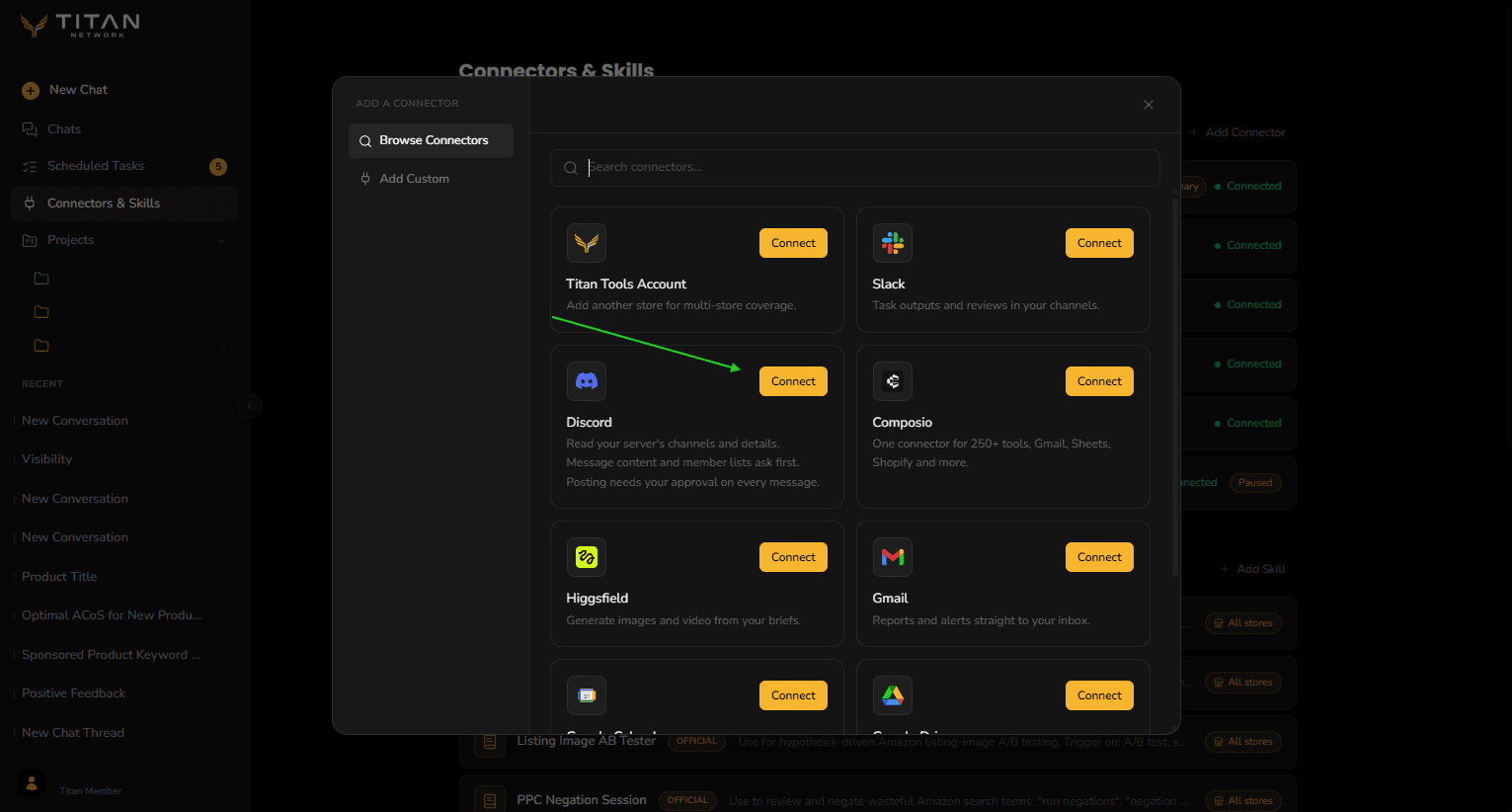
Discord sits in the catalogue next to Composio. Which entries offer Connect rather than Soon depends on your account, so yours may differ from this capture. - 4
Tick the box and press Connect Discord
The box reads "I understand Titan AI will be able to read the channels, messages and member list of the Discord server I connect." Connect Discord stays disabled until you tick it.
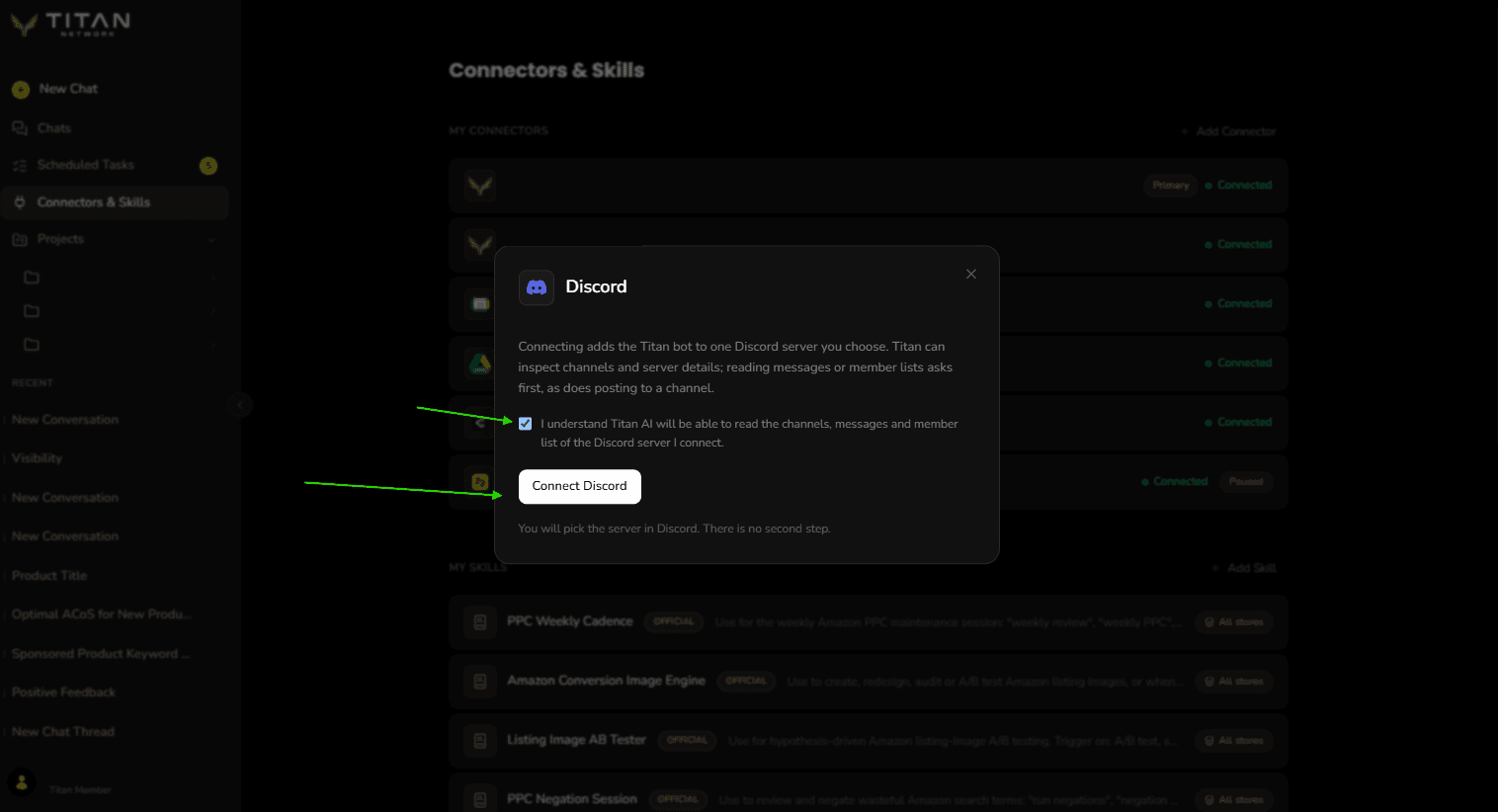
Tick the box first. You pick the server in the next step. - 5
Pick your server in Discord
A Discord window opens. Check that it is signed in to your own Discord account, choose the server under Add to server, and press Continue.
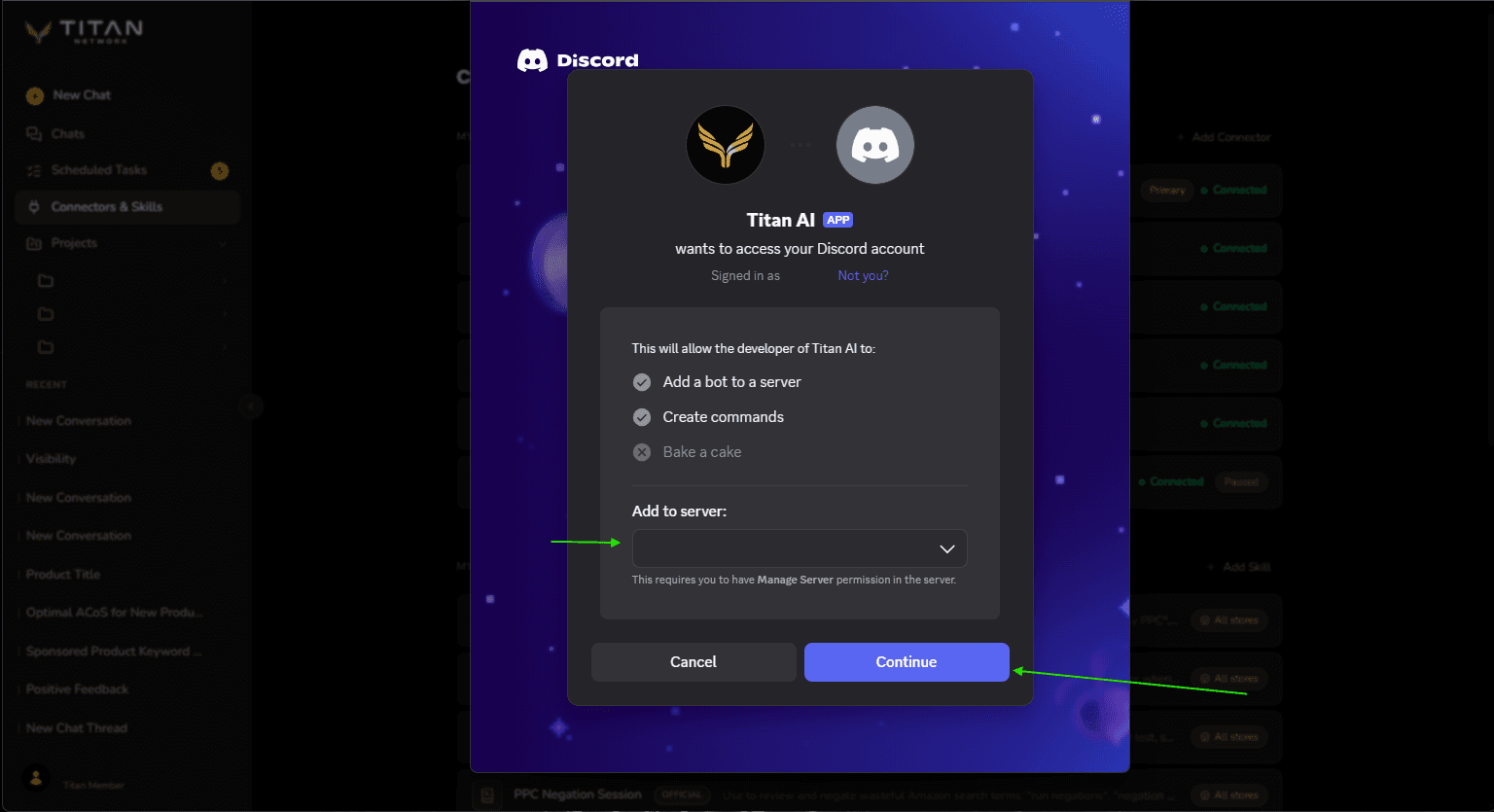
This screen is Discord's, not Titan AI's. Check the server before you press Continue. - 6
Keep all three permissions ticked and press Authorize
Discord lists the three permissions Titan AI asks for: View Channels, Send Messages and Read Message History. Leave all three ticked and press Authorize. The window says "Discord connected! This window will close." and closes by itself.
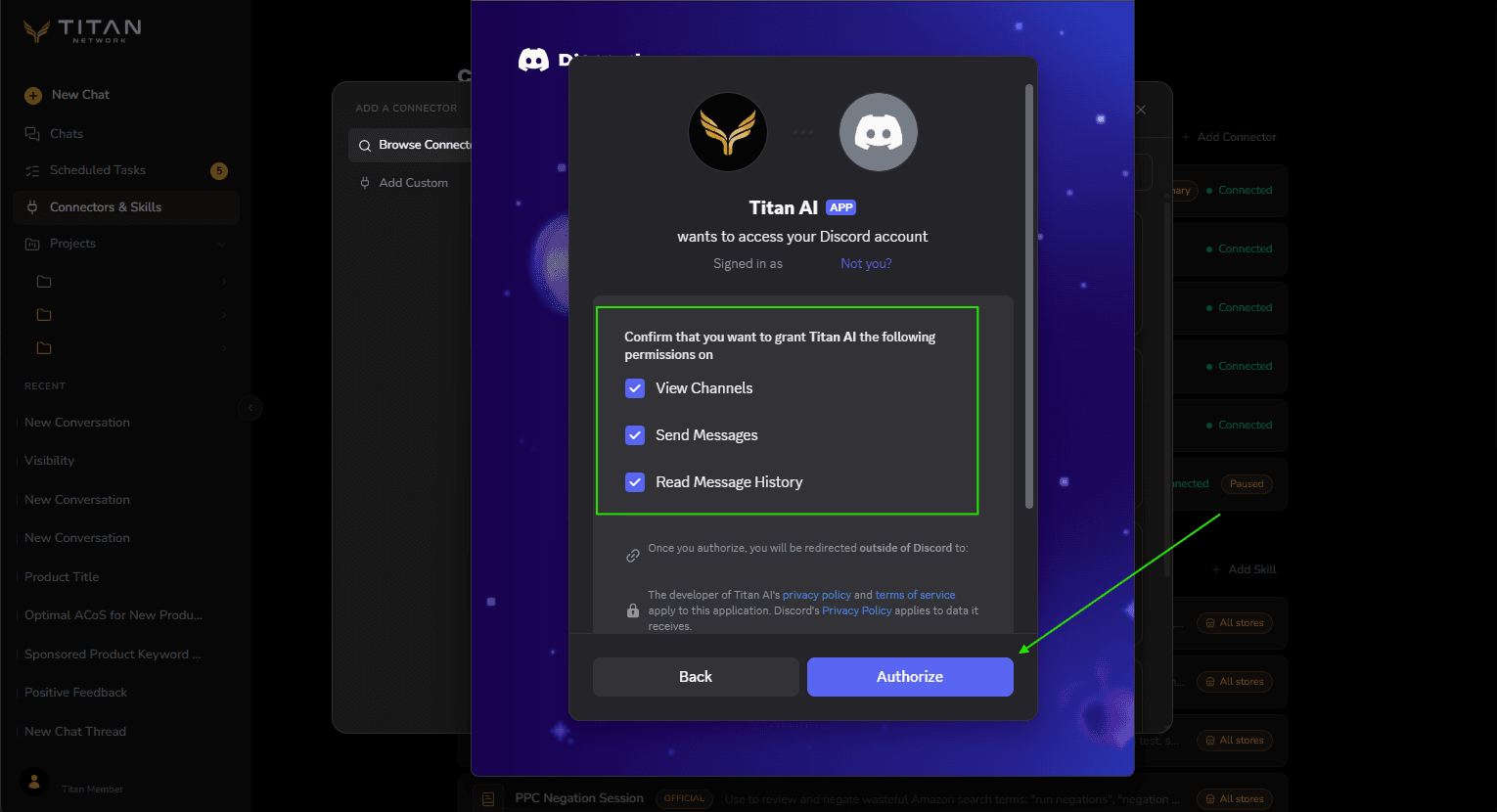
Untick Send Messages here and Titan AI can read but not post. - 7
Confirm it connected
Discord now appears under My Connectors, marked Connected.
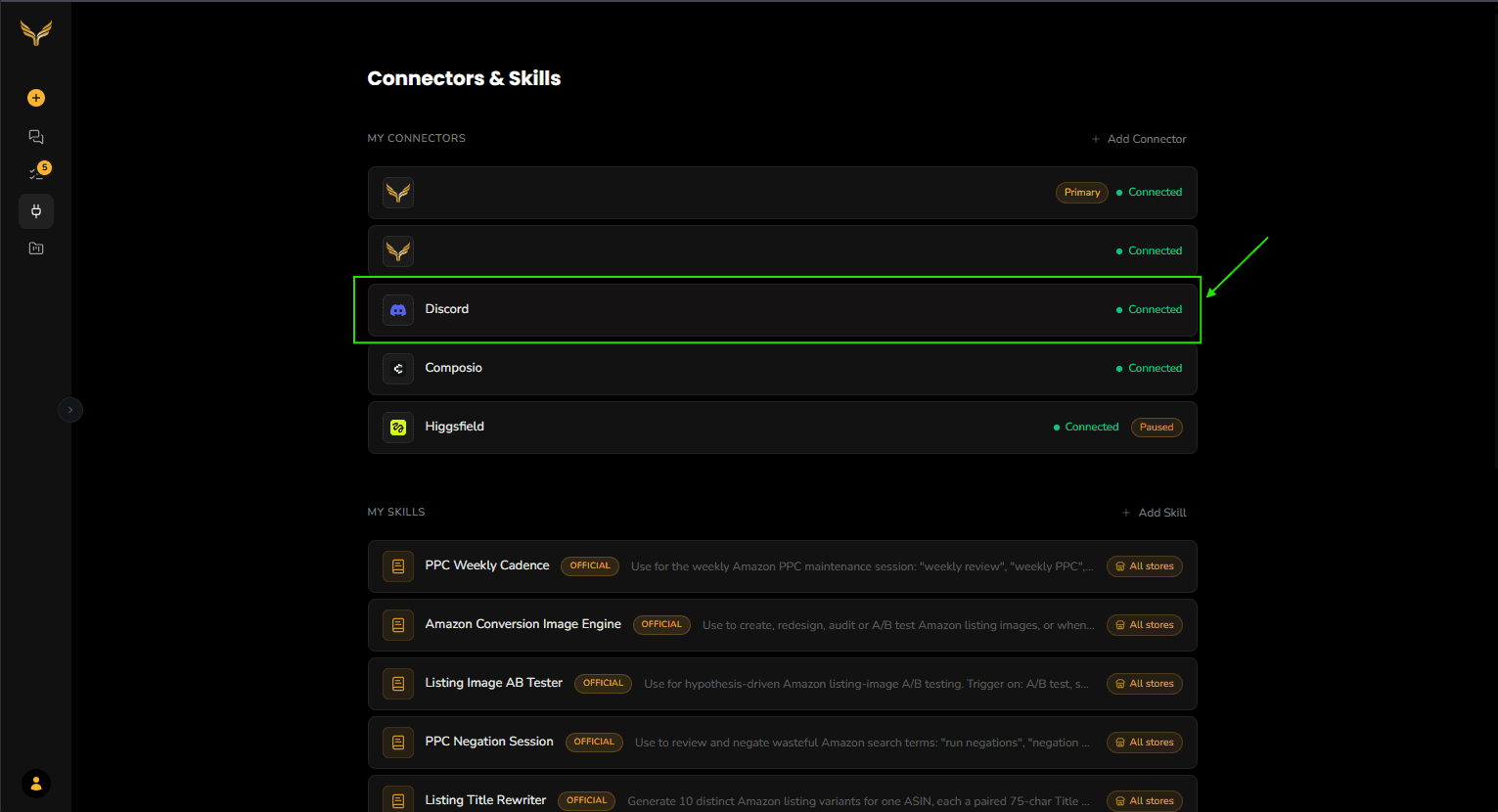
Connected. Discord now appears under My Connectors.
For the full connector walkthrough, see Add a connector.
What Titan AI can do
| You ask Titan AI to | Does it ask first? |
|---|---|
| List the server's channels | No |
| Look up the server's details: its name, description, owner and approximate member count | No |
| Read the most recent messages in a channel, up to 100 at a time | Yes |
| List the server's members, up to 100 at a time | Yes |
| Post a message to a channel | Yes |
When it asks, you get an approval card in the chat with Allow once, Always allow and Deny. Two things skip the card, and both are worth using deliberately:
- Always allow covers that kind of request for the rest of the chat. On a read, that means every channel in the server, not only the one on the card. On a post, it means every later post in that chat goes to Discord without a card.
- The Auto-approve actions switch in the chat header skips the card for every request, Discord posts included, in every chat in that browser tab until you reload the page.
Approve what Titan AI changes covers both in full.
Use it
Ask in plain words, and name the channel.
What has been said in #general this morning?
How many members does our Discord server have?
Post "Our summer sale starts Monday" in #announcements.
Reading a channel
Titan AI looks up the channel, then asks before it reads. The card shows the id of the channel it will read, and the message limit when Titan AI set one.
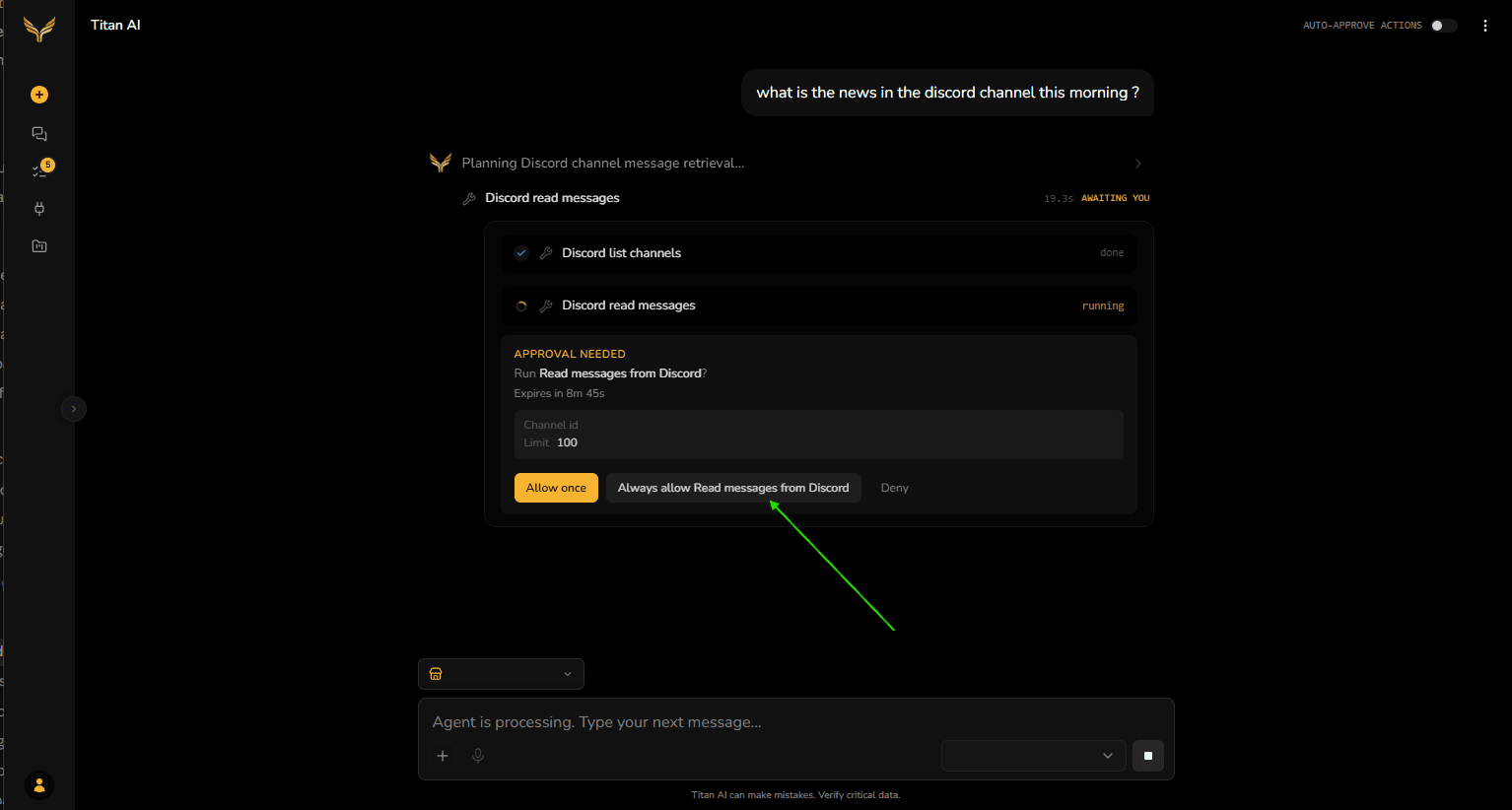
Allow it and the answer comes back in the chat.
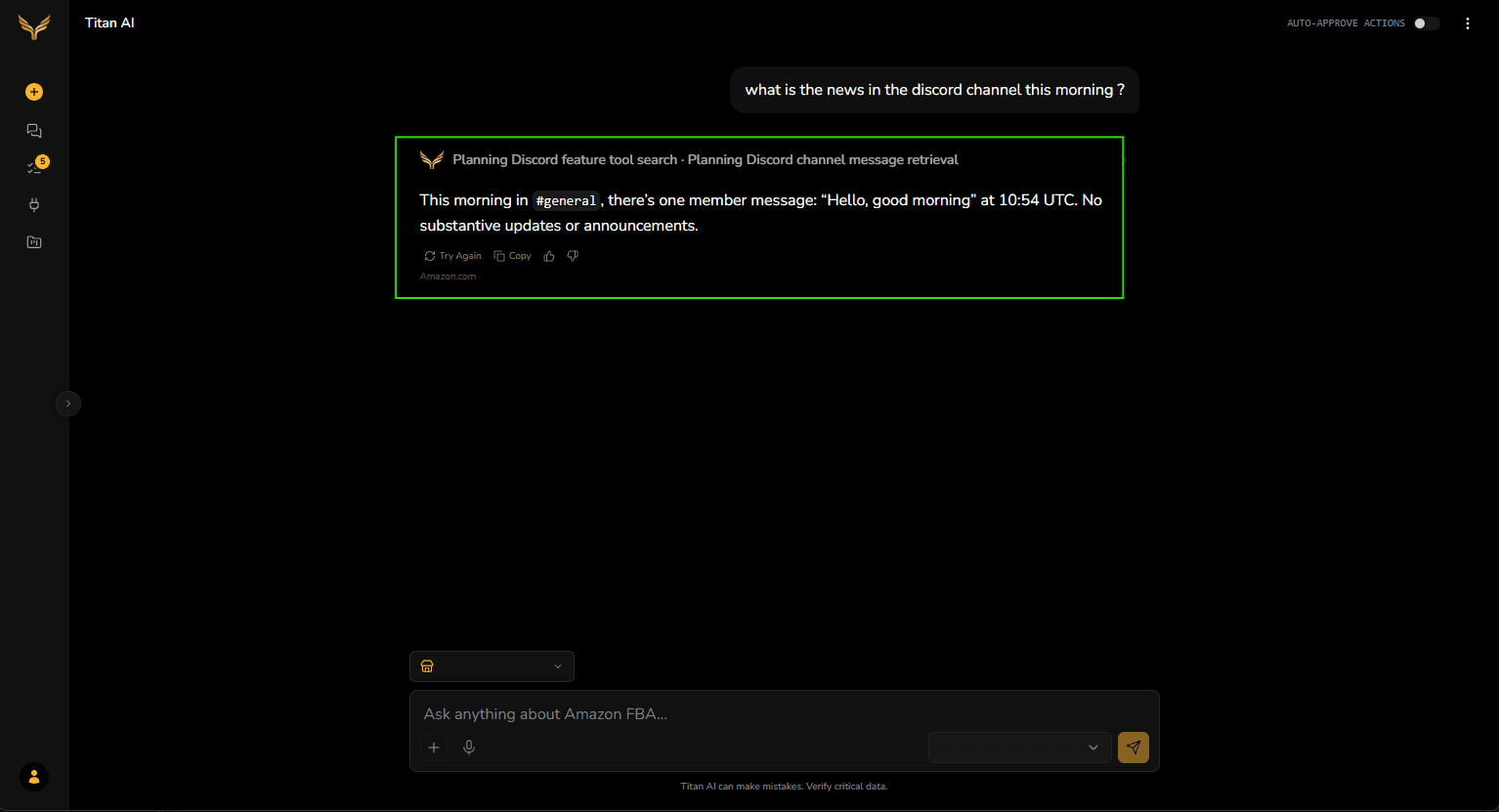
Posting a message
When you ask Titan AI to post, it finds the channel and then shows a card asking to run Discord send message. The card does not show the text, so say exactly what you want posted in your request, or ask Titan AI to show you the message first.
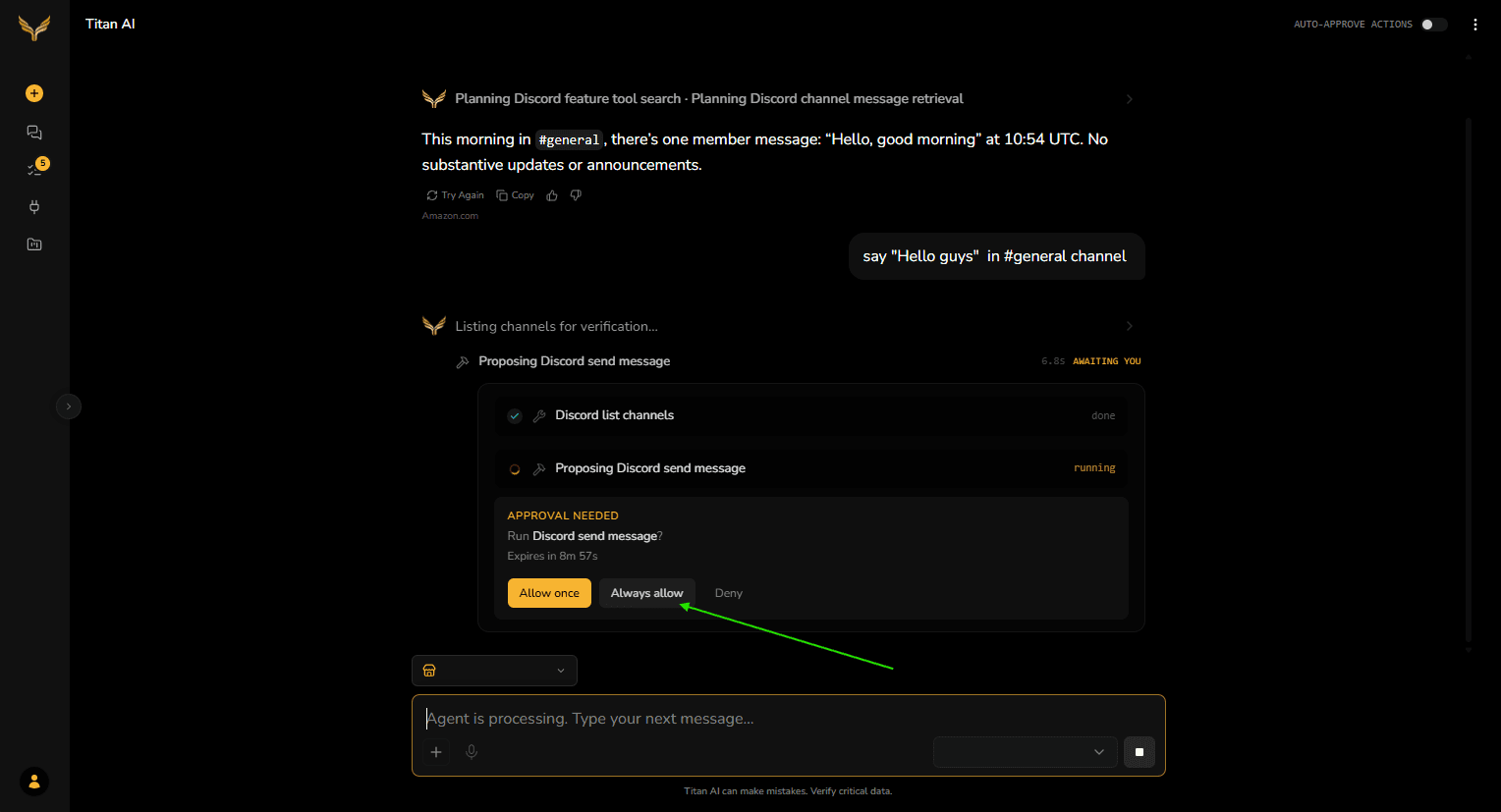
If Titan AI says Discord did not confirm the message, it does not know whether the post went through. Check the channel in Discord before you ask it to post again, or the message may appear twice.
If Send Messages was unticked
Discord's own screen lets you untick any of the three permissions. If Send Messages was unticked, reading keeps working but Titan AI cannot post.
Open Discord under My Connectors. Posting reads Not granted, with a link reading Reconnect and leave "Send Messages" ticked. Press it and go through Discord's screen again with all three ticked.
What it does not do
- Other servers. It reaches only the server you connected. A channel in any other server is refused, even one the Titan bot is also in.
- Archived threads. Titan AI can see the server's active threads, but not archived ones.
- Direct messages. It cannot read or send them.
- Older history. A read returns the most recent messages in a channel, up to 100. It cannot search, or go further back than that.
- Files. A read tells Titan AI how many attachments a message has, but not what they are. A post is text only, up to 2,000 characters, with no attachments.
- Mass pings. @everyone, @here and role mentions are posted as plain text and notify nobody. A mention of one person still notifies that person.
- Reactions, edits and moderation. It cannot react to, edit or delete messages, or manage members.
Disconnect
Open Discord under My Connectors to see the server you connected and whether posting is allowed. When it is, the Posting row reads "Allowed, with your approval on every message". Always allow and the Auto-approve actions switch still skip the card, as described above.
Press Disconnect and Titan AI stops reaching your server straight away.
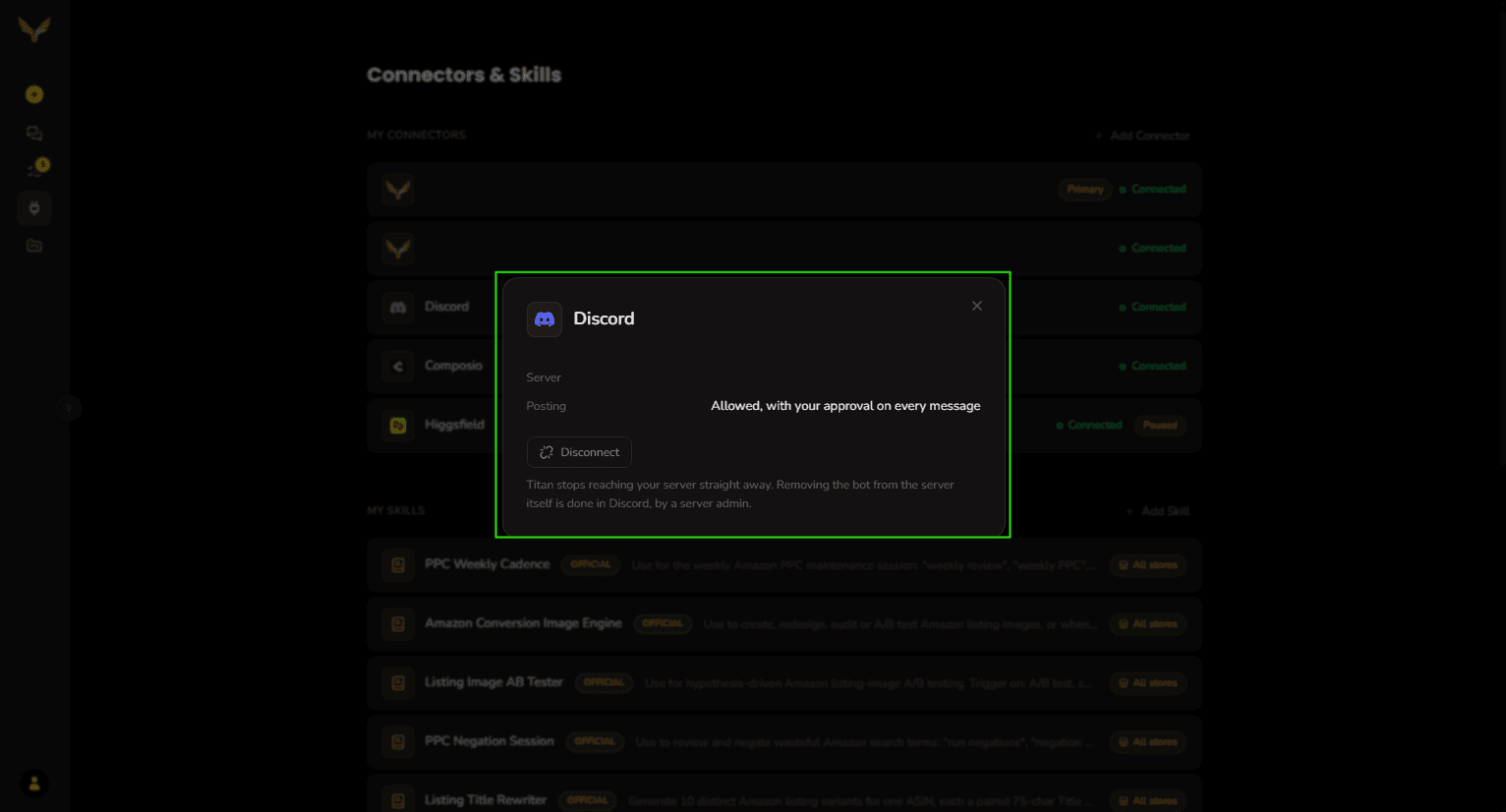
Disconnecting does not remove the Titan bot from the server. A server admin does that in Discord.
To connect a different server, disconnect first, then connect Discord again and pick the other server.
Troubleshooting
Titan AI says no Discord server is connected. Connect it with the steps above. If you connected it before, check that Discord still appears under My Connectors.
Titan AI says it cannot post. Send Messages was unticked when you connected. See If Send Messages was unticked.
Titan AI says a channel is not in your server. It only sees the server you connected, and it cannot open archived threads. Ask it to list the channels to see what it can reach.
Titan AI says the bot cannot see a channel. A channel can be hidden from the Titan bot by that channel's permissions in Discord. Give the bot access to the channel in Discord and ask again.
The Discord window says the install was started from a different Titan AI sign-in. Sign in to Titan AI in this browser, then start again from Connectors & Skills.
The Discord window says no server was chosen. Run the steps again and pick a server under Add to server.
Still stuck? Send us feedback and we will take a look.