 Titan AI
 Setup
Higgsfield
Connect Higgsfield, add the image skill, and generate images and videos of your own product.
Higgsfield lets Titan AI create product images for your Amazon listings, right inside a chat. It works from your own product photo: you hand Higgsfield the photo, and Titan AI renders new images of that same product in the composition, background, and lighting the brief calls for. This guide covers the whole flow: connect Higgsfield, add the image skill, and generate your first image or video. Setup takes about five minutes.
Before you start
You will need a Higgsfield account. It is free to create, and you can set it up during the connect step below if you do not already have one.
Connect Higgsfield
Higgsfield is in the connector catalogue, so you do not type any addresses in by hand.
- 1
Open the catalogue
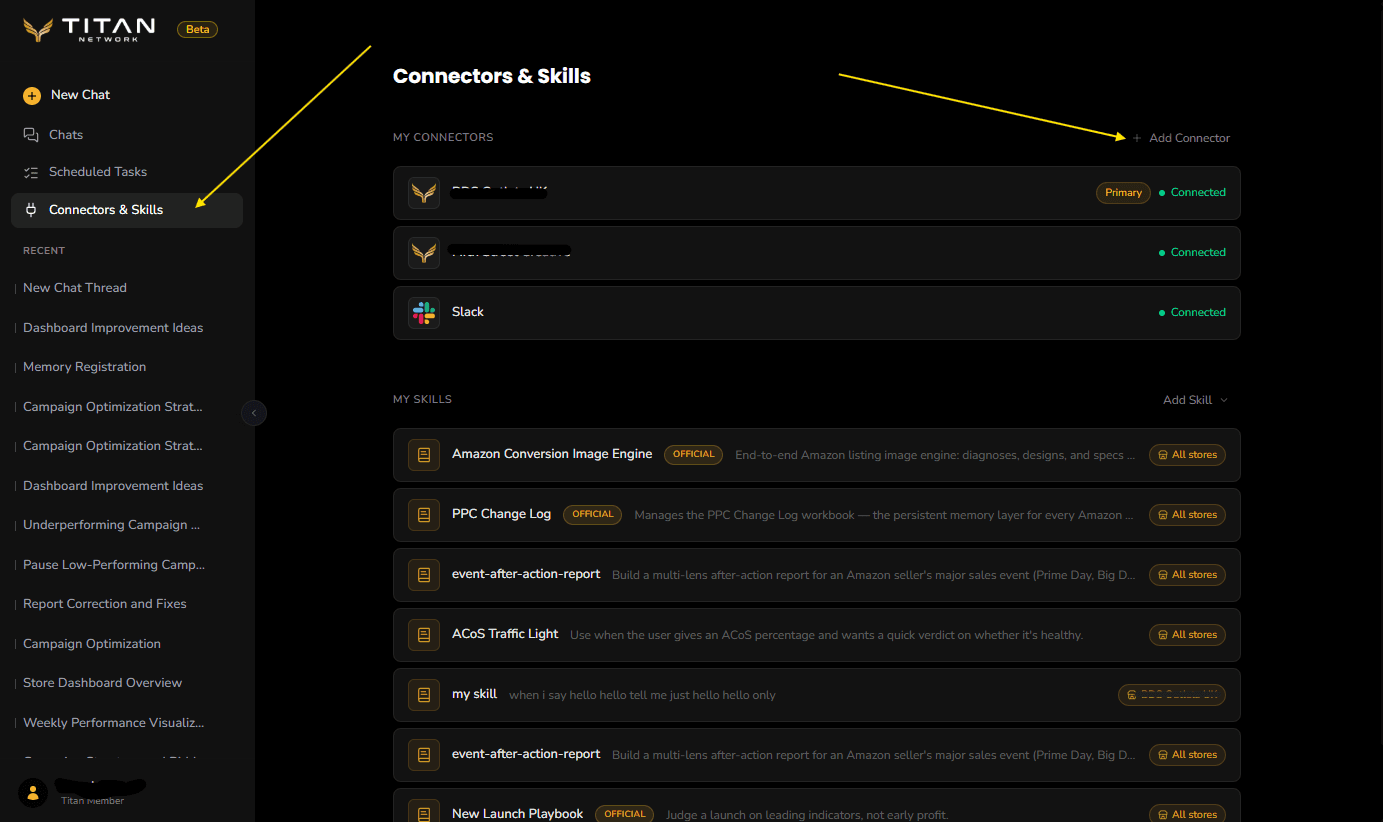
Open Connectors & Skills from the sidebar, press Add Connector, and choose Browse Connectors. Find Higgsfield in the list.
- 2
Add it
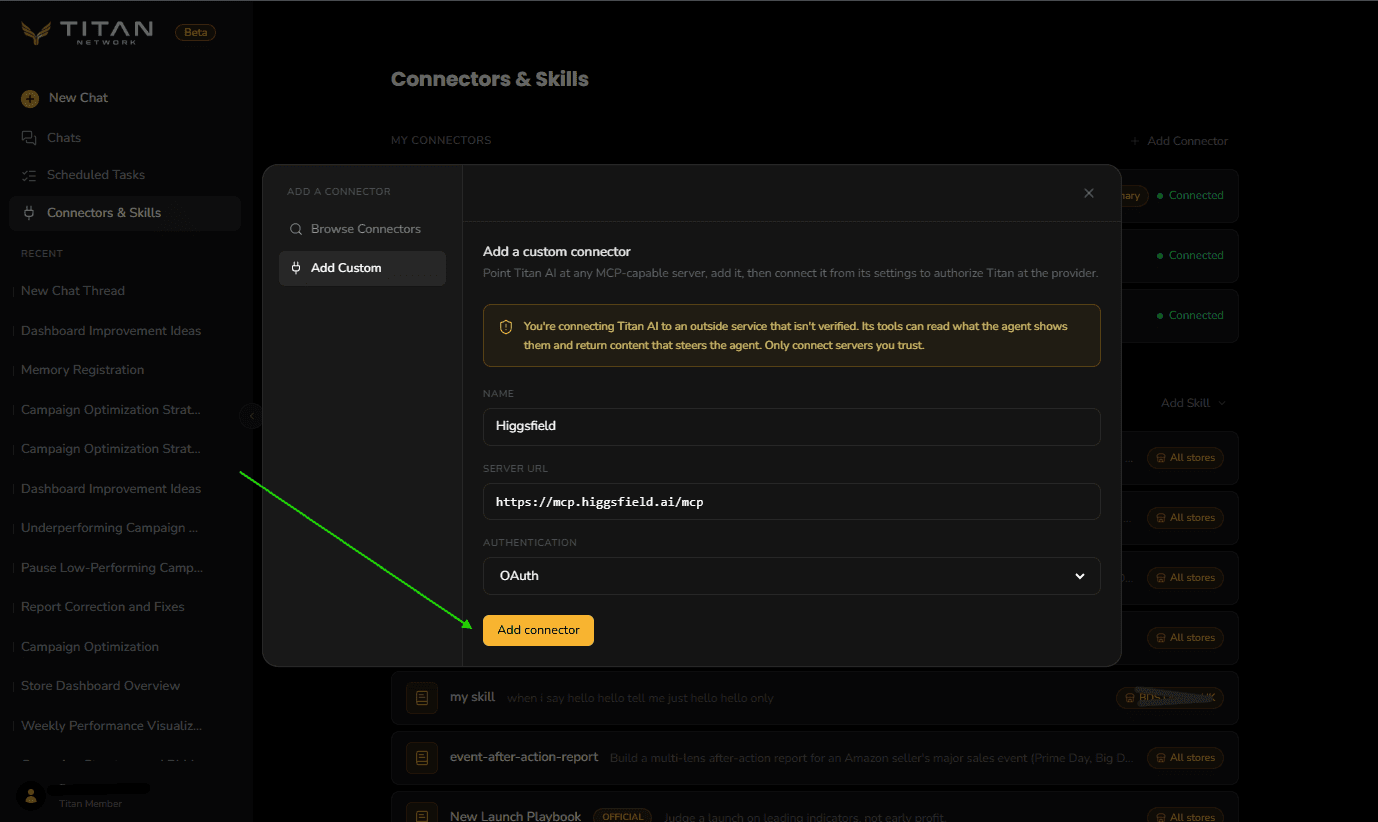
On the Higgsfield entry, press Connect. Titan AI fills in the details for you, so press Add connector.
- 3
Connect it
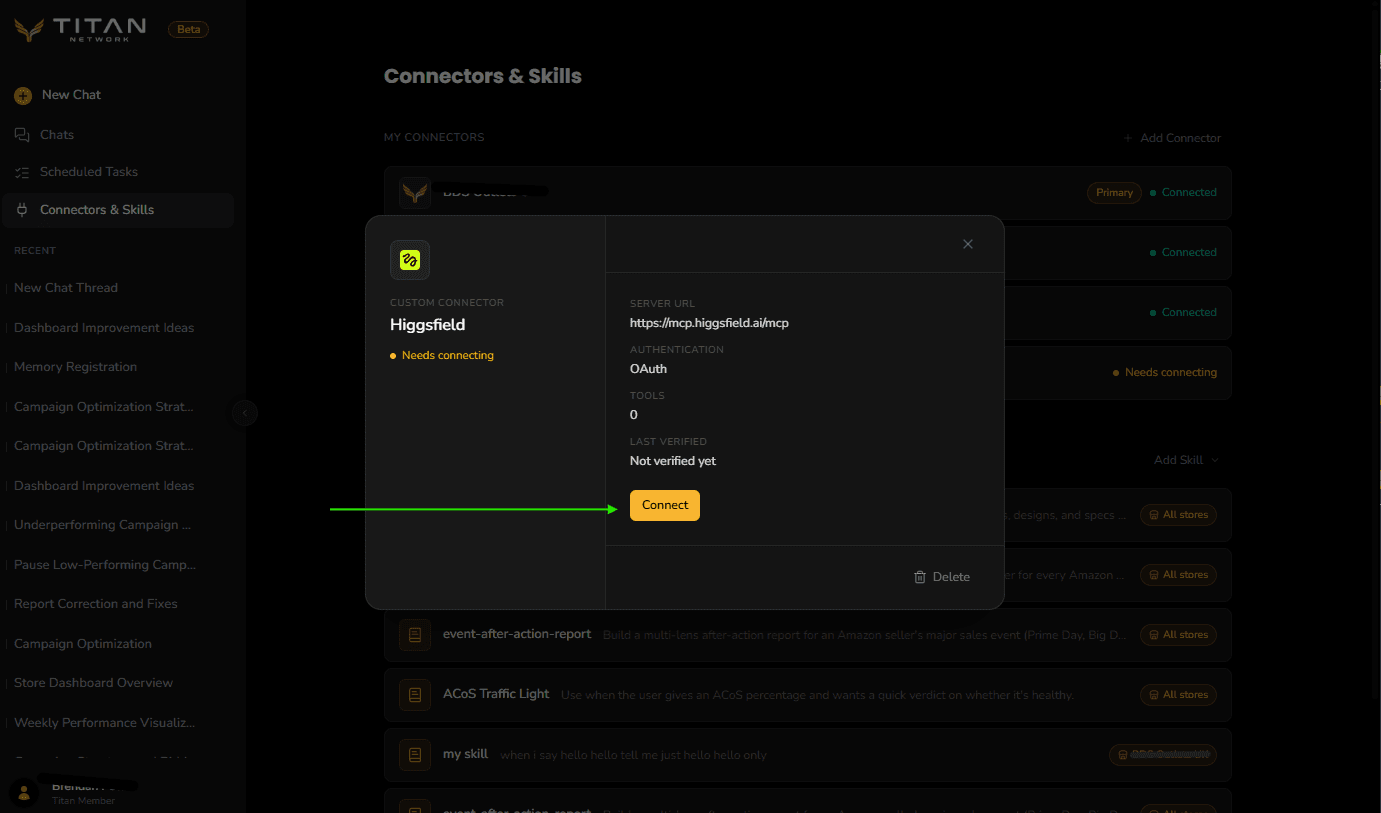
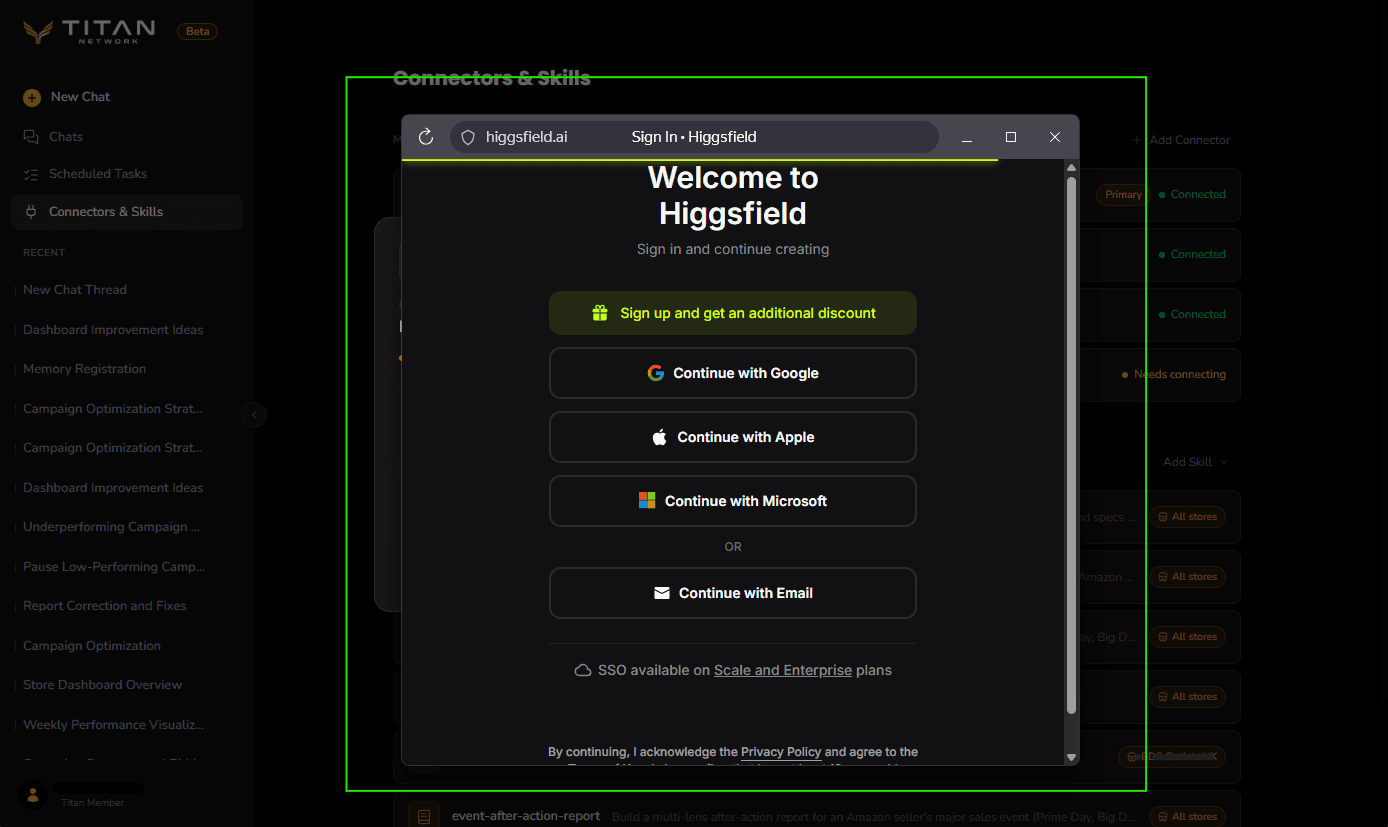
Higgsfield now shows Needs connecting under My Connectors. Click the row, then click Connect. This sends you to Higgsfield to sign in, or create a free account, and approve access for Titan AI.
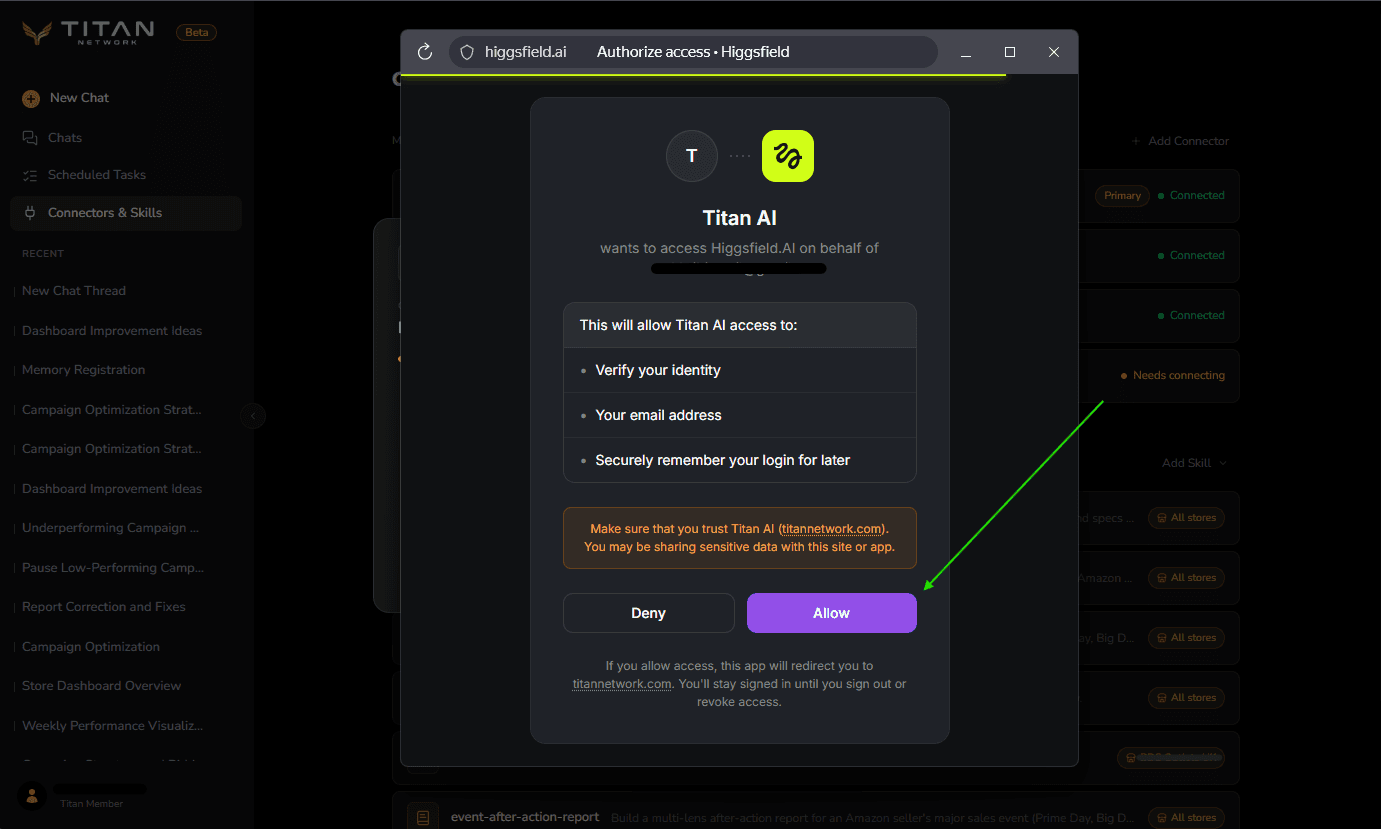
- 4
Confirm it connected
Back in Titan AI, the Higgsfield row shows Connected. If it still says Needs connecting, open it and click Connect again.
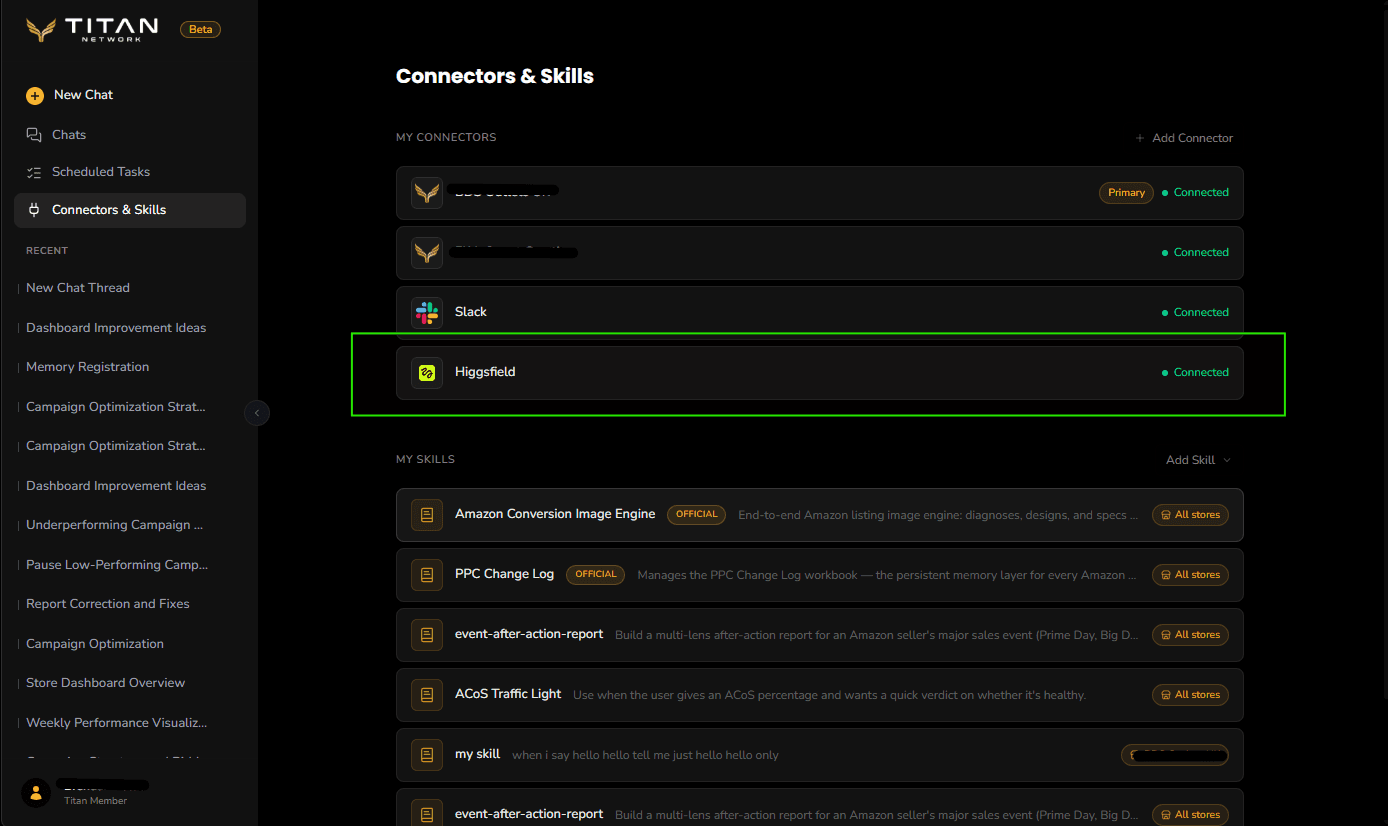
For the full connector walkthrough, see Add a connector.
Add the image skill
The image generation runs through an official skill called Amazon Conversion Image Engine. On the Connectors & Skills page, look under My Skills. If it is already there, marked Official, you are set. If not, click Add Skill and add it.
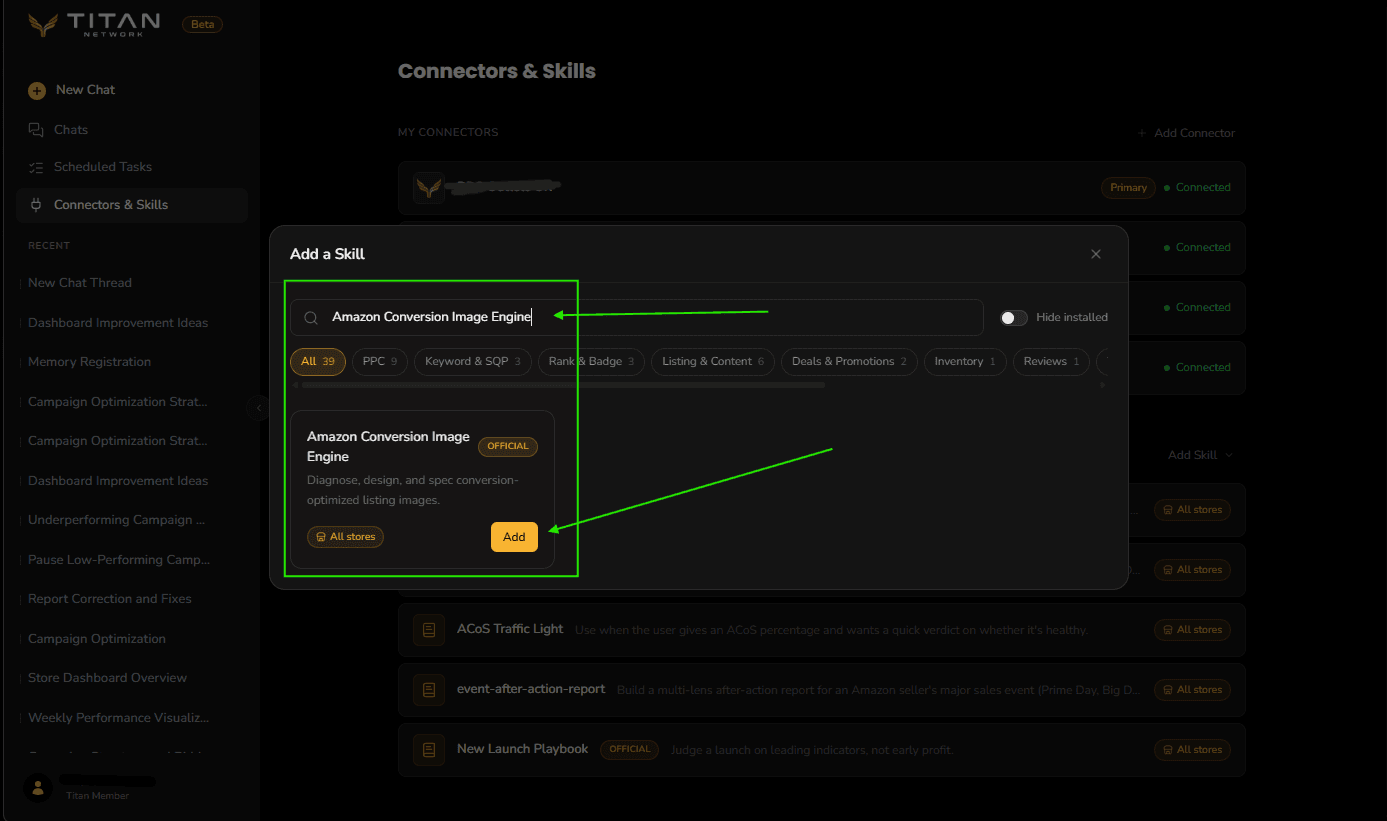
Generate an image
- 1
Start the skill
Open a new chat, attach your current main image with the plus (+) button under the chat box, then start the skill: type
/and pick Amazon Conversion Image Engine. Tell it what you are working on.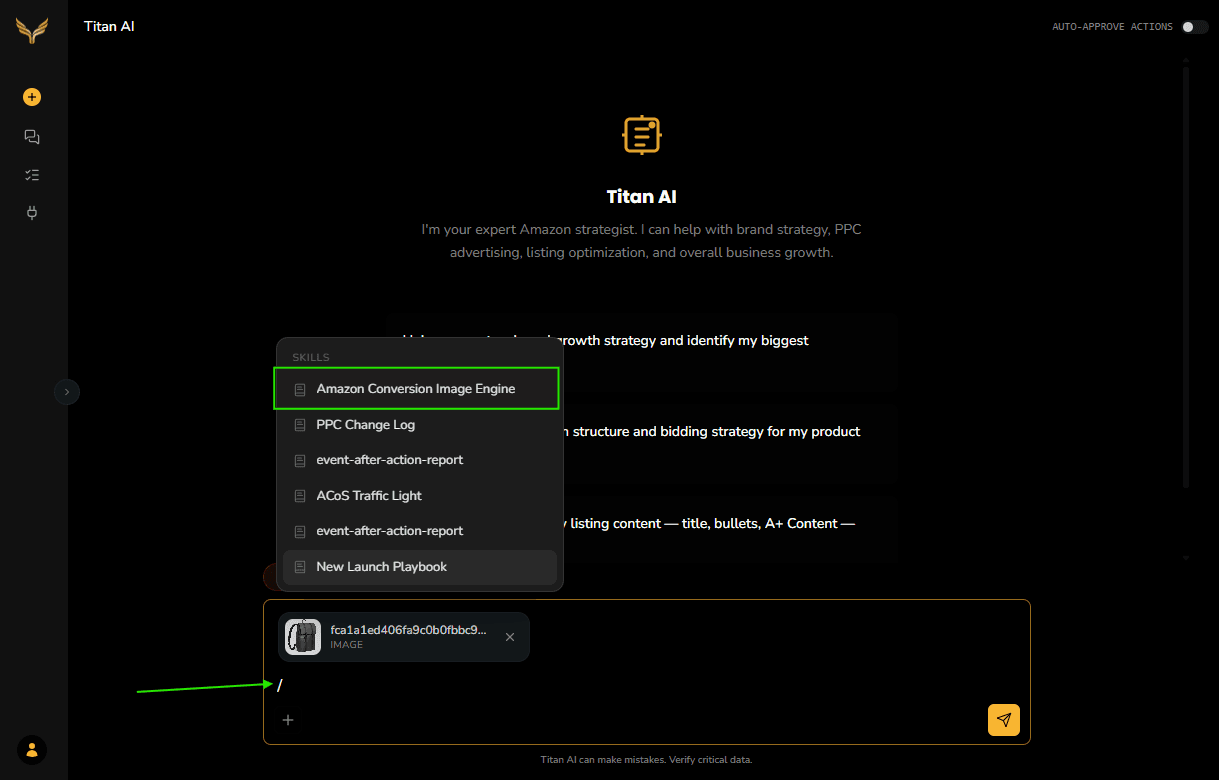
- 2
Attach your product photo
Add any raw or better product photos alongside your main image, again with the plus (+) button. Two or three photos from different angles give a much sharper result, because they help the render keep your product's real shape and label. It works from what you attach, not from a listing link, so it cannot pull the images off Amazon for you.
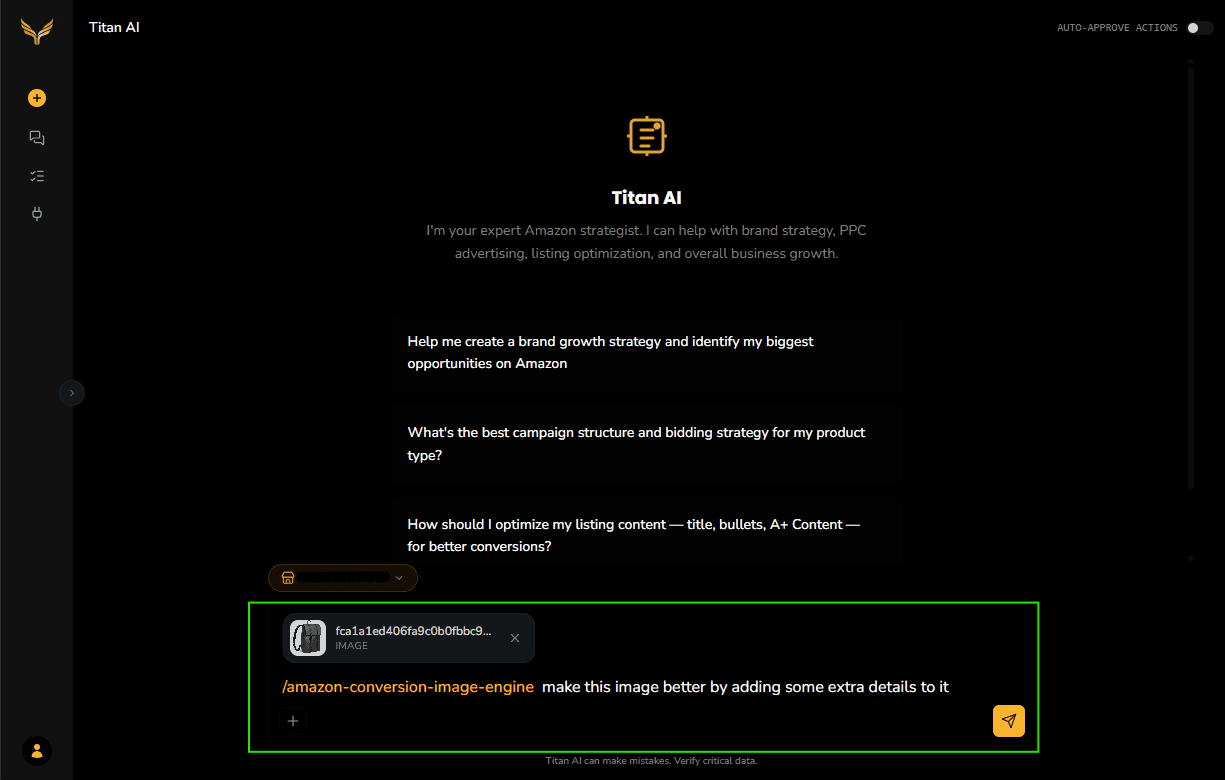
For an exact render of your real product, Higgsfield needs the photo in your own Higgsfield account and the media id it gives back: upload it there, wait for it to finish processing, then paste the id into the chat as
media_id: <that id>. The id is a long string of letters, numbers, and dashes, not a link, and if you already have that image in Higgsfield from an earlier generation you can give that id and skip the upload. Without a media id, a chat attachment on its own still generates, but the result is a labelled concept render rather than a faithful copy of your product. - 3
Approve the actions
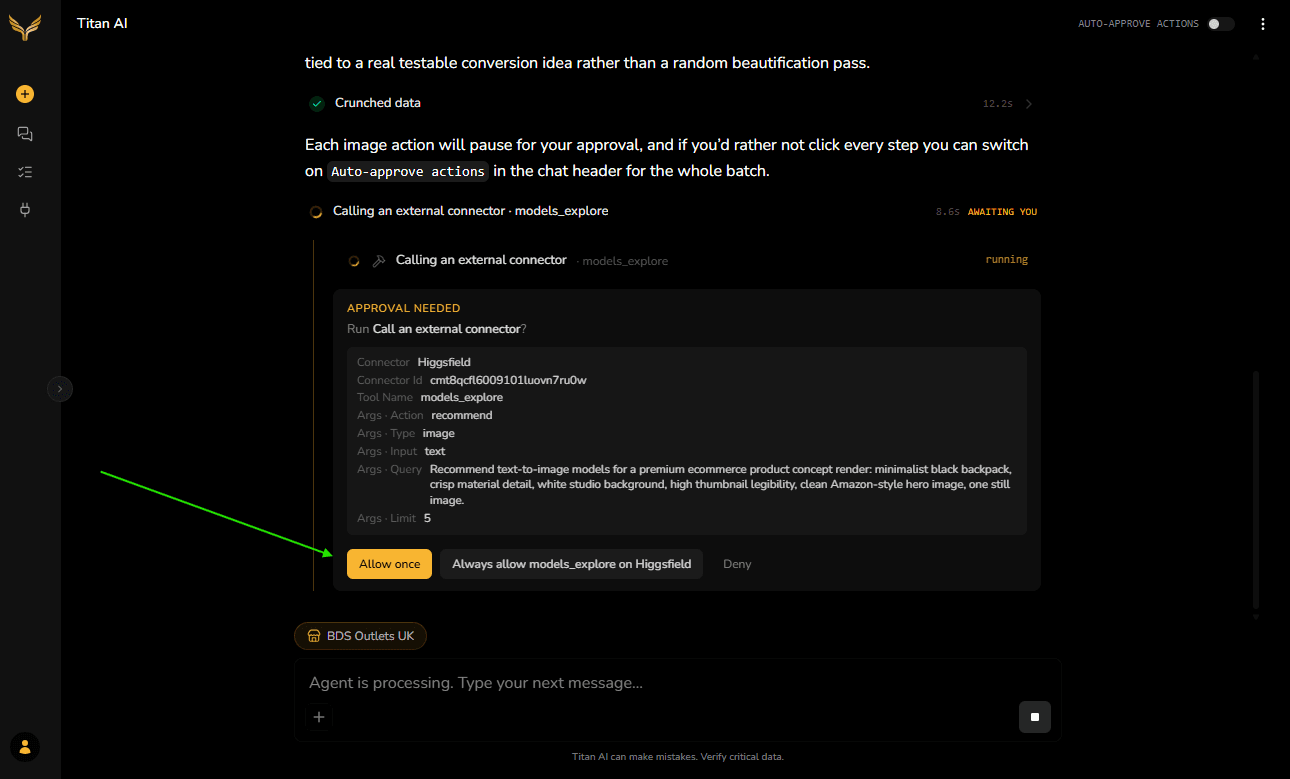
Titan AI asks you to approve each action it takes with Higgsfield. Click Allow once. To skip approving every step, turn on Auto-approve in the chat header.
- 4
See your image
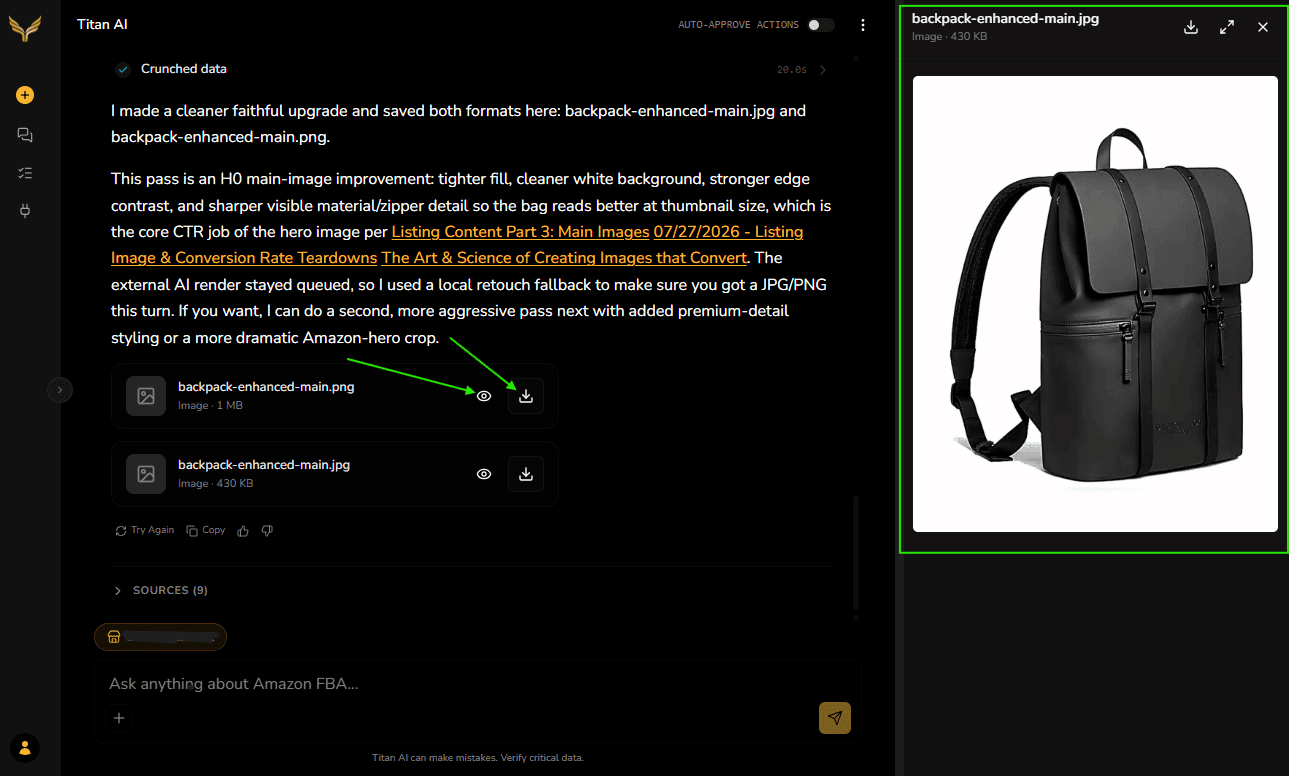
The generated image appears directly in the chat, rendered from the product photo you gave it. Titan AI checks that your packaging, logo, and label text still match your original before it hands the image over. You can ask for variations in plain language, for example a different background, angle, or style.
Each image or video runs on your own Higgsfield account and uses its credits, and video uses more. Auto-approve is not scoped to the chat you turned it on in: it stays on for every conversation in that browser tab until you reload the page, so a run you approved once can keep spending credits in the next chat. Reload, or switch it back off, when you are done.
Generate a video
- 1
Ask for a video
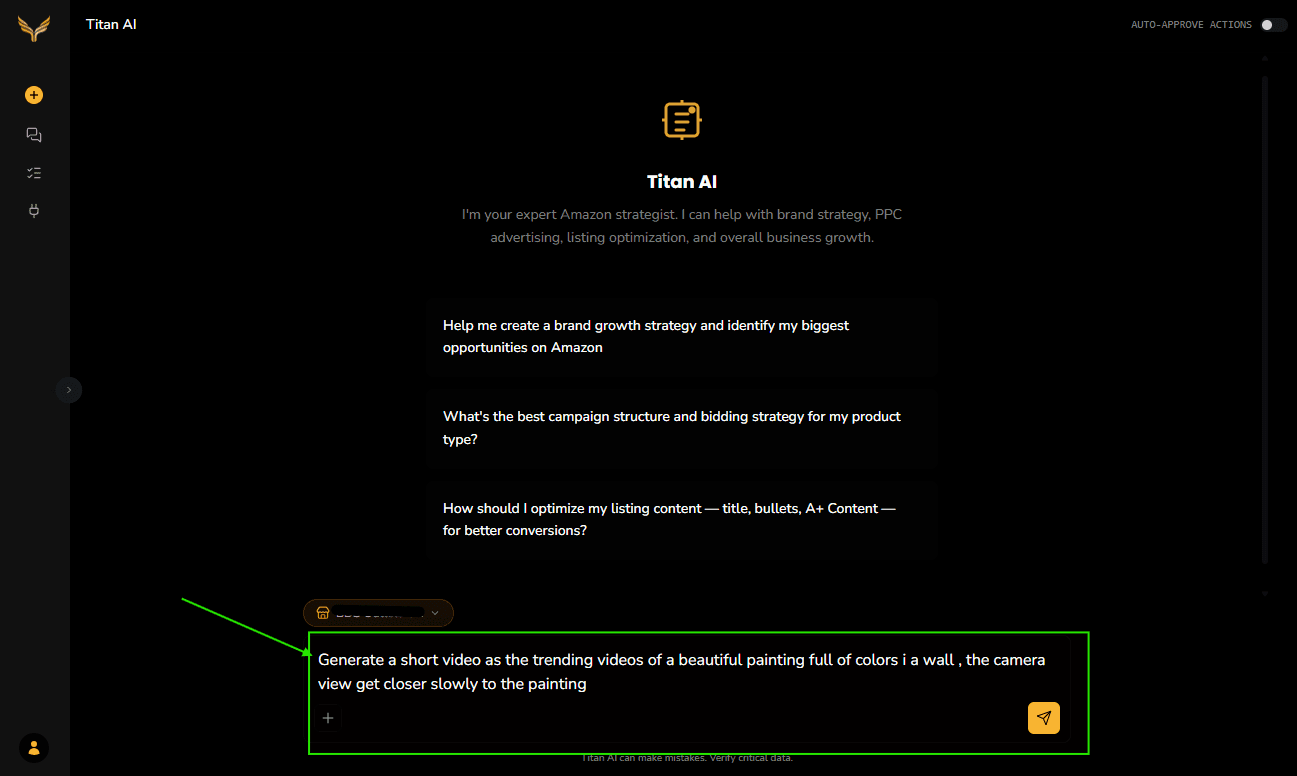
Open a new chat and ask Titan AI for a video from your brief, for example a short product clip in a trending style. Video runs through the Higgsfield connector directly, there is no separate skill to add. Say what the product is, the style or trend to follow, and the length; the clearer the brief, the closer the result.
- 2
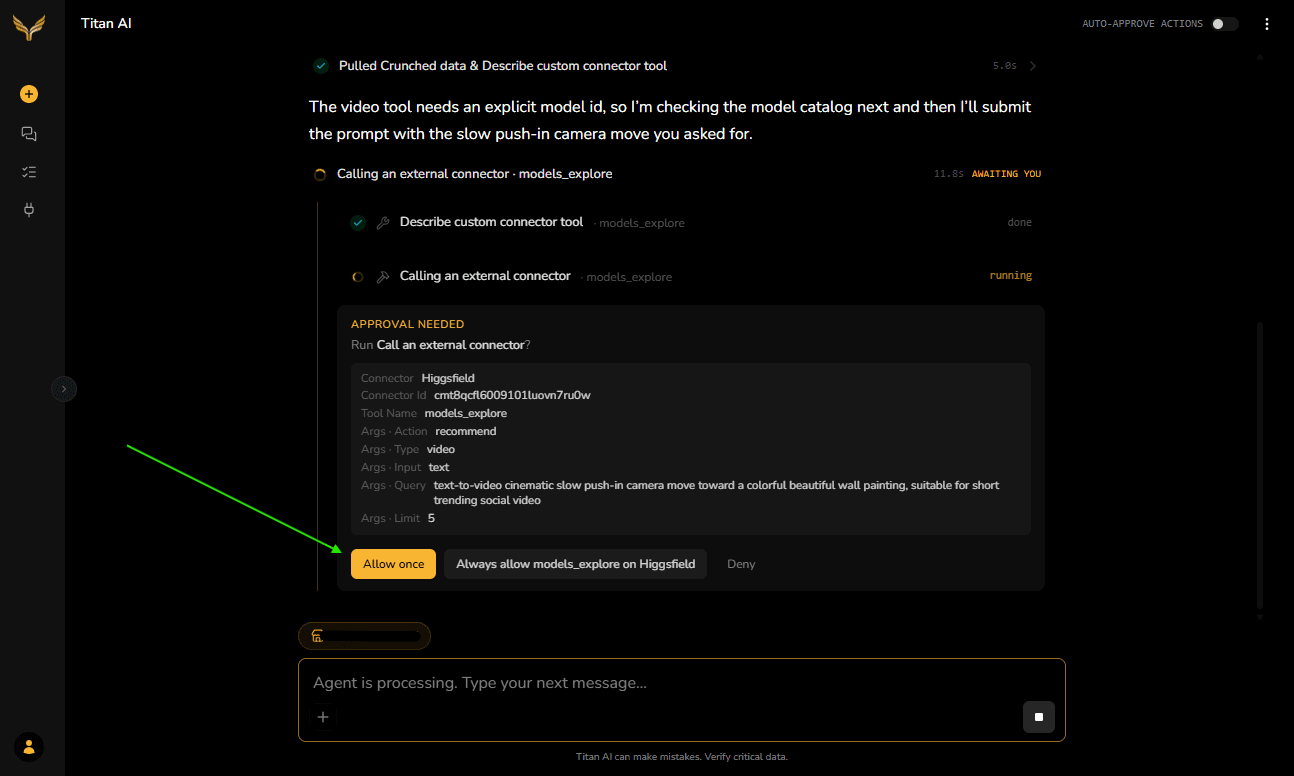
Approve the actions
Titan AI asks you to approve the video generation with Higgsfield. Click Allow once. Video costs more credits than an image, so watch your balance if Auto-approve is on.
- 3
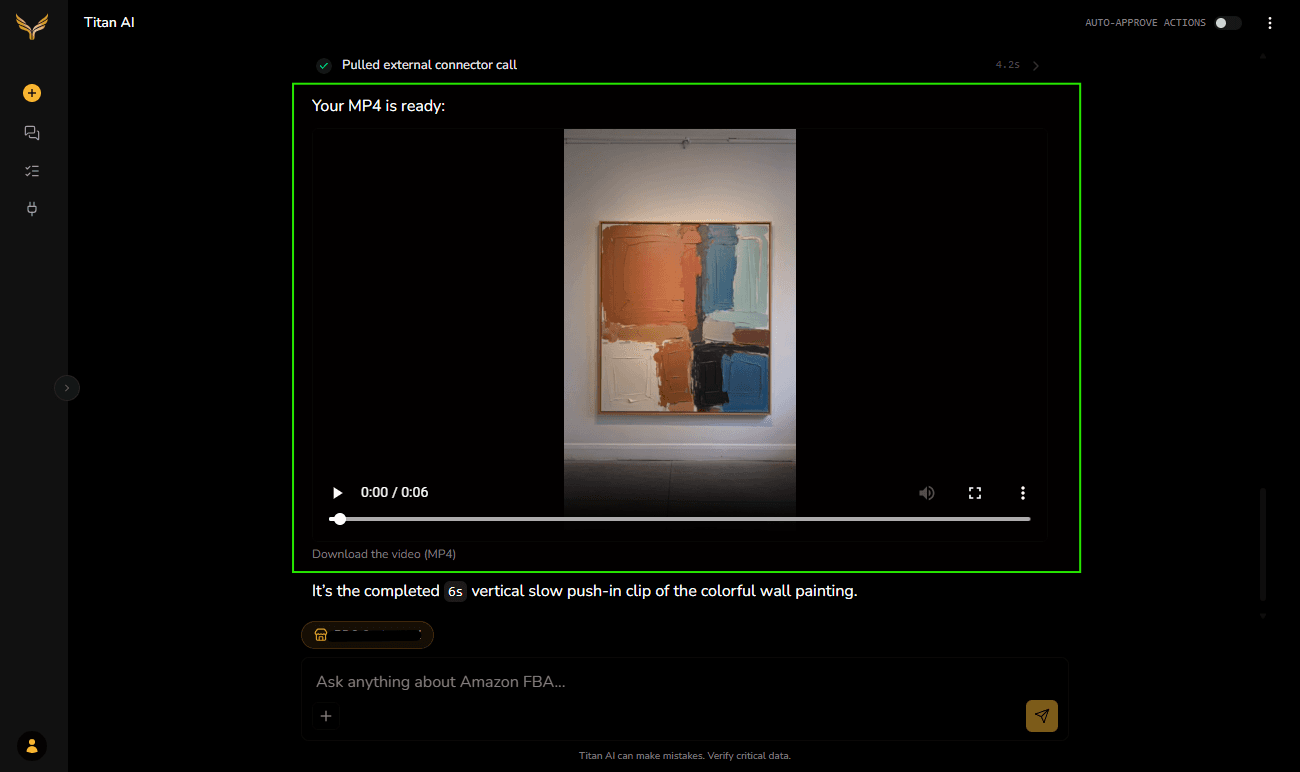
See your video
Video takes longer than an image, so give it a little time. When it is ready it plays directly in the chat.
What to expect
Give the skill a clear photo and a clear brief. Say what you want for the background, angle, lighting, and style, and it renders your product into that scene.
If you have no product photo to hand, or you are asking for something that is not your product, for example a plain background plate or a lifestyle scene, the skill can still generate from a description alone. It labels that result a concept render, not a faithful copy of your product, so you know it is a starting point rather than a listing-ready image. To render your actual product, come back with the photo and its media id.
When the skill needs competitor examples or product details, it asks you to paste them in.
Available image and video models depend on your Higgsfield plan. On a free Higgsfield account, some higher-end models may be limited, and video models are often plan-gated. If a model is unavailable, Titan AI switches to one that is available on your plan and tells you which one it used.
Troubleshooting
The connector still says Needs connecting. Open the Higgsfield row and click Connect again, or remove it and add it again from Browse Connectors. The sign-in is a one-time step, and re-adding gives you a fresh attempt.
You are approving every step. Turn on Auto-approve in the chat header. You approve once and the rest of the run continues.
You pasted a link instead of a media id. The generation needs the media id Higgsfield gives you after the photo finishes processing, not the image link. The id is a long string of letters, numbers, and dashes, and it sits near the link in Higgsfield.
Nothing was generated, or it timed out. Try again. If it keeps failing on a specific style, that image model may require a paid Higgsfield plan. A simpler description or a different style usually works.
Video is taking a long time, or did not appear. Video takes longer than an image to render. Give it time; if it still does not appear, the video model may need a paid Higgsfield plan. Try a shorter clip or a different style.
Still stuck? Submit a ticket and we will take a look.