 Titan AI
 Approve what Titan AI changes
How a proposed change is put to you, what the card does and does not show, and where approval is skipped.
Titan AI reads your account freely. Changing it is different: almost every change stops and asks you first, and you can say no.
What a proposed change looks like
When Titan AI wants to change something, it shows you a card instead of doing it. The card names the change and carries your three answers.
The card usually does not show the values it is about to send. It names the action, and the activity row above it often names the target, such as a campaign or an ASIN. But not always: a budget change can read "Update SP campaign" with no campaign named and no new figure shown.
Some cards do list the values, because there the values are the change. Work Titan AI hands to a sub-task is listed out that way, up to around two dozen lines. Creating or updating a scheduled task or a skill goes further and lets you edit the fields before you approve, so you can fix a schedule or reword a prompt on the spot. Deleting one has nothing to edit.
When the card does not tell you enough, deny it and ask. You can type a question while a card is waiting, but it will not send until the turn has finished, and the turn is waiting on your answer. So deny, let Titan AI wrap up, then ask which campaign and what figure it meant and have it propose again. Denying costs you nothing: it changes nothing and Titan AI carries on.
Mind where you click while you do that. With your cursor in the message box the keyboard shortcuts below are inert, which is what makes it safe to type there. Click anywhere else on the page, with a single card waiting, and Enter approves the change.
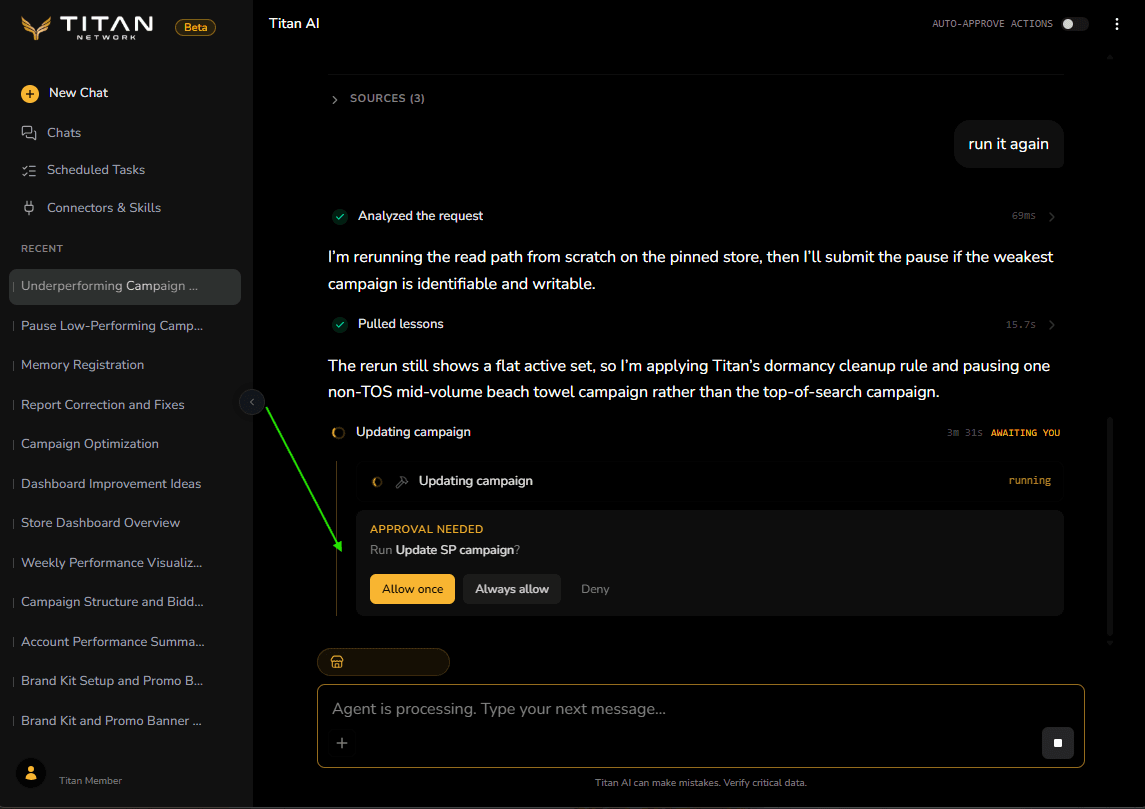
You have three answers:
| Answer | What happens |
|---|---|
| Allow once | This one change goes through. The next one asks again. |
| Always allow | This kind of change stops asking for the rest of this conversation, and it stays granted if you close the page and come back later. It does not carry over to a new chat. |
| Deny | Nothing happens. Titan AI carries on and can propose something else. |
Always allow is worth using deliberately, because it covers that kind of change for the rest of the conversation rather than the one in front of you. Sending to a connected app is the case to think twice about: granting it once means every later send in that chat goes without asking.
There is a second, broader control: the Auto-approve actions switch in the chat header. It covers every change rather than one kind, and it clears when you reload, where an Always allow grant does not.
It is not scoped to the chat you turned it on in. It stays on for every conversation in that browser tab until you reload, so switching to another chat does not put the approvals back. Reload, or switch it off, when you are done.
Approving a change makes it happen. Nothing has an undo button: putting a change back means making another change and approving that too, and a few cannot be reversed at all. Most changes go to your live Amazon advertising; some change Titan's own records instead, and each one says which.
What is permanent and how to reverse covers which changes you can walk back and which you cannot.
If you have blocked a kind of change, it stays blocked. Titan AI will not offer it in chat, and a scheduled task will not carry it out either.
What does not stop to ask you
Chat asks every time until you tell it not to, whether that is an Always allow on one kind of change or the Auto-approve actions switch on all of them. Three things sit outside that, and they all catch people out.
Marking alerts as read happens immediately. There is no card, because the only thing it changes is whether an alert looks read.
A report you ask for on a schedule is set up immediately. Ask for a one-off export and you get a file. Ask for the same thing on any repeat, daily through to yearly, and Titan AI sets up a repeating report there and then, with no card. Be deliberate about that one: once it exists, Titan AI cannot list it, change it or remove it for you. If you only want the numbers once, say so.
A scheduled task acts on its own when it runs. Creating the task still asks: you get the editable card described above. What you inherit with it is auto-approve already switched on, so from then on the task applies its changes while you are not there, over and over. Decide that per task rather than by habit. Creating a scheduled task covers the toggle and what each setting does on a run.
Answer a card from the keyboard
When a single change card is waiting on you:
- Enter allows the change once.
- Ctrl+Enter, or Cmd+Enter on a Mac, is Always allow.
- Escape denies.
All three bind only while exactly one card is answerable. If Titan AI has proposed several at once, use the buttons, so no keystroke lands on a card you were not reading. They are also all inert while your cursor is in the message box, so if Escape seems to do nothing, click out of it first.
One card works differently. A scheduled task or skill card takes Escape only, and that Escape works even when something else is waiting, so answer the rest of that card with the buttons.
If nothing answers a proposal, it expires on its own rather than sitting there as a live permission. Walking away is safe.