 Titan AI
 Put your brand on what Titan AI makes
Save your logo, colors and type once, and everything Titan AI creates comes out looking like your brand.
When Titan AI makes something visual for you, it can either invent a look or use yours. A brand kit is how you make it use yours, once, instead of describing your colors in every request.
Set up your first kit
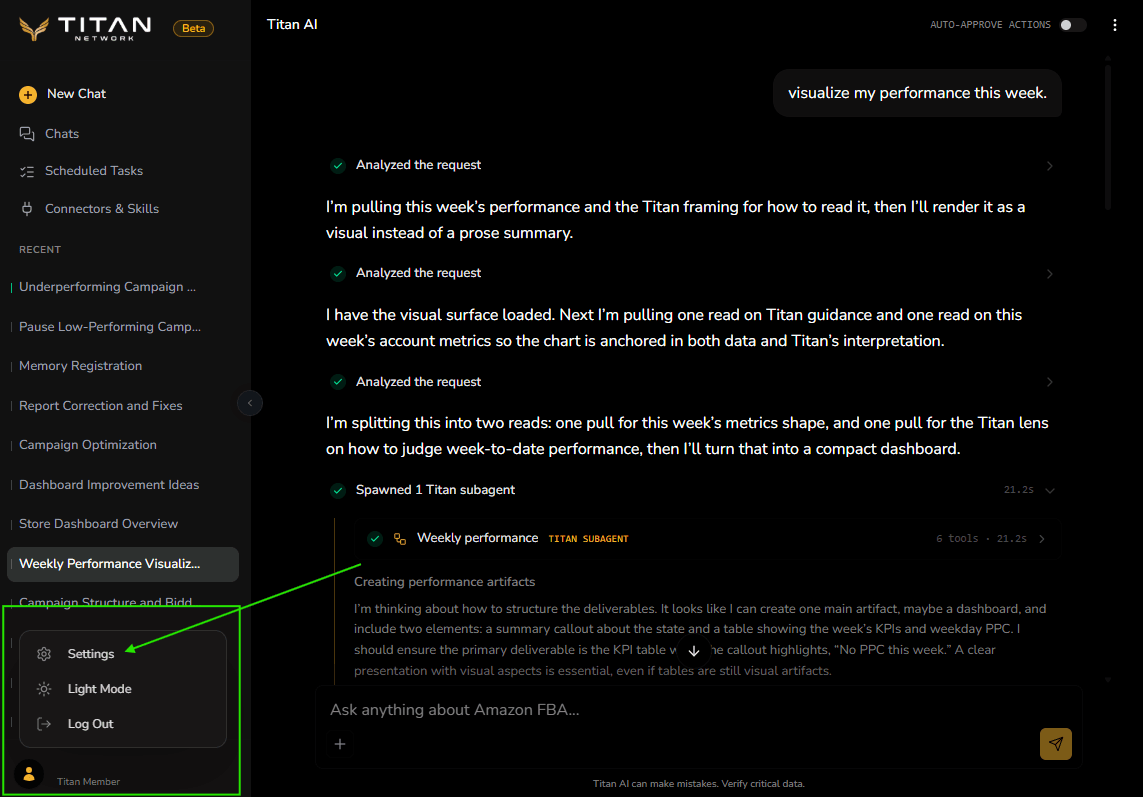
Brand kits live in Settings, under Brand Kit. A kit can hold a logo, colors and fonts, and you need only one of the three to save it, so you can start with whatever you have to hand and fill in the rest later.
- 1
Name the kit
The label is for you, not for Titan AI. If you only run one brand, its name is fine. If you run several, name them the way you think about them, like a main brand and a sub-brand.
- 2
Add your logo
A transparent PNG or SVG works on any background, and a square one places best. You can zoom and reposition it after uploading, so an awkward crop is not a reason to go and re-export it first.
- 3
Set your colors
The first color is your primary and is marked with a star. Add the rest in the order you actually use them, by picking a swatch or typing a hex value. Titan AI keeps what it generates inside these colors.
- 4
Choose your type
Pick from the font library, where each name is shown in its real typeface, or upload your brand's own font file. Whatever you choose is what Titan AI matches in what it makes.
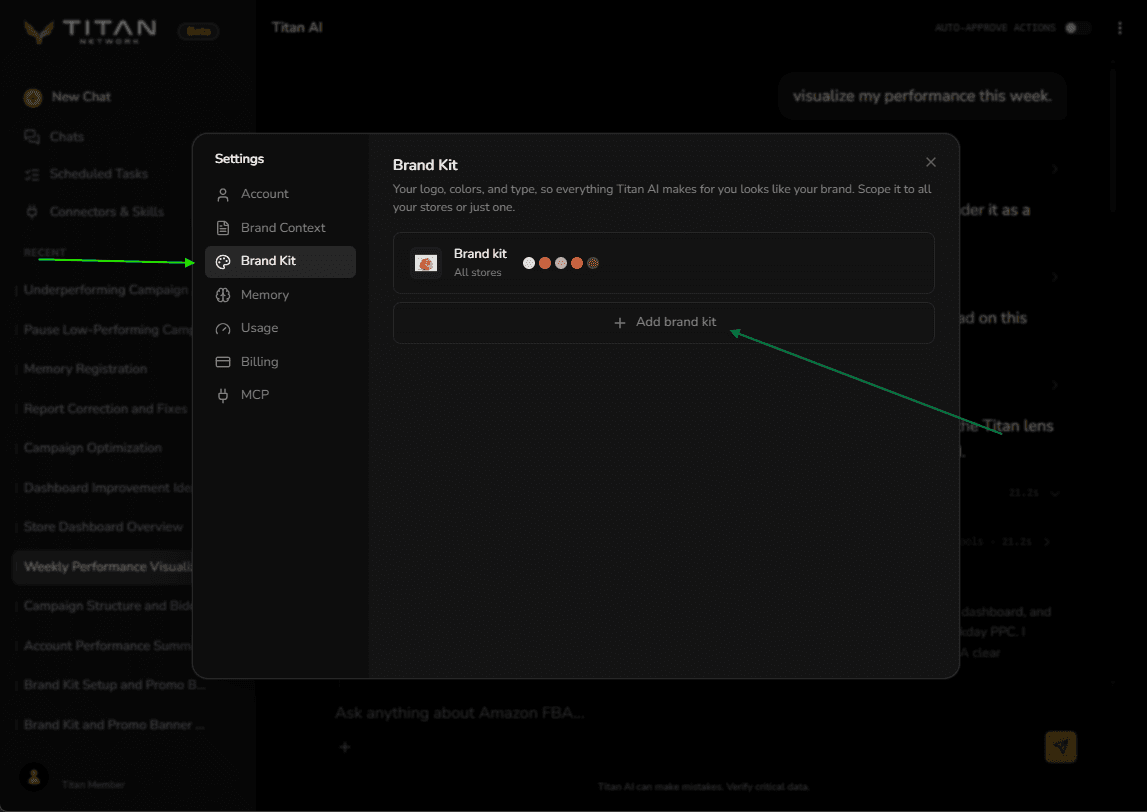
The preview updates as you build, and a Card / In use toggle above it switches between the kit on its own and the kit applied to something Titan AI would make. The preview follows whichever theme you are using, so to check a logo that only works on white, switch your own theme and look again.
Point a kit at the right store
Applies to decides which of your stores a kit is used for. Leave it on all stores if you run one brand, and scope it per store if you run more than one, so Titan AI does not put your main brand's colors on a sub-brand's images.