 Titan AI
 Add a connector
Connect another store, or send the work Titan AI does to where your team already reads it.
Connectors do two jobs. They add more Amazon stores so Titan AI can work across your whole business, and they put its output where you already work.
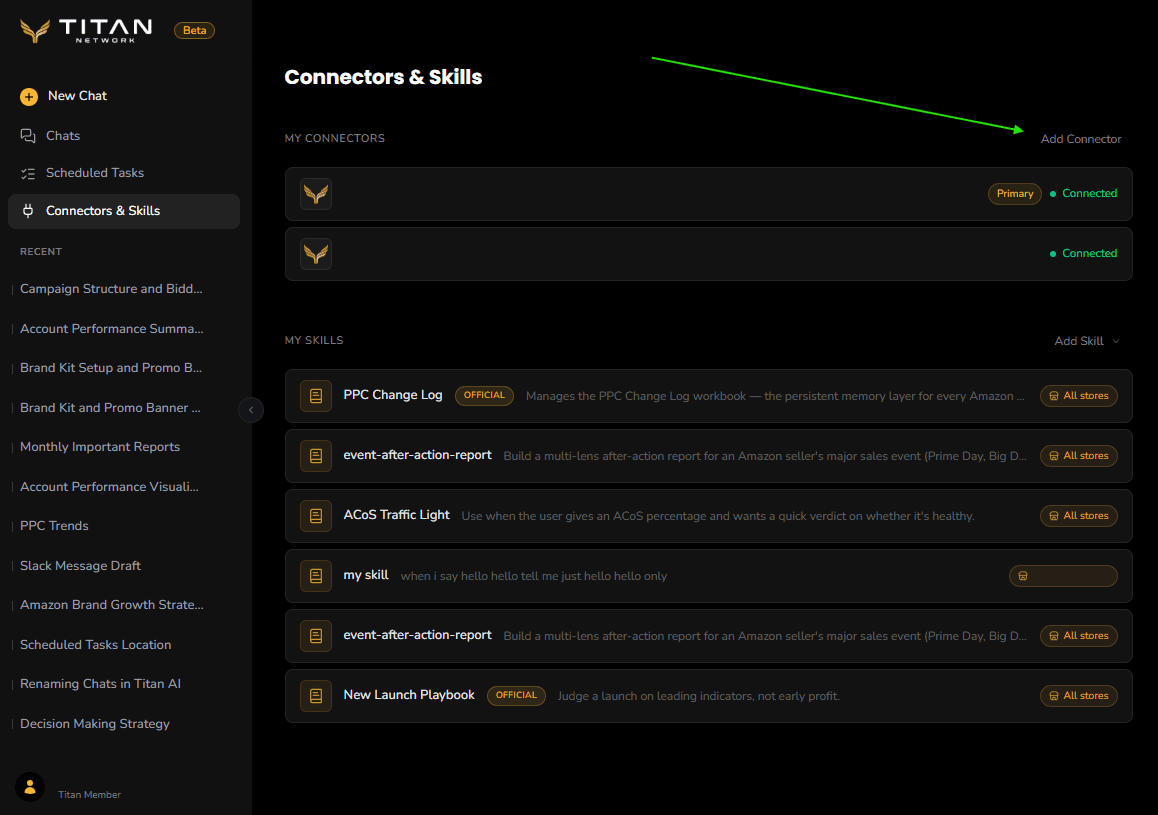
Connectors live on the Connectors & Skills page, under My Connectors.
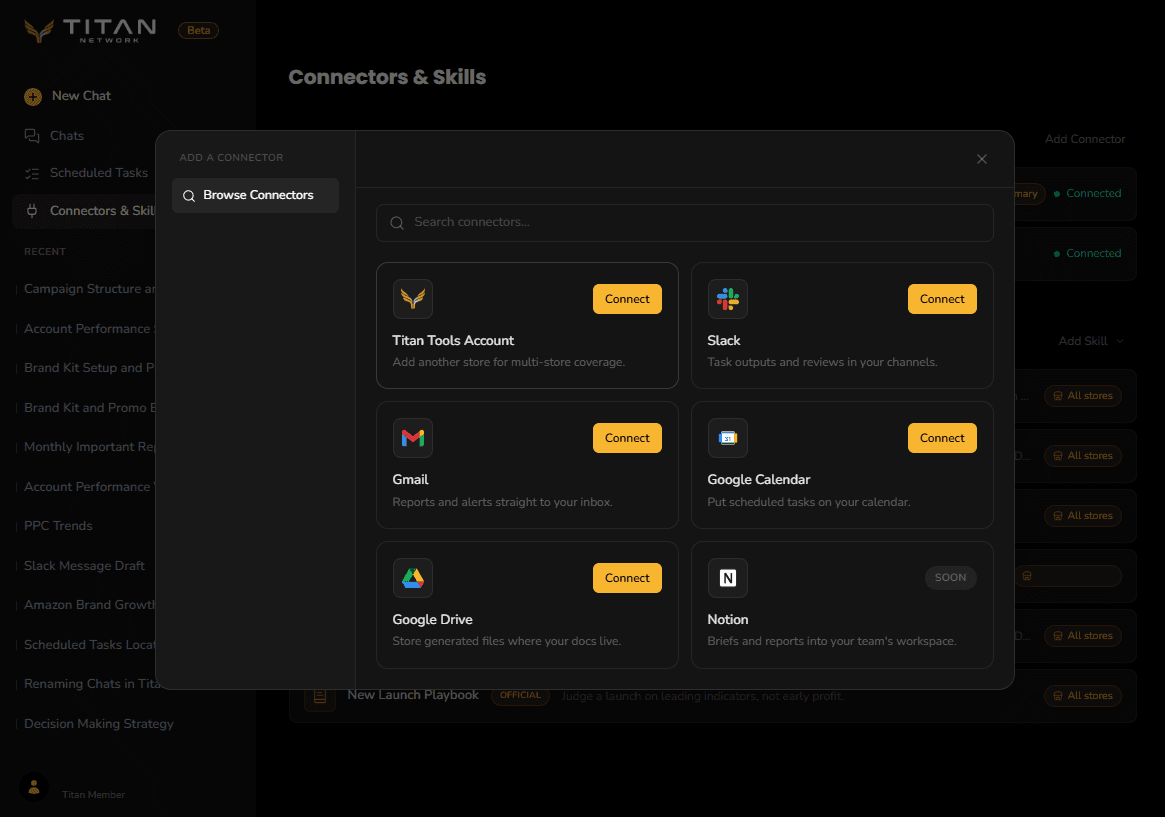
Browse the catalogue
Press Add Connector to open the catalogue.

Add another store for multi-store coverage.

Task outputs and reviews in your channels.

One connector for 250+ tools, Gmail, Sheets, Shopify and more.

Generate images and video from your briefs.

Reports and alerts straight to your inbox.
Put scheduled tasks on your calendar.

Store generated files where your docs live.

Briefs and reports into your team's workspace.
Each entry shows either Connect or Soon, and which one you see can depend on your account. Titan Tools Account, Slack, Composio and Higgsfield are available to everyone, and the last three each have a page of their own walking through what they do and how to set them up. The ones marked coming soon are not available yet.
Higgsfield is a third-party image and video generation service, not a Titan product. You connect it by signing in to your own Higgsfield account, which is the OAuth path described below, and Titan AI sends it the briefs you ask it to work from.
Generations are billed by Higgsfield, on your account there. No Titan AI credit is spent on them, and Titan AI cannot see or control what a generation costs you. That is one of the reasons a generation asks you first.
If a connector you want says Soon, there is nothing to do and nothing to request. It appears as Connect when it is ready for your account.
Adding another store
Connecting a Titan Tools Account is how you get a second, third or tenth store in front of Titan AI. Each scheduled task and each skill is then scoped to the stores you choose, so a task written for one store does not silently start acting on another.
Custom connectors
Titan AI can also point at your own MCP server, so a system you run yourself becomes something it can use. Press Add Connector, then the Add Custom tab.
- 1
Name it
Whatever you want to see in your own list, for example "My MCP server". This is the name that appears on approval cards later, so pick something you will recognise in the middle of a conversation.
- 2
Give it a Server URL
The address of your MCP server, for example
https://example.com/mcp. It must start withhttps://. Titan AI will not accept a plainhttp://address, because your account data would cross the network unencrypted. - 3
Choose how it authenticates
None for a server that needs no credential, Bearer token for a single secret, Custom header to send the secret under
authorization,x-api-keyorx-auth-token, or OAuth to sign in at the provider instead of pasting a secret at all.
The last step depends on which of those you picked, and the two paths genuinely differ.
None, Bearer token or Custom header. Press Test connection. Titan AI calls the server and lists what it found, and Add stays disabled until that probe succeeds, so a server that cannot be reached or that refuses the credential is caught here rather than in the middle of a task.
OAuth. There is no Test connection button, because there is nothing to
probe until you have authorised. A name and a valid https:// address are the
whole gate, so Add is available straight away. Adding it is not the end
though: the connector then sits as Needs connecting until you open it and
connect it, which sends you to the provider to sign in and approve Titan AI.
Until you do that it has no tools and cannot be used.
Connecting Higgsfield from the catalogue fills the form in for you and follows exactly the OAuth route above, so expect to sign in at Higgsfield and expect the connector to read Needs connecting until you have.
Connecting Composio from the catalogue fills the form in for you and follows exactly the OAuth route above, so expect to sign in at Composio and expect the connector to read Needs connecting until you have. There is no key to paste and no address to look up. See Composio for the full walkthrough.
Once it is connected, anything it does that writes, spends credit on the far side, or otherwise changes something raises an approval card naming the connector and the tool, and you answer one call at a time.
Some things do not raise a card, and they are worth knowing:
- Titan AI reads the list of tools a connector offers, and the shape of one, without asking. That is how it knows what it is allowed to call, and it changes nothing on your server.
- The auto-approve switch covers connector calls like every other write, and it is not scoped to the chat you turned it on in. It stays on for every conversation in that browser tab until you reload the page, so a connector you approved once in one chat can keep acting unasked in the next one. Reload, or switch it back off, when you are done.
- A connector's approval card also offers Always allow. It covers exactly what that card names, and it lasts for the conversation you granted it in. It survives reloading the page, but a new chat starts asking again.
- Once you hold one of those grants on a connector, a fixed list of read-only calls on that same connector stops asking for the rest of that conversation, such as checking whether a job has finished or listing what you have already generated. On the connectors in our catalogue those calls only read and never change anything. On a custom connector you added yourself, the list is matched on the tool names your own server reports, so it is only as accurate as that server is. Choosing Allow once does not do this, so if you keep being asked, that is why.
Twelve is the limit, and Add refuses the thirteenth with a message saying so rather than failing quietly. Every connector you added through Add Custom counts, including Higgsfield and Composio, because connecting those from the catalogue fills in the same form. Switching one off does not free a slot: remove one you no longer use, then add the new one. Titan AI also reads the tools of at most twelve connectors in a conversation, which is why the two numbers match.
Titan AI does not control what your server returns or what it does with what it is sent. Point it at services you run or trust, give it the narrowest credential that works, and read the first few approval cards rather than waving them through.
Manage what you have connected
Everything you have connected appears under My Connectors, separately from the catalogue, with its current state. From there you can disconnect or reconnect something.
If a connection stops working, it is almost always an expired authorisation rather than a fault. Reconnect it and it picks up where it left off. Titan AI refreshes these in the background and only asks you to reconnect when the refresh itself is refused.
Deleting a custom connector
Deleting a custom connector that signs in with OAuth removes it from Titan AI and asks the sign-in provider to revoke the access as well. Not every provider offers a way to do that, so the message you get after deleting says which happened:
- Deleted, and access revoked at the provider. The token Titan AI held is dead. There is nothing left to do.
- Deleted, but the provider offers no way to revoke it from here. Your connector is gone and Titan AI cannot use the token again, but the provider still treats it as valid until it expires on its own. To end it now, open that provider's own list of connected apps and remove Titan AI from it.
- Deleted, but the revocation did not go through. Same position as above, for a different reason: the provider could not be reached, refused the request, or the connection was not in a state we could revoke from. Removing Titan AI from the provider's connected-apps list is the way to be sure.
Deleting always succeeds locally. A provider being slow, down, or unwilling never leaves you stuck with a connector you cannot remove.